Other Operations in SDK
Last Receipt functionality
It is also possible to request the receipt for the last transaction performed by CM POS Payments terminal application. This can be used to retrieve a copy of the last receipt received on Partner application, but also to retrieve the receipt of the last transaction even if the result did not reach your application.
This is the flow for requesting the receipt of the previous transaction:
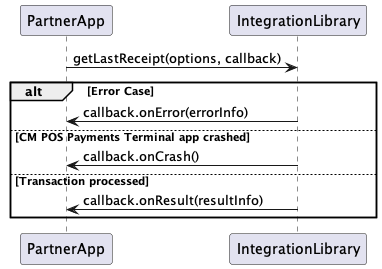
Request for the last receipt
val lastReceiptOptions = LastReceiptOptions(true)
paymentService.getLastReceipt(options, receiptCallback)
lastReceiptOptions: is an object containing the options for the operation:
val isShowReceipt: Boolean
You can select whether to show the receipt in CM POS Payments Terminal application or not by setting that attribute to true (receipt shown in terminal app) or false (receipt not shown in the Terminal application).
receiptCallback is a ReceiptCallback object that will be used by the CM Payments Android POS integration library to call Partner application back when the result of the operation and the receipt (if any) are received from the gateway.
fun onResult(data : LastReceiptResultData)
fun onError (error : ErrorCode)
fun onCrash ()
receiptCallback object must implement ReceiptCallback interface which means that it needs to implement the onResult, onError and onCrash methods (same as other call-back objects) data is an object of class LastReceiptResultData which has the following attribute
val receiptData : ReceiptData
This receiptData is the same as the receipt received on the transaction operations and contains the receipt received from the gateway.
If anything goes wrong in the call to the gateway, method onError will be triggered with the appropriate information, same as with the other functionality on the CM POS Payments Library.
Day totals functionality
CM POS Payments also provides integrators with the possibility to request the total amount money handled by the device in one day. We call that the Day totals of the terminal.
This is the flow for the get Terminal day totals functionality.
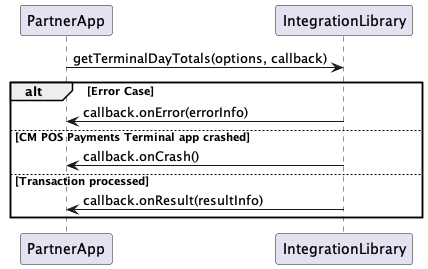
Partners can make use of that functionality by calling the day totals operation on the library service:
val dayTotalsOptions = DayTotalsOptions(true)
dayTotalsOptions.setFrom("10:00")
paymentService.getTerminalDayTotals(dayTotalsOptions, receiptCallback)
dayTotalsOptions is an object containing the options for the operation:
val isShowReceipt: Boolean
var from : String? = null
Same as with the last receipt functionality, you can select whether to show the receipt in the Terminal application or not. You can also select the hour of the present day from which the day totals will be calculated. If Partner application does not set that parameter, terminal will take 00:00 as the default hour and the day totals will be calculated from that time to the current time of the day in which the request is submitted.
receiptCallback is the same call-back that must be implemented for the last receipt functionality (see Last Receipt functionality chapter)
Request Info functionality
CM POS Payments Terminal also provides this functionality to retrieve some useful information for partners. Terminal is configured on a merchant store on the gateway with some information (like the store name, address, language of the store, currency to use, …). This information can be requested by partners by using this functionality present on the CM POS Payments integration library.
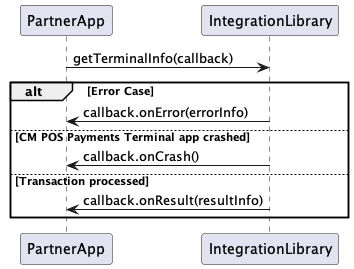
Request info data sample
paymentService.getTerminalInfo(infoCallback)
In this case, there is no need to send extra information on the request, therefore, the only parameters present on the call.
infoCallback is an object of class TerminalInfoCallback. Partner object must implement the methods present on the interface same as with other functions present on the library. It contains the following functions
fun onResult(data : TerminalInfoData)
fun onError (error : ErrorCode)
fun onCrash ()
onResult method is called when CM POS Payments Library has received the information requested by Partner application. Parameter data contains all the data that is sent by Terminal application:
var storeName: String? = null
var storeAddress: String? = null
var storeCity: String? = null
var storeZipCode: String? = null
var storeLanguage: String? = null
var storeCountry: String? = null
var storeCurrency: Currency? = null
var deviceSerialNumber: String? = null
var versionNumber: String? = null
var isMatAllowed: Boolean? = null
var maxOfflineSaleAmount: BigDecimal? = null
var maxOfflineTransactionsCount: Int? = null
var maxOfflineSaleAmountPerTransaction: BigDecimal? = null
storeName is the name of the store in which the terminal is configured on the gateway.
storeAddress is the address of the store in which the terminal is configured on the gateway.
storeCity is the city of the store in which the terminal is configured on the gateway.
storeZipCode is the zip code of the store in which the terminal is configured on the gateway.
storeLanguage is the default language of the store in which the terminal is configured on the gateway
storeCurrency is the default currency of the store in which the terminal is configured on the gateway
deviceSerialNumber is the serial number of the sunmi device in which the Terminal application is running.
versionNumber is the version number of the Terminal application.
isMatAllowed indicates if MAT feature is enabled for the Terminal application.
maxOfflineSaleAmount indicates the current CM-defined limit for the maximum sale amount that can be stored on the device.
maxOfflineTransactionsCount indicates the current CM-defined limit for the maximum number of transactions that can be stored on the device.
maxOfflineSaleAmountPerTransaction indicates the current CM-defined limit for the maximum sale amount per transaction to be stored on the device.
onResult method in TerminalInfoCallback interface is the same as previous callbacks on the other operations.
MAT functionality
This feature is available upon request. Please contact Sales for more information.
Starting from version 2.14.0, the Terminal application introduces a feature called MAT (Merchant Approved Transactions), which allows the terminal to process purchase transactions when the network connection is unavailable and the gateway cannot be reached. This feature ensures business continuity by enabling offline transaction processing directly on the terminal, where each completed offline transaction is stored locally on the device. Once the network connection is restored, all stored transactions are automatically sent to the gateway for final processing. It is important to note that MAT is exclusively available for offline purchase transactions and does not apply to other transaction types.
MAT feature availability
The MAT functionality can be enabled individually for each POS configured in a merchant store. The property isMatAllowed indicates whether the MAT feature is enabled for the Terminal application. If the value of isMatAllowed is true, the terminal is configured to support offline transactions through the MAT feature.
This property can be retrieved using the getTerminalInfo() method in the CM POS Payments Android POS integration library (see Request Info functionality for more details).
MAT Limits
When the MAT feature is enabled, the terminal can process offline purchase transactions, but only under specific conditions known as MAT limits.
By default, the Terminal application uses limits configured by CM.com, known as hard limits. These hard limits are predefined thresholds that define the maximum limits allowed for offline purchase transactions on each terminal device, which are fixed and cannot be exceeded. These limits include:
- Maximum number of transactions (
maxOfflineTransactionsCount): Hard limit for the total number of offline transactions that can be stored locally on each terminal device. - Maximum total sale amount (
maxOfflineSaleAmount): Hard limit for the cumulative total amount of all offline transactions stored locally on each terminal device. - Maximum amount per transaction (
maxOfflineSaleAmountPerTransaction): Hard limit for the highest amount allowed for a single offline transaction.
These properties can be retrieved using the getTerminalInfo() method in the CM POS Payments Android POS integration library (See Request Info functionality for more details).
Integrators have the flexibility to define custom limits, known as soft limits, which must always be smaller than the hard limits set by CM.com. Soft limits allow integrators to adjust the offline transaction capacities of the terminal while staying within the boundaries of the hard limits.
Soft limits can be configured using the TransactionData object in the doTransaction function. The following properties are available for setting soft MAT limits (See code sample Transaction Data for more details):
maxOfflineTransactionsCount: Specifies the soft limit for the maximum number of offline transactions that can be stored locally on the terminal.maxOfflineSaleAmount: Specifies the soft limit for the maximum cumulative sale amount of offline transactions stored locally on the terminal.maxOfflineSaleAmountPerTransaction: Specifies the soft limit for the maximum sale amount allowed for a single offline transaction.
Validation of MAT transactions
The Terminal application validates each purchase transaction against the configured MAT limits and the requirements to ensure compliance:
- If soft limits are not provided by the integrator, the Terminal application defaults to the hard limits set by CM.com. Transactions are validated against these hard limits.
- If the integrator chooses to use custom soft limits, the Terminal application uses them to validate the transaction. Soft limits must always be smaller than the hard limits set by CM.com. See error codes (-46), (-47) and (-48) from MAT Errors if soft limits exceed hard limits.
- If any of the soft limits provided by the integrator is missing, the Terminal application will validate the transaction using the corresponding hard limit for the missing parameter.
- If the transaction amount exceeds the maximum offline sale amount, the transaction is canceled. See error code (-43) from MAT Errors for more information.
- If the transaction type is not PURCHASE, the transaction is canceled. See error code (-42) from MAT Errors for more information.
If the transaction complies with the MAT limits and the requirements, it can be processed offline, and if successful, is stored locally on the terminal. Once the connection is restored, the stored transactions are sent to the gateway for final processing.
Offline Transaction Metrics
The Terminal application tracks specific metrics related to offline transactions. These metrics provide valuable insights into the terminal's offline transaction activity and storage capacity, helping merchants and integrators monitor the status of the offline transactions stored.
These metrics can be accessed via the TransactionResultData object, which is provided in the callback method onResult when using the CM POS Payments Android POS integration library (See code sample TransactionCallback for more details).
isProcessedOffline: Indicates if the transaction has been processed offline successfully.storedTransactionsCount: Represents the total number of offline transactions currently stored locally on the device. This value is updated after each offline transaction. If the transactions count exceeds the MAT limit for total transactions, see error code (-39) from MAT Errors for more information.storedSaleAmount: Represents the cumulative total sale amount of all offline transactions stored locally on the device. If the amount exceeds or is about to exceed the MAT limit, see error codes (-40) and (-41) from MAT Errors for more information.
These metrics reflect the current state of offline transactions stored on the terminal. Once the terminal recovers its internet connection, it synchronizes with the gateway and begins sending the stored transactions online. When all transactions are successfully sent to the gateway, these parameters reset to zero. If the terminal loses its internet connection during the syncing process, these metrics will continue to reflect the transactions and total amount awaiting synchronization. The terminal will resume syncing once the connection is restored, until no transactions remain stored.
MAT Errors
While using the MAT feature, certain errors may occur. The Terminal application provides specific error codes to help integrators identify and resolve these issues effectively. Below is a list of possible MAT-related errors and their descriptions:
- RECEIPT_NOT_AVAILABLE (-38): Receipt not available for the transaction.
- STORE_TRANSACTIONS_COUNT_LIMIT_REACHED (-39): Maximum number of stored transactions limit reached.
- STORE_TRANSACTIONS_AMOUNT_LIMIT_WILL_BE_REACHED (-40): Maximum sale amount for stored transactions will be exceeded with the current transaction.
- STORE_TRANSACTIONS_AMOUNT_LIMIT_REACHED (-41): Maximum sale amount for stored transactions has been reached.
- MAT_INVALID_TRANSACTION_TYPE (-42): Invalid transaction type for MAT. Only purchase is supported.
- MAX_TRANSACTION_AMOUNT_LIMIT_REACHED (-43): The sale amount exceeds the offline payment limit.
- MAX_TRANSACTION_AMOUNT_LIMIT_INVALID (-46): Soft limit amount for a single offline transaction is invalid. It exceeds the hard limit.
- MAX_TOTAL_AMOUNT_LIMIT_INVALID (-47): Soft limit for the total offline payments sale amount limit is invalid. It exceeds the hard limit.
- MAX_TRANSACTIONS_COUNT_LIMIT_INVALID (-48): Soft limit for the total number of offline payments allowed is invalid. It exceeds the hard limit.