Development Guidelines
This section explains how your app communicates with the CM POS Payments applications.
A card payment goes through the following flow:
-
The Partner application uses the CM Payments Android POS integration library to start a transaction with the appropriate data (transaction type, amount, currency…).
-
The CM POS Payments Terminal application receives the information thanks to the integration library and calls the CM POS Payments Gateway to process the payment.
-
CM POS Payments Android POS integration library receives the transaction result from Terminal application and send it back to the Partner applications using a call-back. The result consists of a result data and the receipts for the transaction (if any) from the Gateway.
-
The Partner application performs the transaction result and provides printer receipts.
Integration Mechanism
In order to pass data to the CM POS Payments app, the Partner app needs to use the CM Payments Android POS integration library methods and wait for a result. To be able to use these methods, the Partner application needs to include the library as a dependency in the code. Integration library can be used to integrate in two different environments: acceptance and production. You should include the correct dependency for the environment in which you are operating. The acceptance build allows registered developers to use our acceptance environment, which offers simulators for various test scenarios. The production build connects to a real, production environment. A complete working example app is available at GitHub, to give you a head start in integrating with the SDK.
Import Integration SDK as a dependency
Code Sample. add jitpack repository to your main build or settings gradle file
dependencyResolutionManagement {
    repositoriesMode.set(RepositoriesMode.FAIL_ON_PROJECT_REPOS)
    repositories {
        google()
        mavenCentral()
        maven { url 'https://jitpack.io' }
    }
}
Code Sample. dependency for production environment
dependencies {
    ...
    // CM Payments Android POS integration library
    implementation 'com.github.cmdotcom.android-pos-integration-sdk-
kotlin:androidposintegrationsdk:<version-tag>'
}
Code Sample. dependency for acceptance environment
dependencies {
    ...
    // CM Payments Android POS integration library
    implementation 'com.github.cmdotcom.android-pos-integration-sdk-
kotlin:androidposintegrationsdk-acc:<version-tag>'
}
Please note: the "-acc" SDK will connect to our acceptance environment, whereas the SDK without "-acc" in the name will connect to our production environment. The difference between the two:
-
Acceptance: payments are simulated
-
Production: payments are real
It is the responsibility of the integrator to be able to produce two different builds of the same application, one for each environment that is targeted. <version-tag> should be changed for the correct version number available in release notes
Migrating from debug SDK to acceptance SDK
The debug variant of the POS SDK is deprecated from version 1.3.0, and we recommend that all integrators use the acceptance variant of the SDK for development and testing purposes. If you are integrating the SDK for the first time, following the dependency instructions above will be enough to start using the acceptance variant of the SDK. If you are already using the debug variant of the SDK, in order to migrate to the acceptance variant, you need to change the dependency in your build.gradle file in your ECR application as shown in the code sample above.
Creating a signed APK according to Sunmi Requirements
The APK needs to support the Android V1 and V2 signature. The Android build.gradle configuration automatically compiles signingConfigs and V1, V2 signing. For Sunmi applications both signatures need to be turned on, otherwise the APK upload in the MDM will fail.
android {
  ...
  signingConfigs {
    ...
    release {
      ...
      v1SigningEnabled = true
      v2SigningEnabled = true
    }
  }
Finally, in the AndroidManifest.xml, the option extractNativeLibs needs to be set to true:
<?xml version="1.0" encoding="utf-8"?>
<manifest xmlns:android="http://schemas.android.com/apk/res/android" package="....">
    ...
    <application
        android:extractNativeLibs="true"
        ...>
        ...
    </application>
</manifest>
Additional information for P2 LITE SE and P3 models
Since these models are running a different version of the Sunmi OS, additional information in the Android Manifest file of your application is needed. In these devices it is also needed to request query permissions for the CM POS Payments Terminal app.
<?xml version="1.0" encoding="utf-8"?>
<manifest xmlns:android="http://schemas.android.com/apk/res/android" package="....">
    ...
    <queries>
        <package android:name="com.payplaza.terminal.dev" />
        <package android:name="com.payplaza.terminal" />
    </queries>
    ...
</manifest>
First line is for dev devices and second line is to use it live.
Import Integration SDK as a binary
-
Download the desired .aar file from releases
-
Place the downloaded file into your project. We recommend create a folder called 'lib' near 'src' folder of the app module.
-
Add the import in your build gradle file:
dependencies {
    [...]
    // CM Payments Android POS integration library
    implementation files('lib/<aar_file_name>')
}
Once this is done, your application should initialize the application with your android context application so CM POS Payments library can communicate with CM POS Payments Terminal application:
Code Sample. Initialization of CM Payments Android POS integration library.
override fun onCreate() {
    super.onCreate()
    AndroidPosIntegration.init(this)
}
Once you have done this you can access the PosIntegrationService instance in your code by using the getInstance method of the AndroidPosIntegration object in CM Payments Android POS integration Library
Code Sample. Getting the CM POS PaymentsPaymentService instance.
val service = AndroidPosIntegration.getInstance()
This PosIntegrationService has a list of methods that can be used to perform operation in CM POS Payments environment. The methods are the following:
interface PosIntegrationService {
    fun doTransaction(data: TransactionData, callback:TransactionCallback)

    fun transactionStatuses(data: RequestStatusData, callback:StatusesCallback)

    fun getLastReceipt(options: LastReceiptOptions, callback:ReceiptCallback)

    fun getTerminalDayTotals(options:DayTotalsOptions, callback: ReceiptCallback)

    fun getTerminalInfo(callback: TerminalInfoCallback)

    fun finishPreAuth(data: PreAuthFinishData, callback:TransactionCallback)
}
doTransaction: Is used to perform a transaction on CM POS Payments app.
transactionStatuses: It is used to request status of a previous transaction performed by CM POS Payments Terminal application.
getLastReceipt: It is used to request the receipt of the last transaction performed by Terminal application.
getTerminalDayTotals: It is used to request the totals information from the gateway.
getTerminalInfo: It is used to request information about the merchant shop in which the terminal is connected.
finishPreAuth: It is used to finish a previously pre authorized transaction.
Passing data to the library for Transaction flow
Data can be passed to the CM Payments Android POS integration library by using a payment object with the appropriate data.
Code Sample. Transaction Data.
data class TransactionData(val type: TransactionType,
                           val amount: BigDecimal,
                           val currency: Currency,
                           val orderReference: String) {
    var language: String? = null
    var refundStan: String? = null
    var refundDate: Date? = null
    var isCaptureSignature = true
    var isShowReceipt = true
    var maxOfflineSaleAmount: BigDecimal? = null
    var maxOfflineTransactionsCount: Int? = null
    var maxOfflineSaleAmountPerTransaction: BigDecimal? = null
}
Values for the payment data attributes are specified following this table;
| Attribute Name | Data Type/ Class | Required | Default |
|---|---|---|---|
type | com.cm.androidposintegration.enums.TransactionType Three options. | Mandatory | |
amount | BigDecimal | Mandatory | |
currency | java.util.Currency | Mandatory | |
orderReference | String(max 14) | Mandatory | |
language | String(2) | Optional | System Language |
refundStan | String(6) | Optional | |
refundDate | java.util.Date | Optional | |
isCaptureSignature | boolean | Optional | true |
isShowReceipt | boolean | Optional | true |
maxOfflineSaleAmount | BigDecimal | Optional | |
maxOfflineTransactionsCount | Int | Optional | |
maxOfflineSaleAmountPerTransaction | BigDecimal | Optional |
Attributes explanation
type is a field in which you can specify the type of transaction that you want to use. An Enum is defined on the integration library so partners can choose between payment, refund or pre authorization.
amount is the transaction (payment or refund) amount. It is mandatory. It is represented as a BigDecimal including the decimal separator. For example, an amount in euro’s is represented as "12,34", twelve euros and thirty four cents.
currency is a java.util.Currency object and indicates the currency in which the transaction will be performed. There is a merchant shop configuration present on the gateway. This configuration contains the store currency among other parameters. Partners can retrieve that currency using the getInfo operation present on the library. CM POS Payments Terminal application can perform a transaction using a different currency from the default one, although in some cases that is not recommended (See ref for details).
orderReference is a mandatory string of up to 14 characters. You are free to put in any text. The CM POS Payments app will return your order reference in the receipt lines (see recovery procedure). Transactions are not accepted in case the order reference is not present in the intent. Order reference needs to have a unique ID per POS for each transaction and date. Order reference may contain a maximum of 14 alphanumeric characters without special characters.
language is specified as a two-character string that represents a valid Locale language. Should be set using ISO-639-1 Code ("EN" for English, "NL" for Dutch, …) We currently support English, French, Dutch, German and Spanish. If you need other languages, please contact us. Language is configured in the merchant shop configuration in the Gateway. Only specify a language via the Intent if you need a language different from what is configured in the Gateway for your shop.
refundStan It is a String up to 6 characters. It represents the system trace audit number. It is only used for refund transactions and it can be found on the receipt for the previous transaction that has to be refunded
transactionDate is the date and time of the transaction. It is a java.util.Date object representing the date of the previous transaction. It is only used for refund transactions.
isCaptureSignature is a Boolean, indicating whether the Terminal application should perform on-screen signature capture for signature CVM transactions. When set to true and the transaction CVM is signature, the Terminal application will ask the user to sign on screen and send the signature back on the receipt to the partner application as a bitmap (see receipt handling on library for more details). This is the default behaviour. Partners can override that behaviour by setting this attribute to false.
isShowReceipt Indicates if the receipt(s) need(s) to be shown in CM POS Payments Terminal application. Default value is true, so terminal is always showing the receipts. Partners can override that behaviour by setting that attribute to false.
maxOfflineSaleAmount: This property is only used for MAT feature. It indicates the maximum total sale amount that can be stored in Terminal application while processing offline transactions. This value can be different for every transaction, but it always must be less than the corresponding CM defined limit for MAT feature (see MAT feature chapter for more information)
maxOfflineTransactionsCount: This property is only used for MAT feature. It indicates the maximum number of transactions that can be stored in the Terminal application while processing transactions offline, in case that the gateway is unreachable. This value can be different for every transaction, but it always must be less than the corresponding CM defined limit for MAT feature (see MAT feature chapter for more information)
maxOfflineSaleAmountPerTransaction: This property is only used for MAT feature. It indicates the maximum sale amount allowed per transaction when the Terminal application processes the transaction offline, in case that the gateway is unreachable. This value can be different for every transaction, but it always must be less than the corresponding CM defined limit for MAT feature (see MAT feature chapter for more information)
Example of Transaction PaymentData object that can be used for the transaction:
-
Transaction type: purchase
-
Value: 5.95€
-
Currency: EUR
-
Order reference: 0303-000112
Code Sample. Transaction Data object creation for Payment Transaction
val data = TransactionData(TransactionType.PURCHASE, BigDecimal(5.95), Currency
.getInstance("EUR"),"0303-000112")
Transactions of type Refund
There are two possibilities when a refund transaction is sent as Transaction Type on the Transaction object: Standard refund transaction and STAN/TX refund transaction.
In the first case, no other information is required and the refund transaction will be performed with the amount sent.
In the second case, STAN and Transaction date information linked to a previous transaction, need to be provided to CM POS Payments application in the following form:
TRANSACTION_STAN: string (6 characters. 6 STAN digits from the previous transaction) TRANSACTION_DATE: string (8 characters with the following format: “dd/MM/yy”)
If the transaction type received by CM POS Payments app is "refund" and no other related information - like the STAN and transaction date - is present on the transaction object, the refund will be processed as standard refund flow. If transaction type is refund and STAN and Transaction date are present, refund flow will be linked to a previous existing transaction. If only one of the STAN and TX Date is present, an error will be returned by CM POS Payments Terminal application.
Example of Transaction Data object for a Refund transaction
-
Transaction type: refund
-
Value: 5.95€
-
Currency: EUR
-
Order reference: 0303-000113
-
STAN of previous transaction: 065987
-
Date of previous transaction: February 1st, 2021
Code Sample. Transaction Data object creation for Refund Transaction
val data = TransactionData(
                TransactionType.REFUND,
                BigDecimal(5.95),
                Currency.getInstance("EUR"),
                "0303-000113"
           )
data.refundStan = "065987" // Can be found on the receipt
val dateFormat = SimpleDateFormat("dd/MM/yy")
data.refundDate = dateFormat.parse("01/02/21") // Can be found on the receipt
Transactions of type Pre Auth
Support of pre-authorization transactions is dependent on the acquirer that is used. Please contact sales to find out which acquirers are supported.
CM POS Payments payment system supports also the functionality to pre authorize a transaction and confirm it or cancel it afterwards. In order to pre authorize a transaction, the method doTransaction can be used with the transaction type of the TransactionData object set to PRE_AUTH
Code Sample. Transaction Data object creation for Pre Auth. Transaction
val data = TransactionData(
                TransactionType.PRE_AUTH,
                BigDecimal(5.95),
                Currency.getInstance("EUR"),
                "0303-000113"
           )
Finishing a pre authorized transaction
A transaction that has been pre authorized then needs to be finished at some point in time. To do that, the POS integration library has a method that can confirm or cancel a previosly pre authorized transaction. This method receives a PreAuthFinishData object with the corresponding information to confirm or cancel a pre authorized transaction.
Finish pre authorization transaction
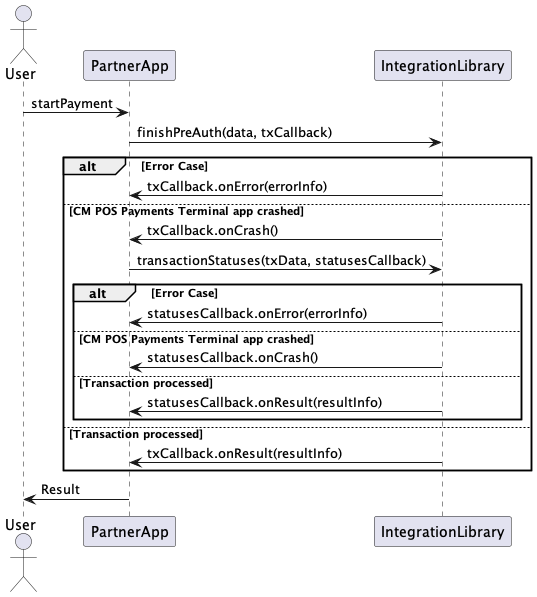
Same as with a doTransaction operation, IntegrationLirary needs to receive the data for the operation and a transaction callback to send the result once it is has been received from CM POS Payments Terminal application.
The data class used for this operation is PreAuthFinishData. This class contains the following information:
Code Sample. PreAuhtFinishData class.
class PreAuthFinishData(val type:PreAuthFinishType, val originalStan: String,
                        val originalDate: Date, val orderRef: String) {
    var amount: BigDecimal? = null
    var currency: Currency? = null
    var isShowReceipt: Boolean = true
}
Values for the payment data attributes are specified following this table;
| Attribute Name | Data Type/ Class | Required | Default |
|---|---|---|---|
type | com.cm.androidposintegration.enums.PreAuthFinishType | Mandatory | |
originalStan | String | Mandatory | |
originalDate | String | Mandatory | |
orderRef | String | Mandatory | |
amount | BigDecimal | Conditional | |
currency | Currency | Conditional | |
isShowReceipt | Boolean | Mandatory | true |
Atributes explanation
type: There are two possible values for this attribute SALE_AFTER_PRE_AUTH and CANCEL_PRE_AUTH.
originalStan: It is the stan of the previously pre authorized transaction
originalDate: It is the date of the previously pre authorized transaction
orderRef: It is the order reference use to identify the current transaction
amount: It is the amount of the operation. This parameter is mandatory when confirming a pre authorized transaction but is not needed when canceling a previously pre authorized transaction.
currency: It is the currency that will be used in the transaction. Same as the previous one is mandatory when confirming a pre authorized transaction but is not needed when canceling a previously pre authorized transaction.
isShowReceipt: This parameter indicates whether the terminal will show the receipt or not. In any case, this receipt will be included in the callback data that is going to be received by the partner application
Confirming a previously pre authorized transaction
In order to confirm a pre authorized transaction, CM POS Payments payment platform accepts two possible scenarios:
-
Confirm the transaction with the total amount used in the previously pre authorized transaction
-
Confirm the transaction with smaller amount than the one used in the previously pre authorized transaction.
It is not possible to confirm a pre authorized transaction with a higher amount that the one used in the first pre authorization transaction.
Canceling a previously pre authorized transaction
Cancel a pre authorized transaction is also possible. For this operation an amount can be sent, but it is going to be ignored as CM POS Payments payment platform is always canceling the total amount that was pre authorized in the original transaction.
Receiving results
In order to receive the results for a transaction with the CM Payments Android POS integration library, partners have to define a call-back object that will be called back as soon as the result has been processed by the library.
Code Sample. Definition of TransactionCallback
interface TransactionCallback {
    fun onResult(data : TransactionResultData)
    fun onError (error : ErrorCode)
    fun onCrash ()
}
Object defined by Partner application needs to implement this interface. When library has the result of the transaction, it will call method onResult on the call-back and Partner application can get the result using the parameter on the call-back. For that, the class TransactionResultData is used
Values for the Transaction Result Data attributes are specified following this table:
| Atribute Name | Data Type/ Class | present |
|---|---|---|
transactionResult | com.cm.androidposintegration.enums.TransactionResult | always |
orderReference | String(max 14) | always |
amount | BigDecimal | always |
authResponseCode | String | If Tx processed |
cardEntryMode | String | If Tx processed |
ecrId | String | If present on the receipt |
processorName | String | If present on the receipt |
transactionDateTime | java.util.Date | If present on the receipt |
transactionId | String | If Tx Processed |
cardScheme | String | If present on the receipt |
aid | String | if present on the receipt |
cardNumber | String | If present on the receipt |
cardType | Integer | If Tx Processed |
stan | String | If present on the receipt |
merchantReceipt | com.cm.androidposintegration.beans.ReceiptData | If merchant receipt received from Gateway |
customerReceipt | com.cm.androidposintegration.beans.ReceiptData | If customer receipt received from Gateway |
tipAmount | BigDecimal | If tip amount was entered by cardholder |
isProcessedOffline | Boolean | If MAT feature is enabled for the device |
storedTransactionsCount | Integer | If MAT feature is enabled for the device |
storedSaleAmount | BigDecimal | If MAT feature is enabled for the device |
Attributes Explanation
transactionResult: The resultCode you receive on the call-back. It is an enum defined on the library and can be one of the following:
SUCCESS ("Operation was successful")
CANCELLED ("Operation was cancelled")
AUTHORIZATION_FAILURE ("Operation did not have authorization")
AUTHORIZATION_TIMEOUT ("Timeout in last operation authorization")
CARD_BLOCKED ("Card used is blocked")
CARD_INVALID ("Card used is invalid")
DECLINED_BY_CARD ("Operation was declined by card")
INSUFICIENT_FUNDS ("Not sufficient funds to perform last authorization")
FAILED ("Operation failed")
AMOUNT_EXCEEDED ("Amount of last operation exceeded the limit")
HOST_BLOCKED_PRINT_RECEIPT ("Operation couldn’t be performed. Receipt of the last
transaction pending")
REQUEST_RECEIPT("Request Receipt of current Transaction")
Each value has its own description so it is easy for users to understand what happened with the transaction.
orderReference: Is the order reference used in the transaction this value was received to perform the transaction and it is sent back to the partner application
amount: Is the amount received for the transaction.
authResponseCode: Is the authorization response code received on the transaction. It is only present if the transaction has been processed.
cardEntryMode: Is the card entry mode used in the transaction. It is present only if the transaction has been processed. It has one of the following values:
"CARD_ENTRY_MODE_MAG_STRIPE"
"CARD_ENTRY_MODE_MAG_STRIPE_FALL_BACK"
"CARD_ENTRY_MODE_ICC"
"CARD_ENTRY_MODE_CONTACTLESS"
"CARD_ENTRY_MODE_CONTACTLESS_MAG"
processorName: Is the name of the payment processor used in the transaction. It can also be found on the receipt lines.
transactionDateTime: It is the date and time of the transaction received from the gateway.
transactionId: It is the internal transaction id used in CM POS Payments gateway
cardScheme: Is the Scheme of the card (Mastercard, Visa, …) used in the transaction.
aid: Is the AID of the card used in the transaction
cardNumber: It is the masked pan of the card that has been used in the transaction.
cardType: It is an integer that indicates the type of the card used in the transaction. It can have the following values:
MAGNETIC CARD: 1
NFC CARD: 4
ICC (CHIP): 2
stan: Is the System Trace Audit Number of the transaction. It can also be found on the transaction.
merchantReceipt: It is the transaction receipt for the merchant. It is received if the merchant receipt was sent by the gateway. It is an object of the class com.CM POS Payments.androidposintegration.beans.ReceiptData
customerReceipt: It is the transaction receipt for the customer. It is received if the customer receipt was sent by the gateway. Same as merchant receipt, it is an object of the class com.CM POS Payments.androdposintegration.beans.ReceiptData
tipAmount: It is the transaction tip amount that was entered by the cardholder. This amount is only present in the response if it was entered by cardholder. For that, the device needs to be configured to support Tip feature.
isProcessedOffline: Indicates if the transaction has been processed offline. This is only true when MAT feature is enabled for the device and the terminal couldn't go online.
storedTransactionsCount: Indicates the total number of transactions that are stored in the Terminal application at the end of the transaction that has been processed. This is only different from 0 when the terminal has MAT feature enabled.
storedSaleAmount: Indicates the total sale amount of transactions that are stored in the Terminal application at the end of the transaction that has been processed. This is only different from 0 when the terminal has MAT feature enabled.
Receipt Data
The receipt data object received by partners has two attributes:
var receiptLines: Array<String>?
var signature: ByteArray?
receiptLines: is an array with the formatted lines of the receipt
signature: It is a Byte Array with the bitmap signature performed on Screen if the receipt needs a signature. It is only present if the signature has been done on the device. You can create a bitmap from the signature byte array present on the receipt using BitmapFactory.decodeByteArray(…):
signatureInMerchantReceipt = BitmapFactory.decodeByteArray(
    merchantReceiptgetSignature(),
    0,
    merchantReceipt.getSignature().length
)
Simple Receipt Sample
    Shopname

    Terminal:       PPCCVBZS
    Merchant:         654321
    ECR:      E_SUNMI_P2lite
              _PL0919CQ00283
    STAN:             130075

                 CONTACTLESS
    AID:      A0000000043060
                     MAESTRO
    Card:       ********0308
    Cardnb:                0

    Date: 19-07-21  09:52:52
    AC:     F9A1D8E9A1014A60
    Processor:           CCV
    Auth. code:       FA5822
    Auth. resp. code:     00

    Amount:         EUR 2,49
    REF:             7000135

       Payment approved

    CARDHOLDER RECEIPT

         shop footer
Receipt with signature sample
    Shopname

    Terminal:       PPCCVBZS
    Merchant:         654321
    ECR:      E_SUNMI_P2lite
              _PL0919CQ00283
    STAN:             130075

                 CONTACTLESS
    AID:      A0000000043060
                     MAESTRO
    Card:       ********0308
    Cardnb:                0

    Date: 19-07-21  09:52:52
    AC:     F9A1D8E9A1014A60
    Processor:           CCV
    Auth. code:       FA5822
    Auth. resp. code:     00

    Amount:         EUR 2,49
    REF:             7000135

       Payment approved

    MERCHANT RECEIPT

    CARDHOLDER SIGNATURE


    ......................

         shop footer
It is responsibility of your application to print the signature in the appropriate position on the merchant receipt.
Error Cases
CM Payments Android POS integration library uses onResult method in the callback when there is no error on the transaction flow between the card, terminal and gateway. However, it could be the case when some situations may lead into errors in the flow (e.g.: connection lost). For those cases, the method onError is used. CM POS Payments library also creates an ErrorCode Enum object with the following values:
NO_ERROR (0, "No error")
UNKNOWN_ERROR (-1, "Unknown error")
AMOUNT_INVALID (-2, "Amount used was invalid")
NO_INTERNET (-12, "Device is not connected to the network")
POS_NOT_CONFIGURED (-18, "Device is not configured in gateway")
AUTO_TIMEZONE_NOT_ENABLED(-23, "Autotimezone is not enabled on device")
BAD_TIMEZONE (-24, "Timezone on the device is not correct")
HOST_NOT_CONNECTED (-25, "Cannot connect with the gateway")
MERCHANT_ORDER_REF_NOT_PRESENT (-29, "Order reference not present in request data")
TIMEOUT (-30, "Timeout reaching the gateway")
REPEATED_OPERATION (-31, "Transaction already in progress")
MERCHANT_ORDER_REF_TOO_LONG (-32, "Order ref exceeds allowed length")
AMOUNT_LIMIT_EXCEEDED (-33, "Transaction exceeds allowed limit")
INTERNAL_PROCESSING_ERROR (-34, "Internal processing error during transaction flow. Transaction couldn't be processed")
INVALID_ORIGINAL_DATA (-35, "Data related with previous transaction is invalid")
LOW_BATTERY_LEVEL (-36, "Battery level is too low to start a transaction")
WRONG_EMV_AUTHORIZATION_DATE_AND_TIME (-37, "Wrong date and time in authorization request. Please reboot your device.")
RECEIPT_NOT_AVAILABLE (-38, "Receipt not available")
STORE_TRANSACTIONS_COUNT_LIMIT_REACHED (-39, "Maximum number of stored transactions limit reached")
STORE_TRANSACTIONS_AMOUNT_LIMIT_WILL_BE_REACHED (-40, "Maximum sale amount stored transactions limit will be reached with the current transaction")
STORE_TRANSACTIONS_AMOUNT_LIMIT_REACHED (-41, "Maximum sale amount stored transaction limit reached")
MAT_INVALID_TRANSACTION_TYPE (-42, "Invalid transaction type for MAT")
MAX_TRANSACTION_AMOUNT_LIMIT_REACHED (-43, "The sale amount exceeds offline payment limit.")
MAX_TRANSACTION_AMOUNT_LIMIT_INVALID (-46, "Offline payment limit is invalid.")
MAX_TOTAL_AMOUNT_LIMIT_INVALID (-47, "Total offline payments sale amount limit is invalid.")
MAX_TRANSACTIONS_COUNT_LIMIT_INVALID (-48, "Offline payments count limit is invalid.")
TRANSACTION_STATUS_ERROR (-50, "Status information not received")
INFO_REQUEST_FAILED (-51, "Info Request towards the gateway has failed")
Values also contain a description so users can know what went wrong with the previous transaction.
Dealing with unexpected scenarios
The CM POS Payments app handles recovery of the payment transaction. This means, the CM POS Payments app receives a payment request from partner application using the payment library and takes responsibility for properly handling that.
After processing, the app will return the result of the payment (which can have succeeded or failed) or it will return an ErrorCode result containing information on a failed operation.
But CM POS Payments integration library can also call onCrash because of a crash on Terminal CM POS Payments. If this is the case or if the Partner app crashes or is not capable of receiving the result for whatever reason, the CM POS Payments integration library app allows Partner app to recover by requesting information of past transactions. This means we always need an order reference to be able to retrieve results of previous transactions. That is why order reference is a required attribute in the Transaction Data object needed by library to perform a transaction. Order reference does not need to be unique, because multiple transactions can refer to the same order reference. This happens when transactions fail, and new transactions are started with the same order reference for the same payment.
Requesting transaction information for an existing order reference
If the partner app needs to recover, or wants to retrieve old transaction results, the CM POS Payments integration library allows the partner app to request the status of the previous transaction associated with an order reference. The method on the The CM POS Payments app will return the results for that order reference that were sent previously.
This is flow for requesting the transaction status:
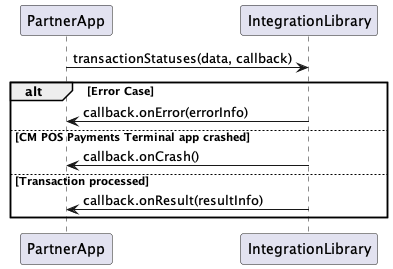
Because the order reference is not unique on a transaction level - the payment for a particular order reference can be retried a number of times, resulting in multiple transactions with the same order reference - a request for previous transaction results can result in multiple results. Of these, one may be a success result, the others are typically failure results.
The method to be used to retrieved this statuses is transactionStatuses. It receives an object of class RequestStatusData:
data class RequestStatusData (var orderReference: String? = null,
                              var page: Int = 0,
                              var size: Int = 0,
                              var sortField: String? = null,
                              var sortValue: String? = null) {
    constructor (orderReference: String) : this() {
        this.orderReference = orderReference
    }
}
Please note that you can create an object of class RequestStatusData with no info or an object passing the value for the merchant order reference. This is due to the fact that the transaction status can be requested with no specific order reference and you will received the status of all transactions performed by the Sunmi device that is being used in the current day.
page: It is an integer and can be used to indicate the number of the start page of the result (useful if there are too many transactions associated to one order reference)
size: It is an integer and can be used to indicate the number of statuses per reply (if 0 it is ignored).
sortFiled: It can be used to indicate in which field sorting needs to be performed.
sortValue: It can be used to indicate which type of sorting needs to be applied. Possible values are "asc" for ascending or "desc" for descending.
Example
val requestData = RequestStatusData("003-00012")
PayplazaPaymentService.transactionStatuses(requestData, statusesCallback)
StatusesCallback is used to receive the result in the same way that TransactionCallback is used to received the result of a transaction.
statusesCallback object also has a method onResult to receive the result of the statuses request to CM POS Payments Terminal application.
interface StatusesCallback {
    fun onResult(data : TransactionStatusesData)
    fun onError (error : ErrorCode)
    fun onCrash ()
}
TransactionStatusesData class is defined as follows:
data class TransactionStatusesData constructor(val statusesInfo: List
                                               <TransactionStatusData>?,
                                               val errorMessage: String,
                                               val totalCount: Int): Parcelable
statusesInfo is a list of objects of class TransactionStatusData, which contains the information for one transaction:
class TransactionStatusData (val amount: BigDecimal,
                             val currency: Currency,
                             val result: TransactionResult,
                             val type: TransactionType,
                             var receipt: ReceiptData? = null) : Parcelable {
The transaction Status Data contains the amount of the transaction, the currency used in that transaction, the result of the transaction, the type of the transaction and the receipt of the transaction. statusesInfo attribute contains a list of all transactions associated with the order reference used.
Sending an operation when there is already one operation in progress
It may be the case that integrators send more than one operation at the same time to the SDK. Terminal application can process only one operations at a time so SDK must ensure it.
In the case that integrators send more than one operations, the SDK it will call onError and sends REPEATED_OPERATION (-31, "Transaction already in progress") back to integrator's ECR.
It's up to integrators to implement onError callback and decide next actions. In order to perform a proper integration please implement onResult(data : TransactionStatusesDa), onError(error : ErrorCode), onCrash() callbacks. Check section Receiving results for more details.
Receiving REQUEST_RECEIPT as transaction result
This is an special case of the recovery procedure. There are situations in which the CM POS Payments Terminal has received the transaction result but it is not possible to get the receipts of the transaction (e.g.: because of a connection lost event). In this case, we cannot be certain of the transaction result until the receipt is received for the transaction.
If CM POS Payments Integration library responds with that result, that means that Partner application should use the method getLastReceipt in order to complete the current transaction (see chapter 6 for more information about this operation).
PrinterX integration
To integrate directly with PrinterX for printing receipts or creating custom receipts, refer to the official Sunmi documentation page available at Sunmi Printing SDK Overview. This guide provides detailed instructions, demo code, and resources to help you build and customize your integration effectively.