Introduction
Target Audience
This document is relevant for you as a customer if:
- You are a merchant.
- You are a reseller/integrator serving multiple merchants.
The Cloud Integration is a solution meant to help customers looking to connect their electronic cash register solution via the cloud with a complete payment solution. When deciding for the cloud integration option available via CM.com POS Payments, customers get easy and secure access to the whole payment network involved in processing card present transactions.
Cloud Integration explained
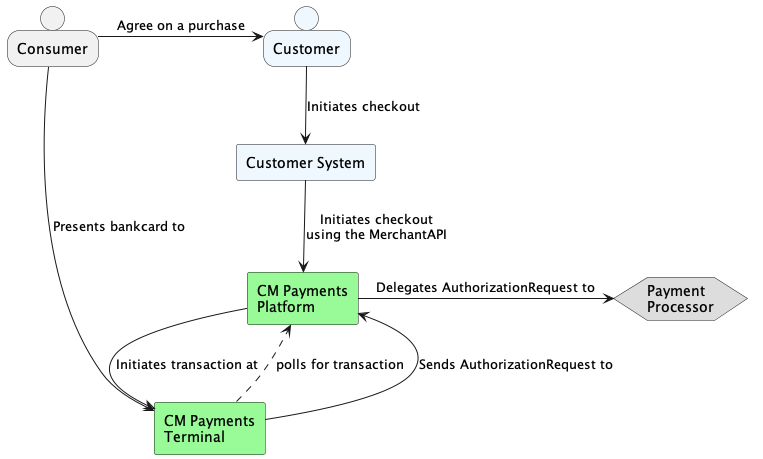
Using Cloud Integration is an option for customers to start using Sunmi Terminals, where the initiation of the transaction is being done via the cloud, usually by the backend of the customer selling platform. That backend will connect to the MerchantAPI of the CM.com POS Payment Platform.
Another possibility for the initiation of the transaction is available via the on-device app-to-app integration from a custom-made Android ECR application. See the POS Terminal SDK for that integration guide.
Via the MerchantAPI customers are able to notify the CM.com Payments Platform that a transaction is requested on a specific terminal for a specific amount and ask for the status of their initiated transaction.
The Sunmi Terminals involved will be configured upon onboarding with a Cloud Integration Enabled option, which will result in the terminal to poll the CM.com Payments Platform regularly to inquire if there is a new transaction to be handled. Concretely polling means a terminal will proactively look for and inquire the CM Payment Platform every X period (a configured interval, usually less than 10 seconds) for a transaction to be processed.
System Overview
Processing a transaction
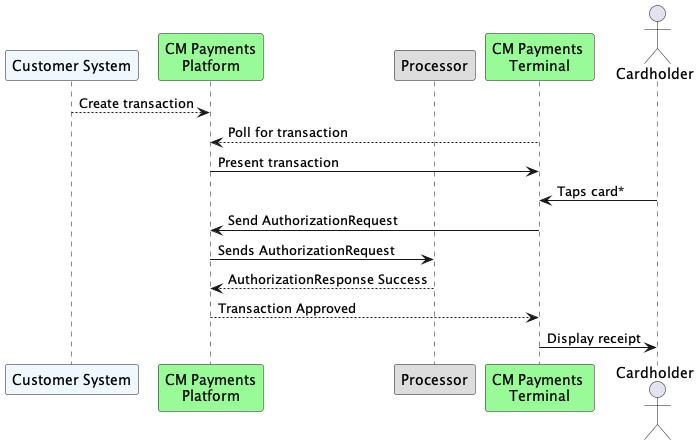
The diagram above describes a cardholder tapping a card to a terminal. Possible ways to authorise a payment are tapping, swiping or inserting a card into the terminal.
Retrieving the status of a transaction
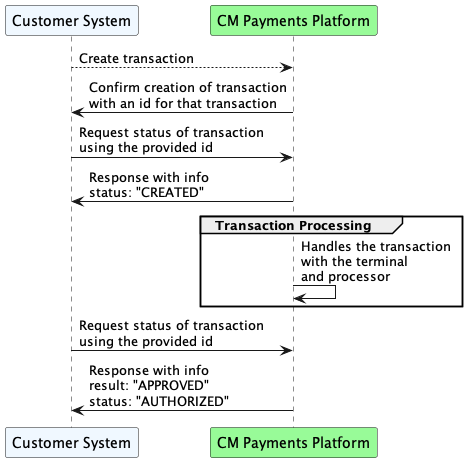
After the creation of a transaction by a Customer System, that system will need to be able to determine the status of the transaction. The MerchantAPI allows a Customer System to retrieve information about any transaction.
Terminal in Cloud Integrated Mode
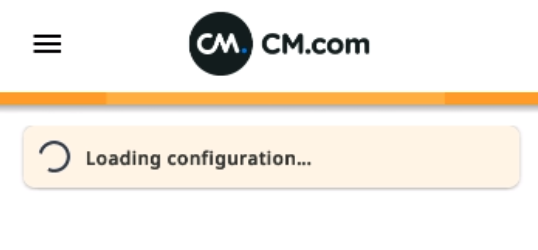
Upon startup the terminals will be retrieving/updating their configuration.
Figure 2. Terminal loading its configuration
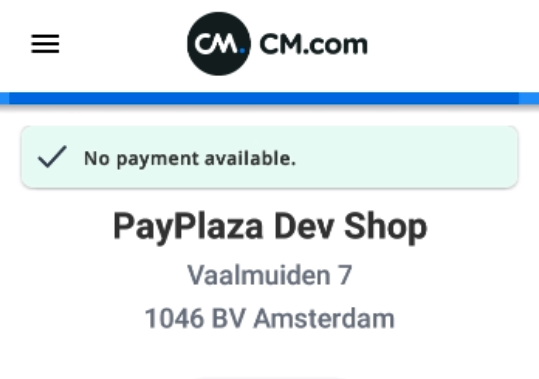
Within the configuration there are settings to inform a terminal that it should operate in 'Cloud Integration'-mode. If the terminal is in 'Cloud Integration'-mode and connected to the internet it will be polling by default. This is how a terminal user can check that a terminal polls:
Figure 1. Terminal connected and polling.
If the bar is blue, then the terminal is connected and polling.
Some error scenarios
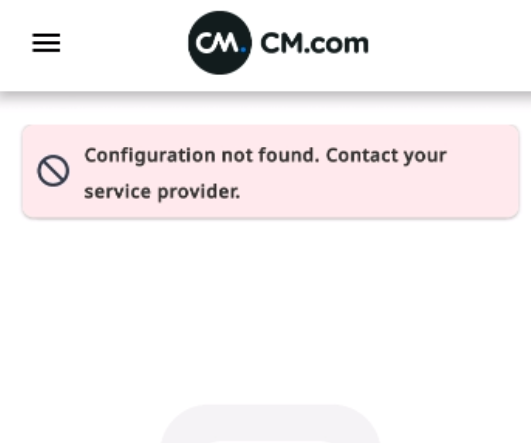
Terminals do not poll if they are turned off, in standby, or while retrieving/updating their configuration. Errors in polling are signaled by the terminal and will result in an error message being shown.
Figure 3. Terminal is offline
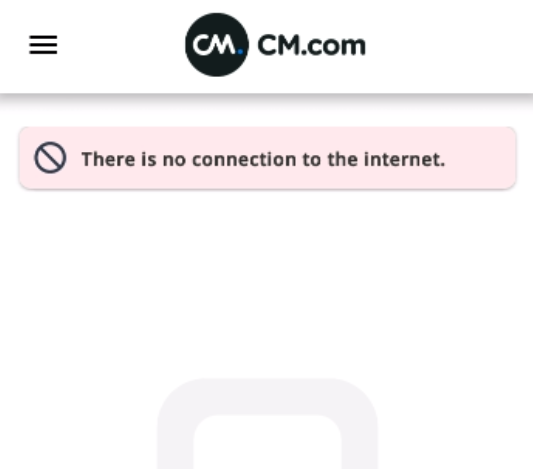
Figure 4. Terminal failing to retrieve configuration
Getting started
Prerequisites
In order to interact with the MerchantAPI a customer has to be configured within the CM.com POS Payments system and an APIKey has to be assigned and securely provided to the customer. The configuration within the CM.com POS Payments system is executed by CM.com POS Payments Customer Care Center during onboarding based on a valid contract presented by CM.com POS Payments Sales team.
Connectivity
- The MerchantAPI is hosted on
payplaza.com. - All the messages will be formatted as
JSON. - The messages are communicated using the format of the
HTTP/1.1-protocol as described in RFC 2616 HTTP/1.1 - All communication between Customer systems and the CM.com POS Payment Platform will be encrypted using TLS. This results in the MerchantAPI being offered as HTTPS.
- All available operations are documented using the OpenAPI Specification
- The MerchantAPI does not have a Rate Limit.
Start using the MerchantAPI
- Download the OpenAPI specification of the MerchantAPI
- Create a client compatible with the retrieved specification in the programming language you are using.
- For various programming languages OpenAPI Client Generators are available, which can help with this.
- Include the generated client into your system
- Include the provided APIKey into your system configuration
- Adjust your system to invoke MerchantAPI operations when needed
Swagger
| Environment | BaseURL |
|---|---|
| Development | https://api.dev.payplaza.com/merchant/v1/q/swagger-ui/ |