Catalogue & Product messages
Catalogue and product messages let users browse your products and add them to a shopping cart without leaving WhatsApp. When a user sends their cart, you receive it as an order on your MO webhook.
| Message type | Shows |
|---|---|
| Catalogue message | A View catalog button that opens your entire catalogue. |
| Single product message | One product, presented as a product detail page. |
| Product list message | A selection of up to 30 products, grouped in sections. |
All three are interactive messages and can only be sent within the customer service window.
Before you begin
- Create a product catalogue in Meta's Commerce Manager and add your products.
- Connect the catalogue to your WhatsApp Business Account.
- Link your WhatsApp Business number to the corresponding Facebook Business page.
For details, see Meta's commerce guide.
Catalogue message
A catalogue message contains a View catalog button. When the user taps it, your full catalogue opens in WhatsApp.
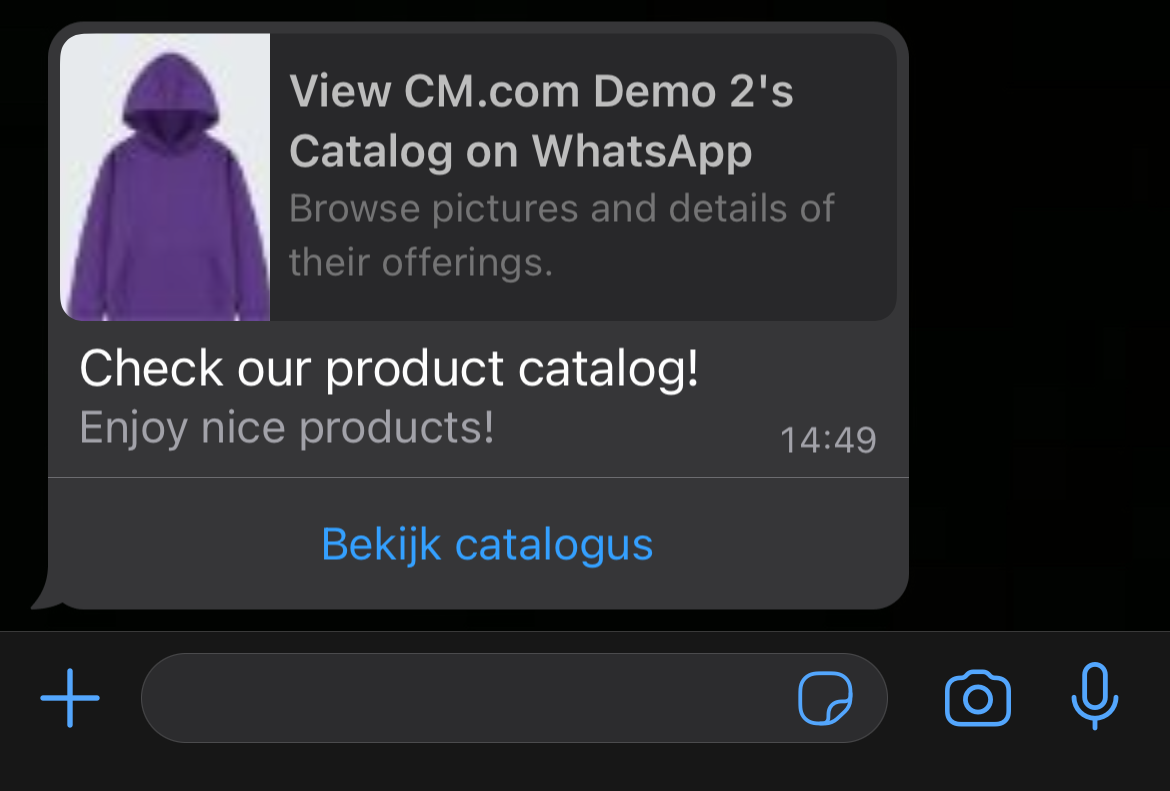
| Field | Required | Description |
|---|---|---|
type | Yes | catalog_message |
body.text | Yes | Message text. |
footer.text | No | Footer text. |
action.name | Yes | catalog_message |
Catalogue message
{
  "messages": {
    "authentication": {
      "productToken": "YOUR_PRODUCT_TOKEN"
    },
    "msg": [
      {
        "from": "00316098765432",
        "to": [
          { "number": "00316012345678" }
        ],
        "body": {
          "type": "auto",
          "content": "Fallback text"
        },
        "allowedChannels": ["WhatsApp"],
        "richContent": {
          "conversation": [
            {
              "interactive": {
                "type": "catalog_message",
                "body": {
                  "text": "Check out our product catalogue!"
                },
                "footer": {
                  "text": "Enjoy great products!"
                },
                "action": {
                  "name": "catalog_message"
                }
              }
            }
          ]
        }
      }
    ]
  }
}
Single product message
A single product message shows one product from your catalogue.
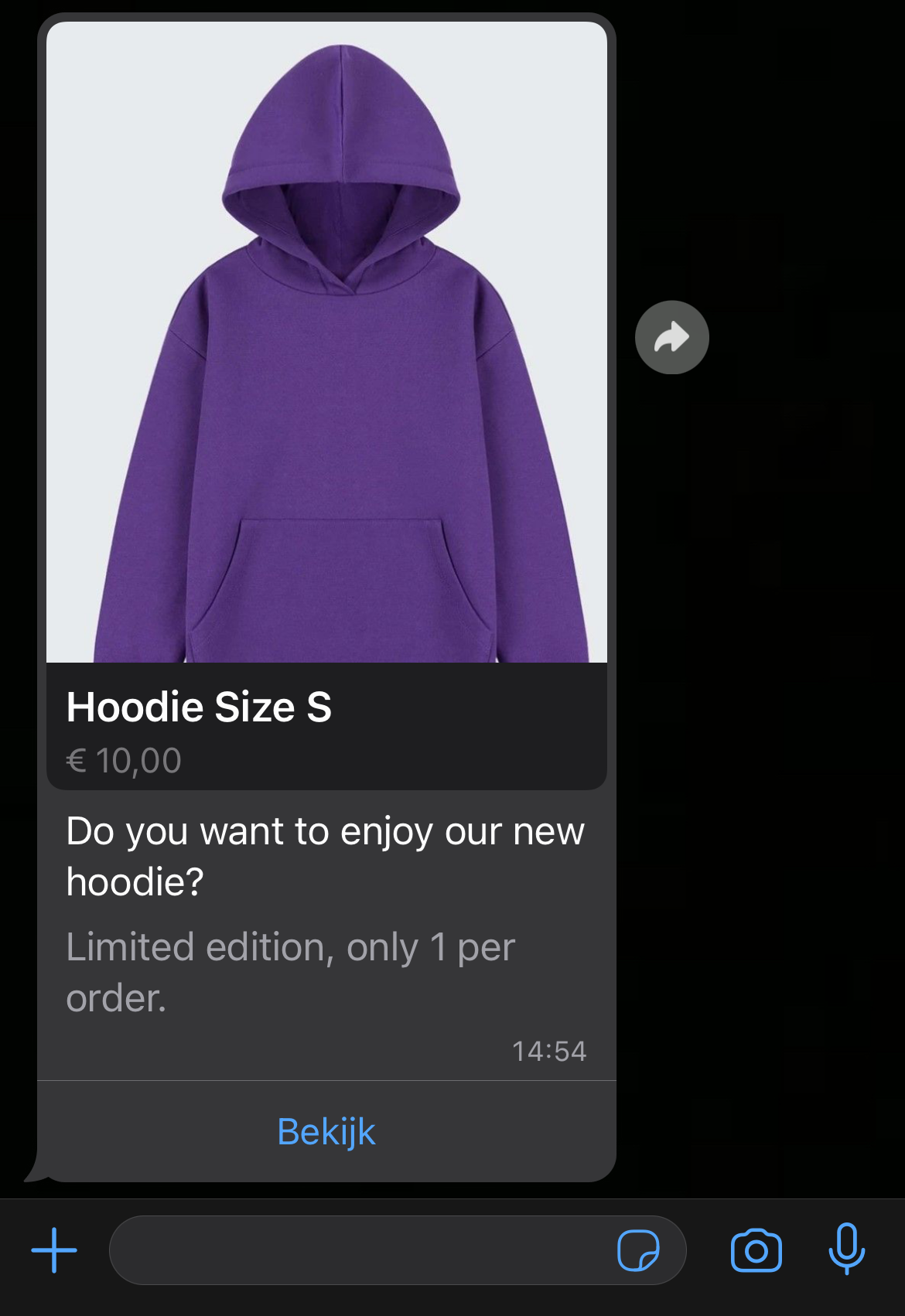
| Field | Required | Description |
|---|---|---|
type | Yes | product |
body.text | No | Message text. |
footer.text | No | Footer text. |
action.catalog_id | Yes | ID of your catalogue in Commerce Manager. |
action.product_retailer_id | Yes | Retailer ID (content ID) of the product. |
The example below shows the conversation item. Place it in a request like the catalogue message example.
Single product message
{
  "interactive": {
    "type": "product",
    "body": {
      "text": "Do you want to enjoy the fun of a new mousepad?"
    },
    "footer": {
      "text": "Limited edition, only 1 per order."
    },
    "action": {
      "catalog_id": "123456789012345",
      "product_retailer_id": "cmcomdevelop-mousepad"
    }
  }
}
Product list message
A product list message shows up to 30 products, grouped into sections.
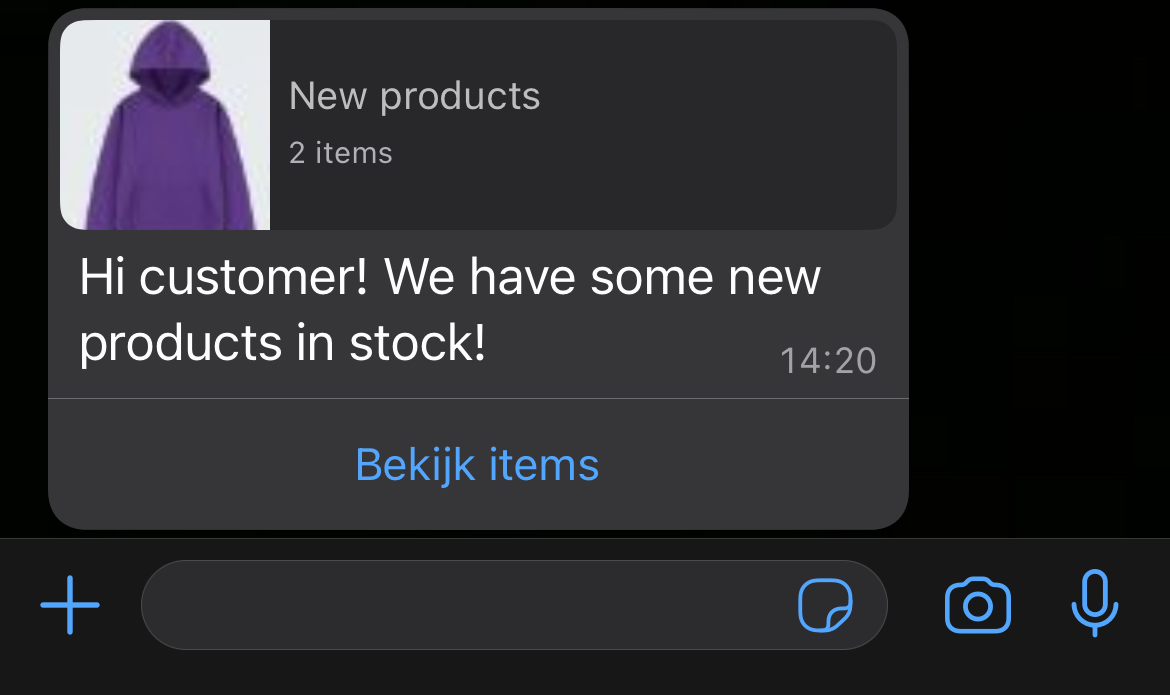
| Field | Required | Description |
|---|---|---|
type | Yes | product_list |
header | Yes | Header of type text. |
body.text | Yes | Message text. |
footer.text | No | Footer text. |
action.catalog_id | Yes | ID of your catalogue in Commerce Manager. |
action.sections[].title | Yes | Section title. |
action.sections[].product_items[].product_retailer_id | Yes | Retailer ID of each product. Up to 30 products in total. |
Product list message
{
  "interactive": {
    "type": "product_list",
    "header": {
      "type": "text",
      "text": "New products"
    },
    "body": {
      "text": "Hi! We have some new products in stock."
    },
    "action": {
      "catalog_id": "123456789012345",
      "sections": [
        {
          "title": "Products",
          "product_items": [
            { "product_retailer_id": "cmcomdevelop-frisbee" },
            { "product_retailer_id": "cmcomdevelop-coaster" },
            { "product_retailer_id": "cmcomdevelop-mousepad" }
          ]
        }
      ]
    }
  }
}
Next steps
- Receive the user's order.
- Request payment with Payments – India or Payments – Brazil.