How to do a transaction in APS
Transaction in APS is a 2 step process:
- Creating a transaction:
curl --location --globoff 'https://api.payhub.cm.com/v1/accounts/{{logical-account-id}}/transactions' \
--header 'X-CM-SSO-ACCOUNTGUID: {{your-account-guid}}' \
--header 'Content-Type: application/json' \
--data '{
  "additionalData": {
    "language": "en",
    "email":"{{email-id}}"
  },
  "amount": {
    "currency": "USD",
    "amount": "1999"
  },
  "connectionId": "{{connection-id}}",
  "description": "Random Product for Testing",
  "allowedMethods": [
    "VISA"
  ],
  "expiresAtUtc": "2025-05-05T08:39:55.719Z",
  "reference": "PROTEST-000001",
  "returnUrlSuccess": "https://www.yourwebsite.com/transaction-success",
  "returnUrlFailure": "https://www.yourwebsite.com/transaction-failure",
  "webhook": "https://www.yourwebsite.com/webhook"
}'
- For Amazon Payment Service,
languageandemailare required field to create any transaction. - APS supports
enandarlanguages. If not given, it takesenby default. - The customer’s APS account should have all the currencies enabled in which they are going to do the transactions.
allowedMethodshas the list of card types allowed, make sure all those cards are enabled in the APS. IfallowedMethodsis an empty list([]), we are assuming all the cards are accepted.referencehas to be unique for every transaction. This will used for refund also.
It gives the following response:
{
    "id": "092dbf38-7517-4336-91d0-e5d0d45ec63d",
    "accountId": "{{your-logical-account-id}}",
    "amount": {
        "currency": "USD",
        "amount": "1999.00"
    },
    "status": "Created",
    "type": "Payment",
    "reference": "PROTEST-000001",
    "allowedMethods": [],
    "providerReference": "",
    "providerData": {},
    "description": "Random Product for Testing",
    "connectionId": "{{your-amazon-connection-id}}",
    "relatedTransactionId": null,
    "expiresAtUtc": "2025-05-05T08:39:55.719Z",
    "additionalData": {},
    "redirectUrl": "https://payhub.cm.com/l/W10kiPW2ZtrtfvRONTqJCu",
    "returnUrlSuccess": "https://www.yourwebsite.com/transaction-success",
    "returnUrlFailure": "https://www.yourwebsite.com/transaction-failure"
}
-
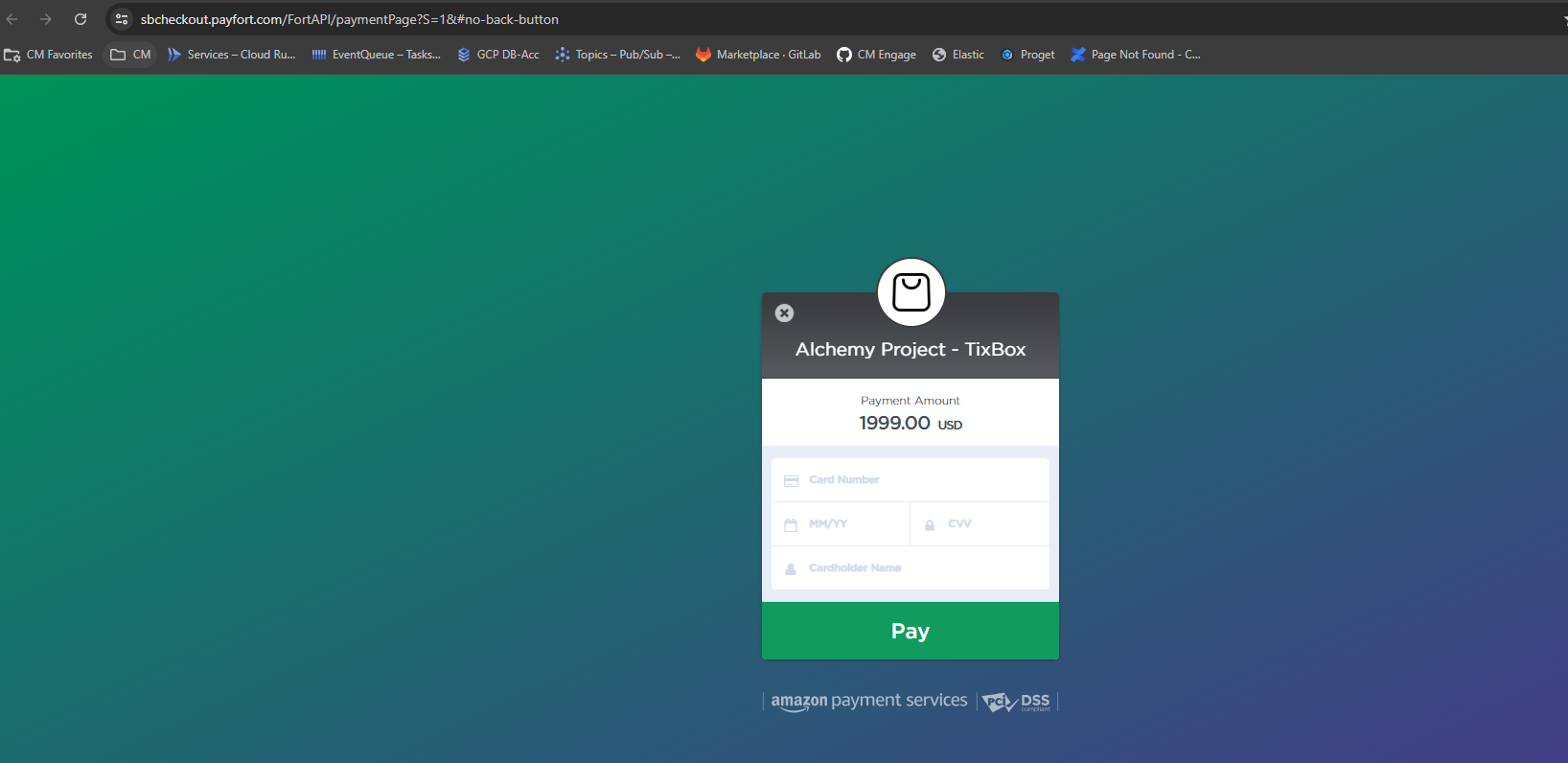
Once you click on the redirect URL in the response it will take you to the Amazon Payment Service payment window:
Successful transaction looks like this:
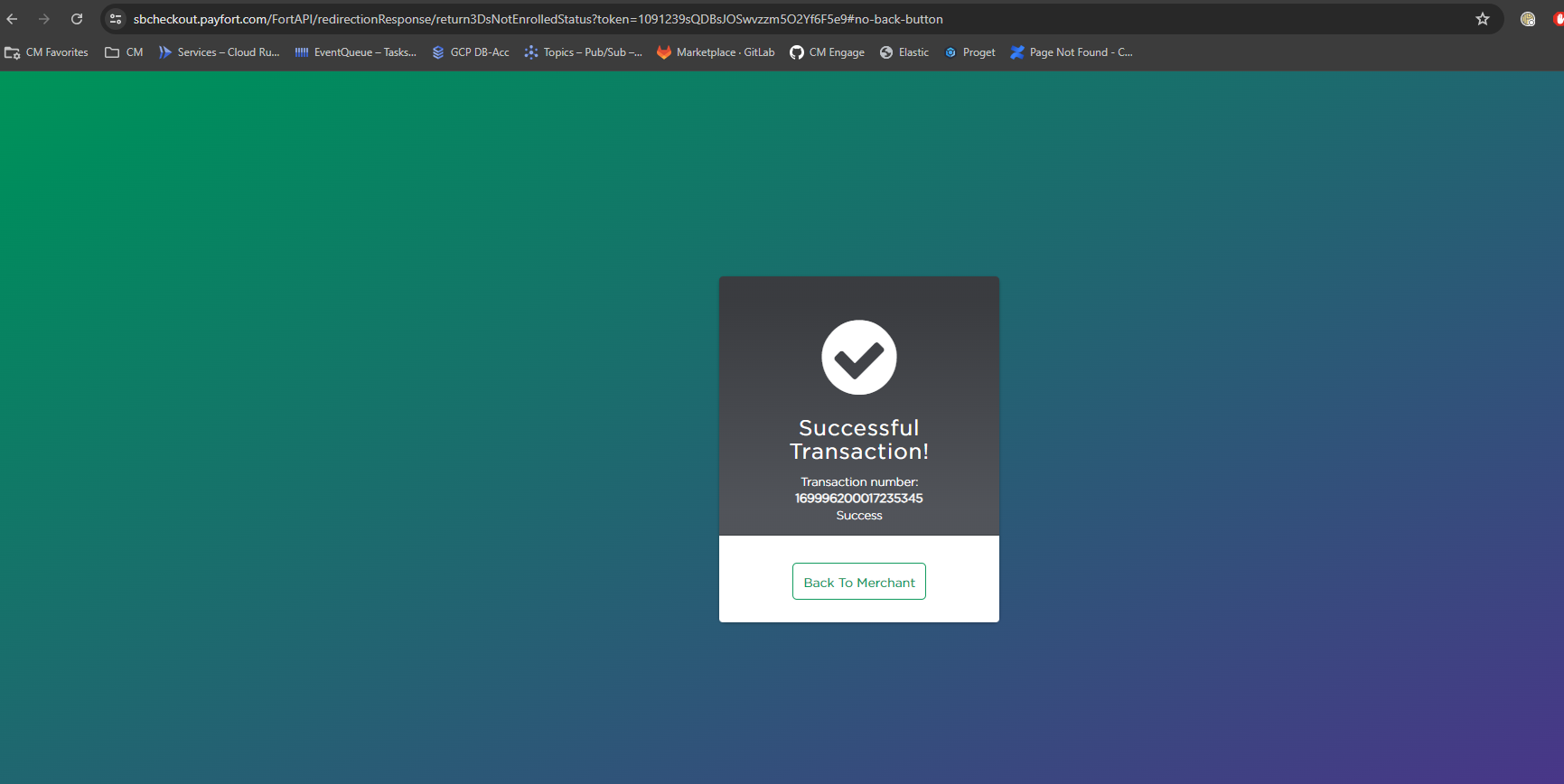
After the transaction gets completed it will redirect you to either returnUrlSuccess or returnUrlFailure based on the status of your transaction.
You can find the test cards here: https://paymentservices.amazon.com/docs/EN/12.html
Use this account for prod testing: