Delivery Setup - Zendesk
Routing in Zendesk Livechat
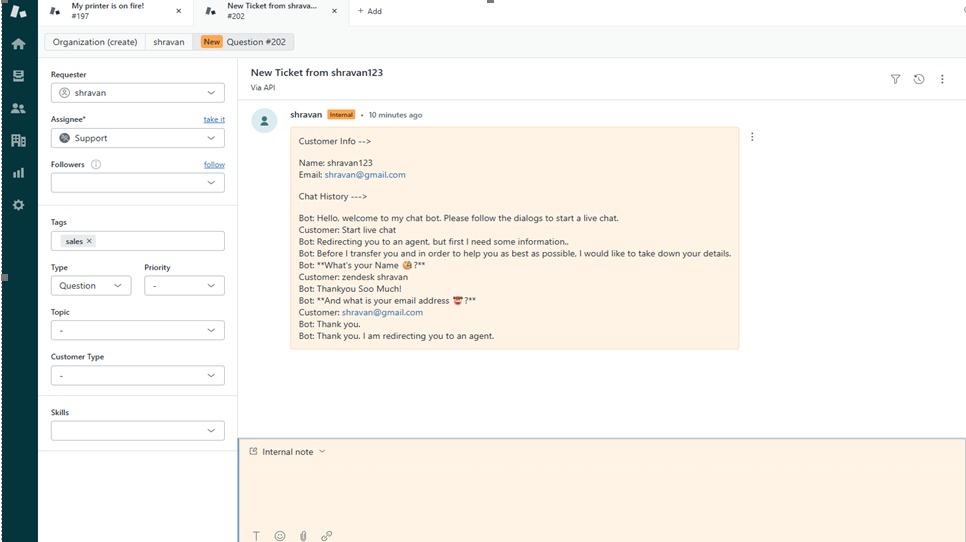
Currently Zendesk supports agent routing based on the team/webstore. To achieve agent routing ensure that property webStoreReferrer is passed correctly inside context in the handover message request body as shown below
{
    "chatId": "5e0268b8-451f-5a78-bd40-2919d4ac3223",
    "sessionId": "5237c752-05b8-4b02-a440-d318fea392cc",
    "accountId": "5fb7ff00-daf9-416d-b2c4-4c2f97390b23",
    "channel": "CXWebConversations",
    "conversationHostId": "6cbe5295-c454-471c-a144-a702e3e09d2c",
    "conversationClientId": "6ad9548c-5936-440d-8780-109e6b6f4d24",
    "context": {
        "CustomerInfo": "{\"name\":\"shravan\",\"email\":\"[email protected]\"}",
        "UrlReferrer": "https://fiddle.jshell.net/a7em2doq/show/",
        "webStoreReferrer": "sales"
    }
}
the channel name will be displayed under tags in the agent portal like this as shown below
Presence Check In Zendesk Livechat
- Presence check for agent in zendesk is determined when the agent puts the status to Online
if the agent status is online then the agent is set to be available. - For environments with multiple groups, obtain the Group IDs from the customer (following these steps) and append them as a query parameter to the presence check endpoint:
https://api.cm.com/marketplace/livechat/v1/tenants/xxxxx/adapters/xxxxx/presence-check?ApiKey=xxxx&groupId=123456789 - if the agent status is offline/away we simply create a ticket in agent inbox so that agent can get back to it later. so when the agent is not available simply call the endpoint below to create a ticket in inbox which agent can comeback to later
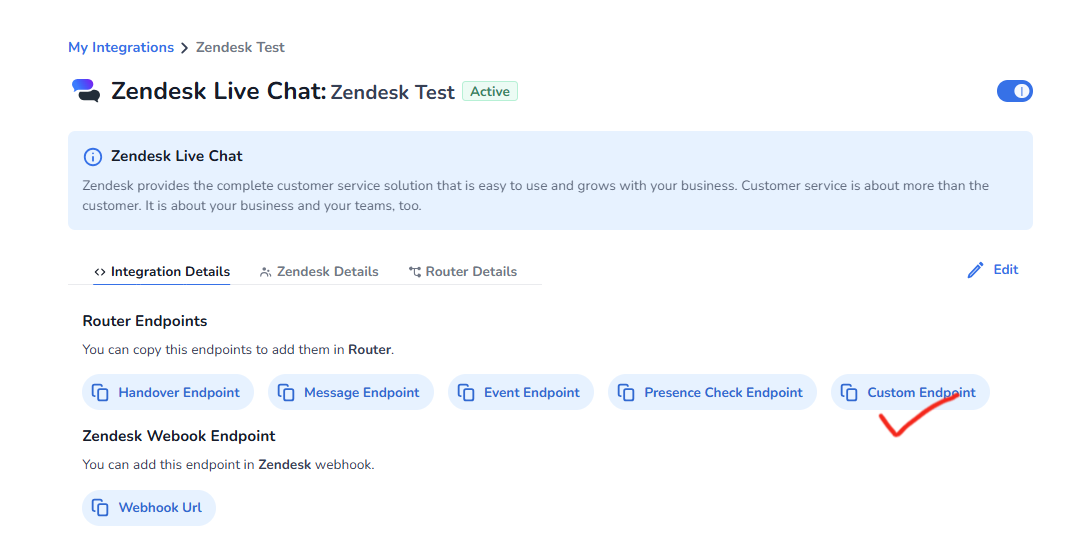
Go to Marketplace UI, Select the Integration created. And copy the Custom Endpoint URL as shown below
Request Body:
{
  "action": "createTicket",
  "data": {
    "sessionId": "CHAT_SESSION_ID",
    "name": "USER_NAME",
    "email": "USER_EMAIL"
  }
}
This endpoints are custom per integration, It is completely optional.
overall demo with business messaging channel (whatsapp): Whatsapp Demo.mp4
overall demo with web conversation channel:Web Conversations Demo.mp4