Common errors and solutions
Error while getting the access token or failed to authorize
If you are not getting the access token (authorization token) while doing the setup. The errors might look something like this
if you have done not completed step 3 given below:
{
    "error": "invalid_grant",
    "error_description": "user hasn't approved this consumer"
}
If you have done the step 3 but have not completed step 4 given below:
{
    "error": "invalid_app_access",
    "error_description": "user is not admin approved to access this app"
}
To resolve this issue, follow these steps:
- Navigate to Setup > "Manage Connected Apps".
- Find the app installed from the package (e.g., "cmcombyoc_app") and access its settings.
- In the OAuth Policies section, update Permitted Users to "Admin approved users are pre-authorized".
- Save the changes and add the System Administrator profile to the connected app's Profiles.
Error while sending or receiving messages to and from Salesforce
When you fail to receive or send message to salesforce and receive a error like `Invalid schema/topic for topic /event/mktplcdev__cmcombyocevent__e and tenant key core/prod/00D2t00se0039dnEAA` It’s most likely the issue of “SCRT2 Integration User” permission sets.
The error will look something like this:
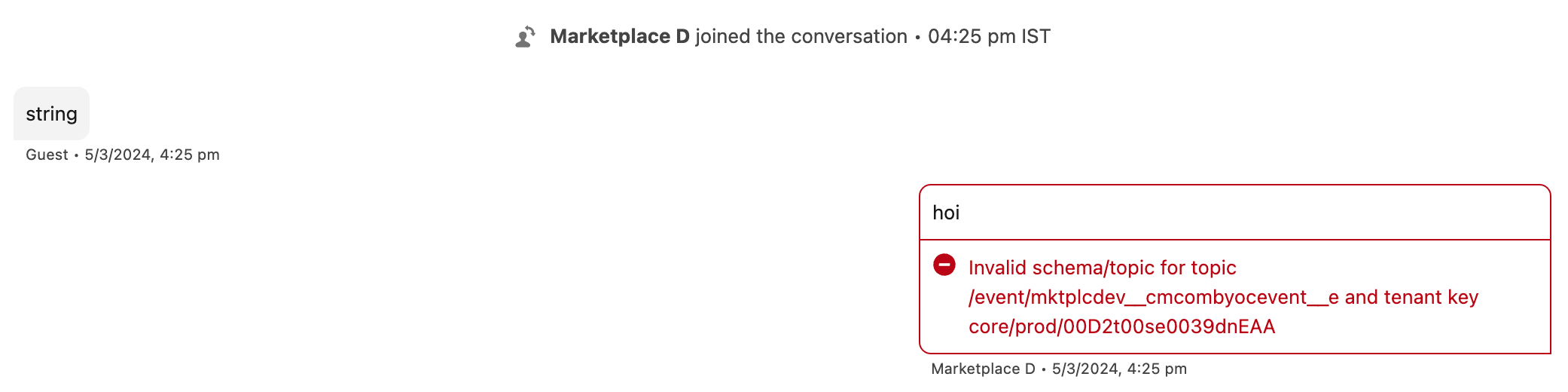
or the error message in server logs may look like:
{
    "message": "The AuthorizationContext for the request isn't valid based on the supplied Authorization access token.",
    "code": 10005
}
To resolve this issue, follow these steps:
- Go to Setup > "Permission Sets" and locate "SCRT2 Integration User".
- Open the permission set and navigate to Object Settings under the Apps section.
- Find the platform event installed from the package (e.g., "cmcombyocevents") and grant Read & Create permissions.
- Save the changes.
Error while creating messagingChannel using API
If you are following old documentation or somehow not passing “DeveloperName” and “MasterLabel” while creating messagingChannel, you might run into the error.
The error will look something like this:
{
    "message": "Required fields are missing: [DeveloperName, MasterLabel]",
    "errorCode": "REQUIRED_FIELD_MISSING",
    "fields": [
        "DeveloperName",
        "MasterLabel"
    ]
}
To resolve this issue, follow these steps:
- While creating the messagingChannel through API, also pass “DeveloperName” and “MasterLabel”, the payload will look something like this
{
    "DeveloperName": "cmcombyoc_channel",
    "MasterLabel": "CM COM Byoc Channel",
    "MessageType": "Custom",
    "isActive": "true",
    "ChannelDefinitionId": "11v2t000000000tCAB",
    "MessagingPlatformKey": "352248483XXXXXX",
    "SessionHandler": "00G2t000000OUSs",
    "FallbackQueueId": null
}
- Here, DeveloperName can be anything unique to your organization, and MasterLabel is the label with which it will be represented on the UI side
“Internal server error” while sending messages from Salesforce Service Console
When on agent side you’re sending a message to customer from Salesforce Service Console and if you receive “Internal server error” which means something is wrong at salesforce side.
The error will look something like this:
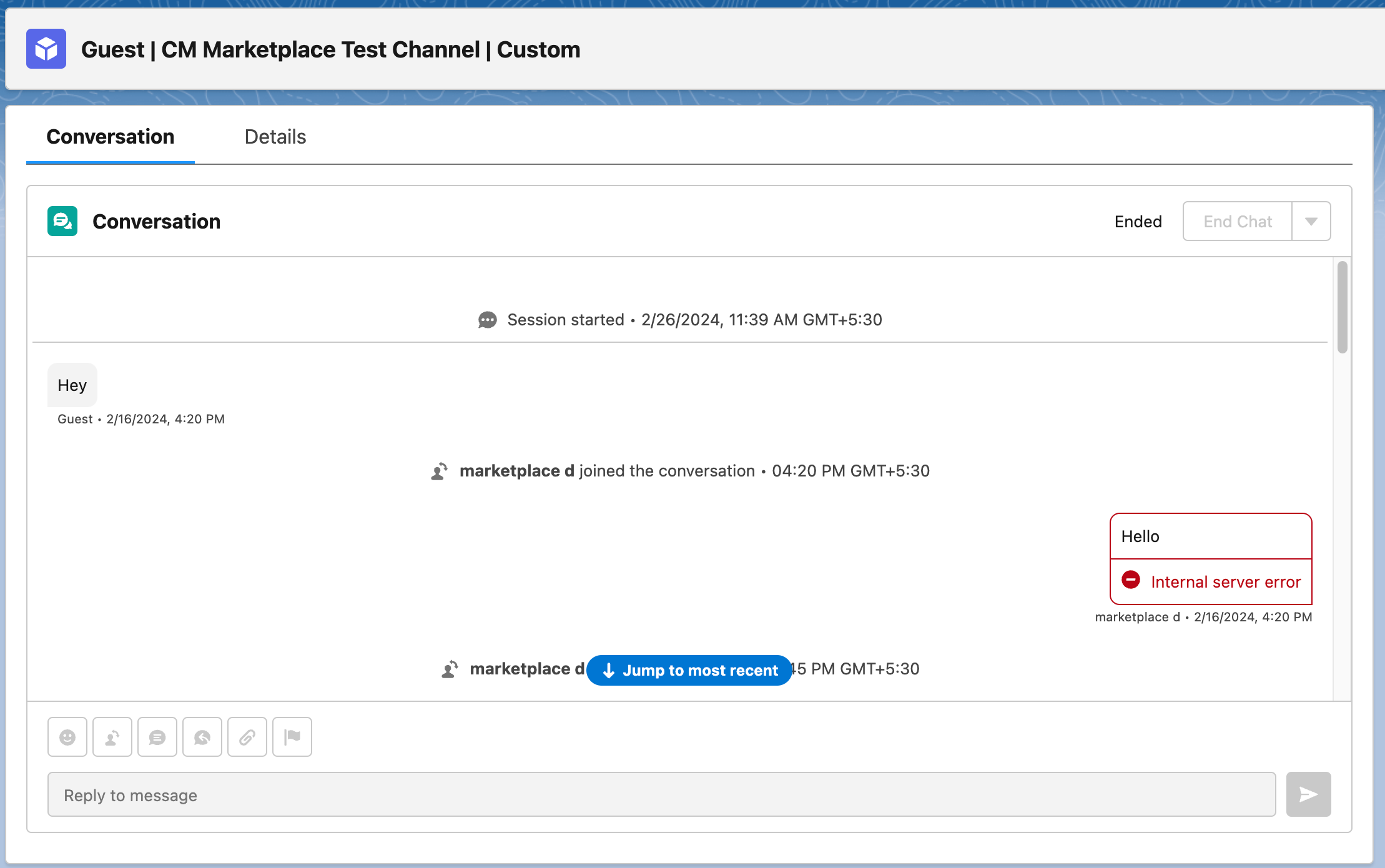
To resolve this issue, follow these steps:
- This error could happen for any reason, which could mean something is wrong at salesforce side, or there are permission related issue.
- To resolve this, try reaching to Salesforce Support and raise support ticket for the same, send them the error screenshot and ask them to check if you have sufficient permissions to use this feature like “Digital Engagement License” or “BYO-OTT” Permissions