Delivery Setup - Salesforce Enhanced Chat
Routing in Salesforce Enhanced Chat
If you have multiple channels set up in Salesforce Enhanced Chat, you don't have to send every chat to the same place - you can route each chat to the right channel based on where the customer came from, using the webstore referrer.
To do this, pass the property webStoreReferrer correctly inside context in the handover message request body, as shown below. The value you put in webStoreReferrer should be the ESDeploymentName (the Embedded Service's deployment name) that is connected to that specific channel - that's what ties the incoming chat to the right channel.
Follow this to get ESDeploymentName: Customer Setup - Salesforce Enhanced Chat
{
"chatId": "5e0268b8-451f-5a78-bd40-2919d4ac3223",
"sessionId": "5237c752-05b8-4b02-a440-d318fea392cc",
"accountId": "5fb7ff00-daf9-416d-b2c4-4c2f97390b23",
"channel": "CXWebConversations",
"conversationHostId": "6cbe5295-c454-471c-a144-a702e3e09d2c",
"conversationClientId": "6ad9548c-5936-440d-8780-109e6b6f4d24",
"context": {
"UrlReferrer": "https://fiddle.jshell.net/a7em2doq/show/",
"webStoreReferrer": "your_es_deployment_name"
}
}
Salesforce's own UI labels this field Developer Name on the Install Code Snippet screen - that's the exact same value we call ESDeploymentName throughout these docs, so don't get confused by the different labels.
Translation in Salesforce Enhanced Chat
To enable translation for Salesforce Enhanced Chat, pass the transformWithPipelineId field name inside context in the handover message request body, as shown below.
{
"chatId": "5e0268b8-451f-5a78-bd40-2919d4ac3223",
"sessionId": "5237c752-05b8-4b02-a440-d318fea392cc",
"accountId": "5fb7ff00-daf9-416d-b2c4-4c2f97390b23",
"channel": "CXWebConversations",
"conversationHostId": "6cbe5295-c454-471c-a144-a702e3e09d2c",
"conversationClientId": "6ad9548c-5936-440d-8780-109e6b6f4d24",
"context": {
"UrlReferrer": "https://fiddle.jshell.net/a7em2doq/show/",
"webStoreReferrer": "your_es_deployment_name",
"transformWithPipelineId" :"xyz"
}
}
To enable translation in conversational router and get the transformWithPipelineId, go to the translation step: LiveChat Handover Setup for Marketplace Adapters: V1 vs V2 Configurations
Presence Check in Enhanced Chat
Before a chat is delivered to Salesforce, we call a presence check to see if an agent is actually available to take it. There are 3 different models for how this check decides "available or not". Which one runs depends on the skipQueue and isWaitingEnabled query params and the tenant's QueueEnabled setting - not on the queue itself.
Quick comparison
| Model | Does it check Business Hours in Salesforce first? | Where does the chat wait? | How does it decide "available"? |
|---|---|---|---|
| Model 1 - CM Queue | Yes | In CM's own queue | It checks how much extra work the agents can still take, and how many chats are already sitting in our queue. If our queue still has room, the chat is accepted. |
| Model 2 - Waiting Session | Yes | Inside Salesforce, as a "Waiting" session | It compares two simple counts: chats already waiting, and agents online. If waiting chats are fewer than online agents, and the agents still have room for more work, the chat is accepted. |
| Model 3 - Default | No | Nowhere - it's a live, right-now check | If at least one online agent still has room to take more work, the chat is accepted. |
Note: for Model 1 and Model 2, the Business Hours check always runs first - if it's currently outside business hours, the request is rejected immediately and none of the rest of that model's logic (capacity, queue, waiting count) even runs. To learn more about business hours and how it's set, see the Salesforce help article on Messaging business hours.
Model 1 - CM Queue model (we hold the queue)
When does this model run? Both of these must be true:
skipQueue= false (this is the normal, default setting)- Queuing is turned ON for this customer (
QueueEnabled= true)
What this model means: We (CM) keep our own waiting line ("queue") for this customer's chats. We do not simply ask Salesforce "is there space?" every single time - we manage the line ourselves.
Steps, one by one:
- Check business hours in Salesforce.
- Not business hours → Available = NO. Stop here.
- Is business hours → go to step 2.
- Add up spare capacity. Look at all agents online for this queue. Add up how many more chats they can still take (their max minus what they already have).
- Count our own queue. Count how many chats are already waiting in our own internal queue for this adapter/queue.
- Compare and decide:
- IF (chats already in our queue) is LESS THAN (spare capacity from step 2) → Available = YES
- ELSE → Available = NO
Simple way to remember it: "Do we still have room in our own queue, based on how much work the agents can still take on?"
Model 2 - Waiting Session model (Salesforce holds the chat)
When does this model run? Both of these must be true:
- Model 1 does not run (queuing is turned off, or
skipQueue= true) isWaitingEnabled= true
What this model means: This time, Salesforce keeps the chat waiting (as a "Waiting" session) - not us. We just make sure Salesforce doesn't end up with too many chats waiting at once.
Steps, one by one:
- Check business hours in Salesforce (same as Model 1). Not business hours → Available = NO. Stop here.
- Count two numbers:
waitingCount= how many chats are already "Waiting" in Salesforce for this queueonlineAgentCount= how many agents are online right now for this queue
- Compare and decide (first check):
- IF
waitingCountis GREATER THAN OR EQUAL TOonlineAgentCount→ Available = NO. Stop here. - ELSE → go to step 4.
- IF
- Compare and decide (second check):
- IF the agents' current workload is LESS THAN their configured capacity → Available = YES
- ELSE → Available = NO
Simple way to remember it: "Are fewer chats waiting right now than we have agents online?"
Important - please read carefully: Step 3 does not care how many chats one agent is allowed to handle at once (their "capacity" number). Step 3 only compares two simple counts - chats waiting vs. agents online. Even if an agent's capacity is set high (can handle several chats at once), this rule does not change. Capacity is only checked later, in step 4, and only if step 3 has already said OK.
Example: 3 agents are online.
- 0, 1, or 2 chats already waiting → step 3 says OK, continue to step 4.
- 3 or more chats already waiting → step 3 says NO, stop here - even if each agent's capacity is high enough to handle several chats each.
- The agent's real capacity number is only looked at in step 4, and only after step 3 already passed.
Model 3 - Default model (direct, real-time check)
Runs when: neither of the above applies - i.e. queuing is off (or skipped) and waiting is not enabled. This is the plain fallback/default behaviour.
- No Business Hours check, no CM-side or Salesforce-side queue bookkeeping.
- Just asks Salesforce, right now: which agents are online and not away for this queue (or org-wide if no queue is given)?
- If a queue was given, keeps only the agents whose current workload is still below their configured capacity.
- "Available" = true if at least one such agent is found.
In short: "Is any agent free to take a chat right this second?" - no queue, no waiting list, just a live snapshot.
Which queue to check (applies to all 3 models)
Independent of which model above runs, you can tell it which Salesforce queue to check:
-
queueName- the queue's Developer Name (e.g.queueName=Support_Queue). To get this, navigate to Salesforce → Service Setup → search for Queues → click on the specific queue and copy the queue name as shown below.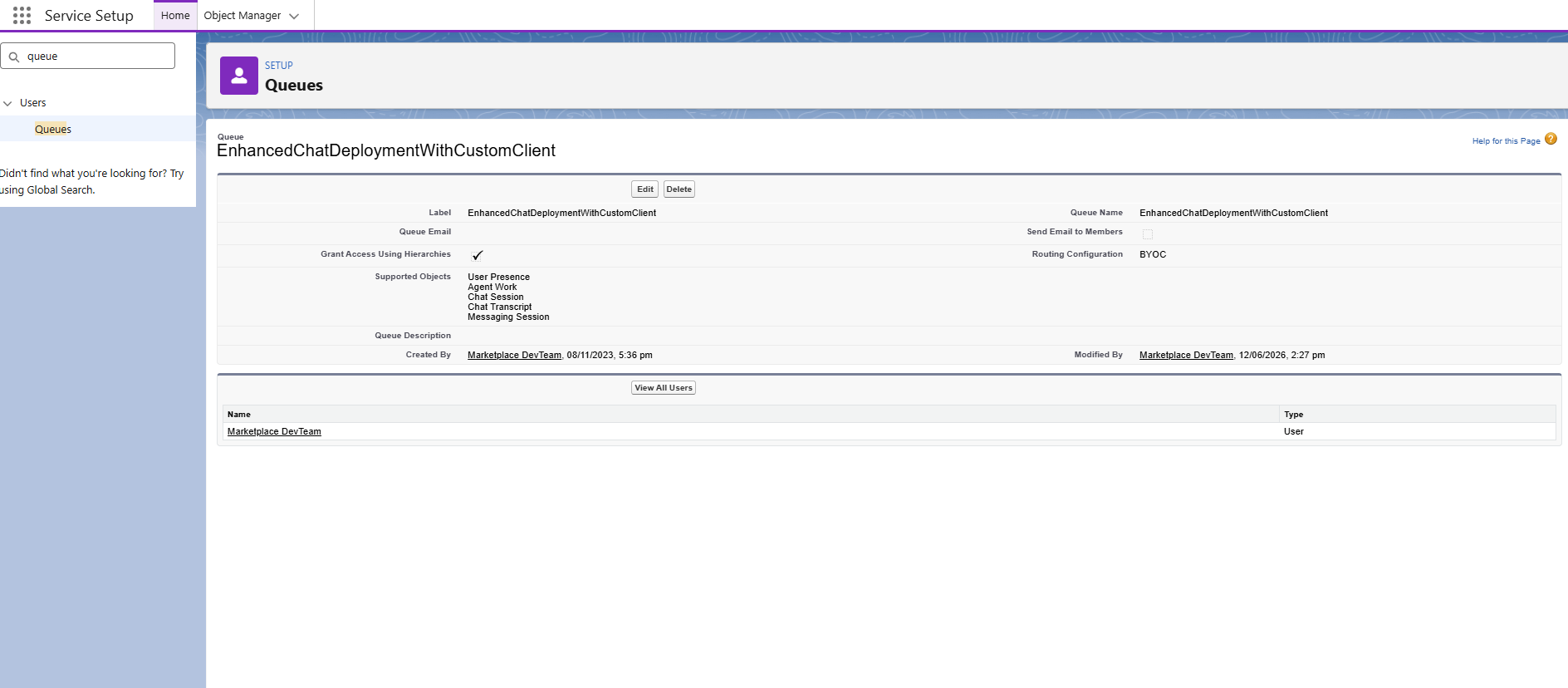
-
queueId- the queue's Salesforce record ID (e.g.queueId=0F91234567ABC). It can be fetched from the URL path.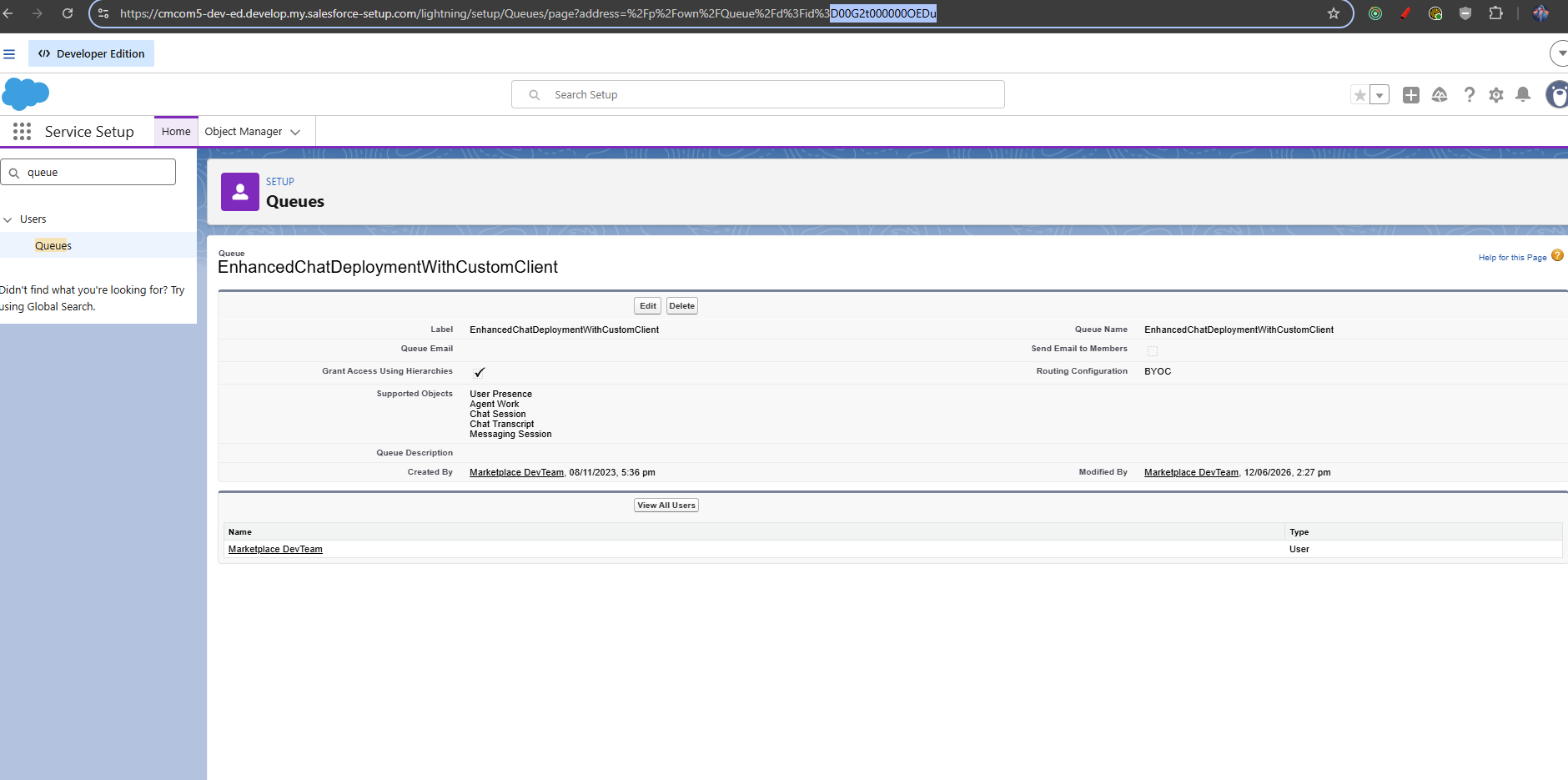
Endpoint
POST https://api.cm.com/marketplace/livechat/v1/tenants/{tenantId}/adapters/{tenantAdapterId}/presence-check?queueName=...&queueId=...&skipQueue=...&isWaitingEnabled=...