Managing Storage Usage in Salesforce Chat
Due to the organization's storage usage limit, we do not able to set the agent status to online, which restricts the usage of live chat with customers. To address this issue and free up space, we follow the steps mentioned below to delete unused or unwanted data objects. This helps us manage storage effectively and ensure that essential operations can continue smoothly.
Determining the storage usage in Salesforce chat
-
Navigate to “Settings” → “Setup” as shown in below image
-
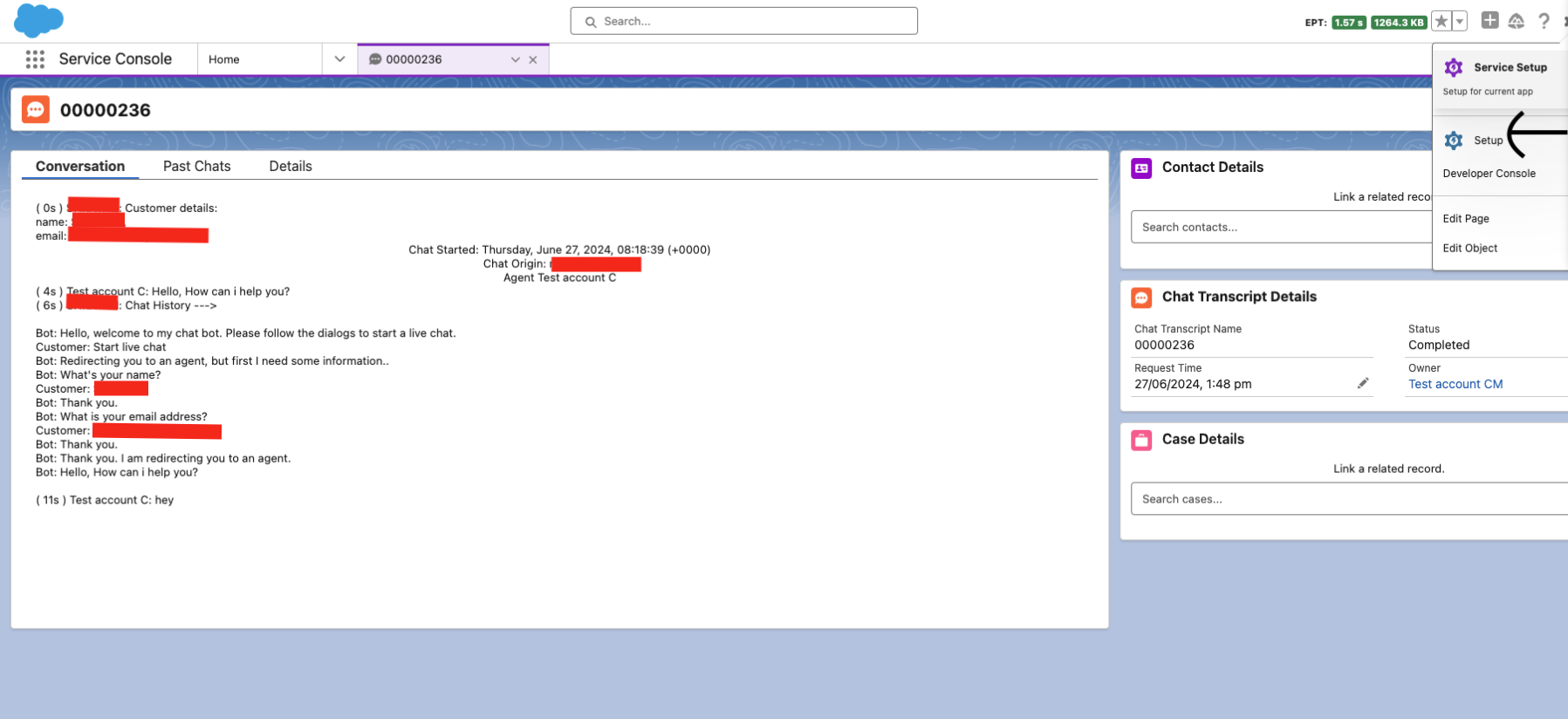
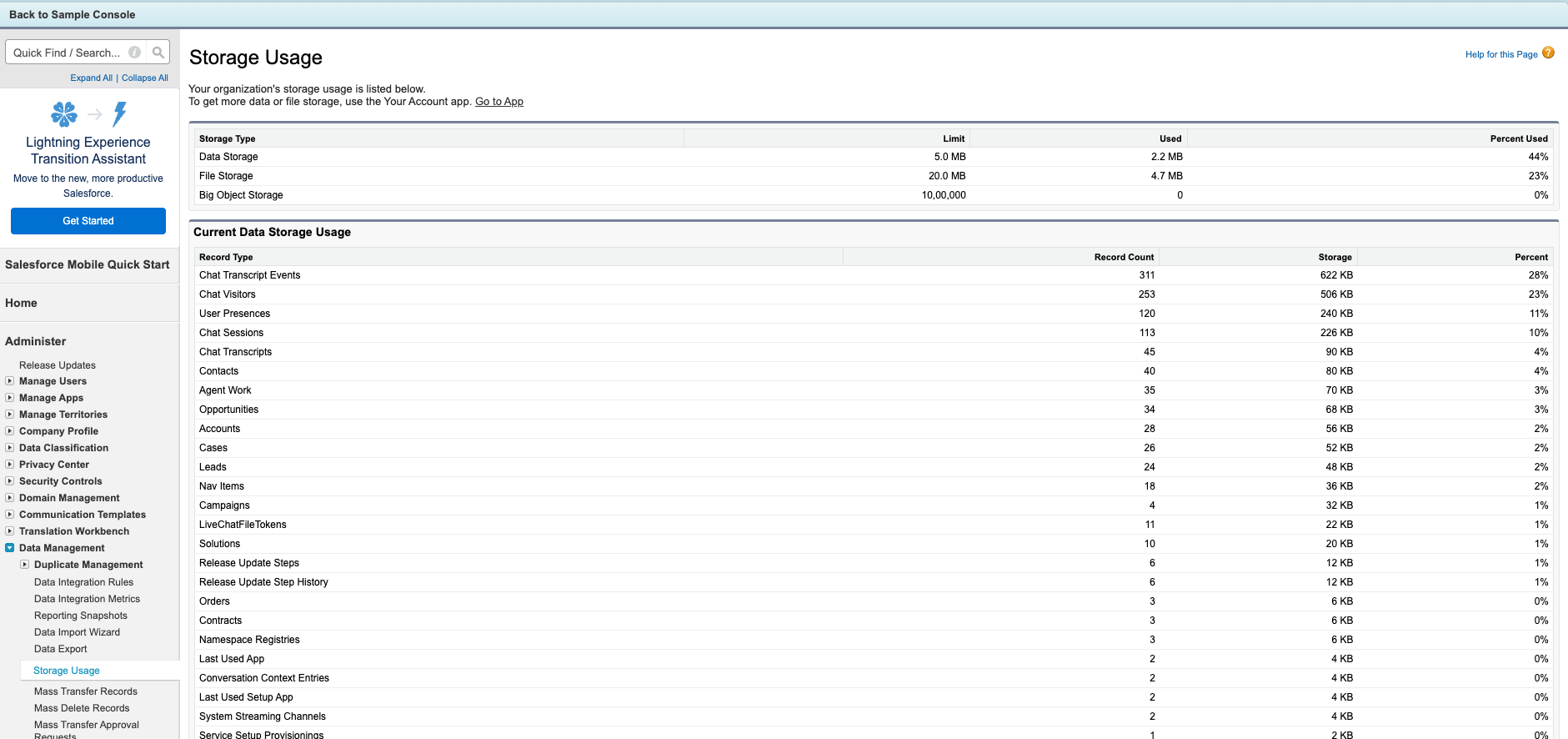
After navigating to setup search for “Storage Usage” in search bar for easy navigation.In the storage usage you can determine which records are taking the most of the space and according it to you can delete which record you want .In the upcoming steps we will be deleting “Chat Transcripts”.
Deleting the records using Developer Console
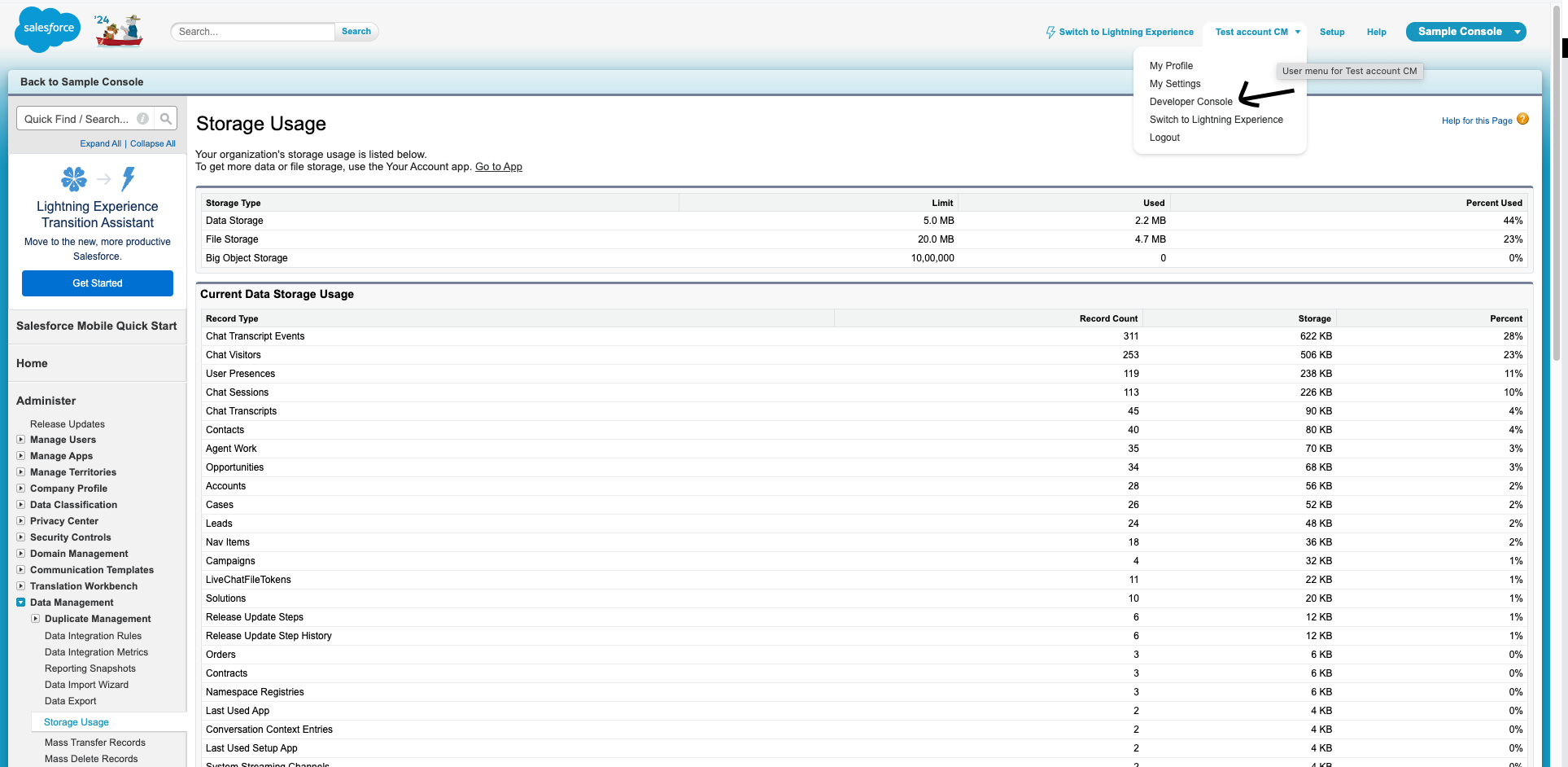
- Go to your account in the navigation bar at top as shown in below image and then go to developer console
-
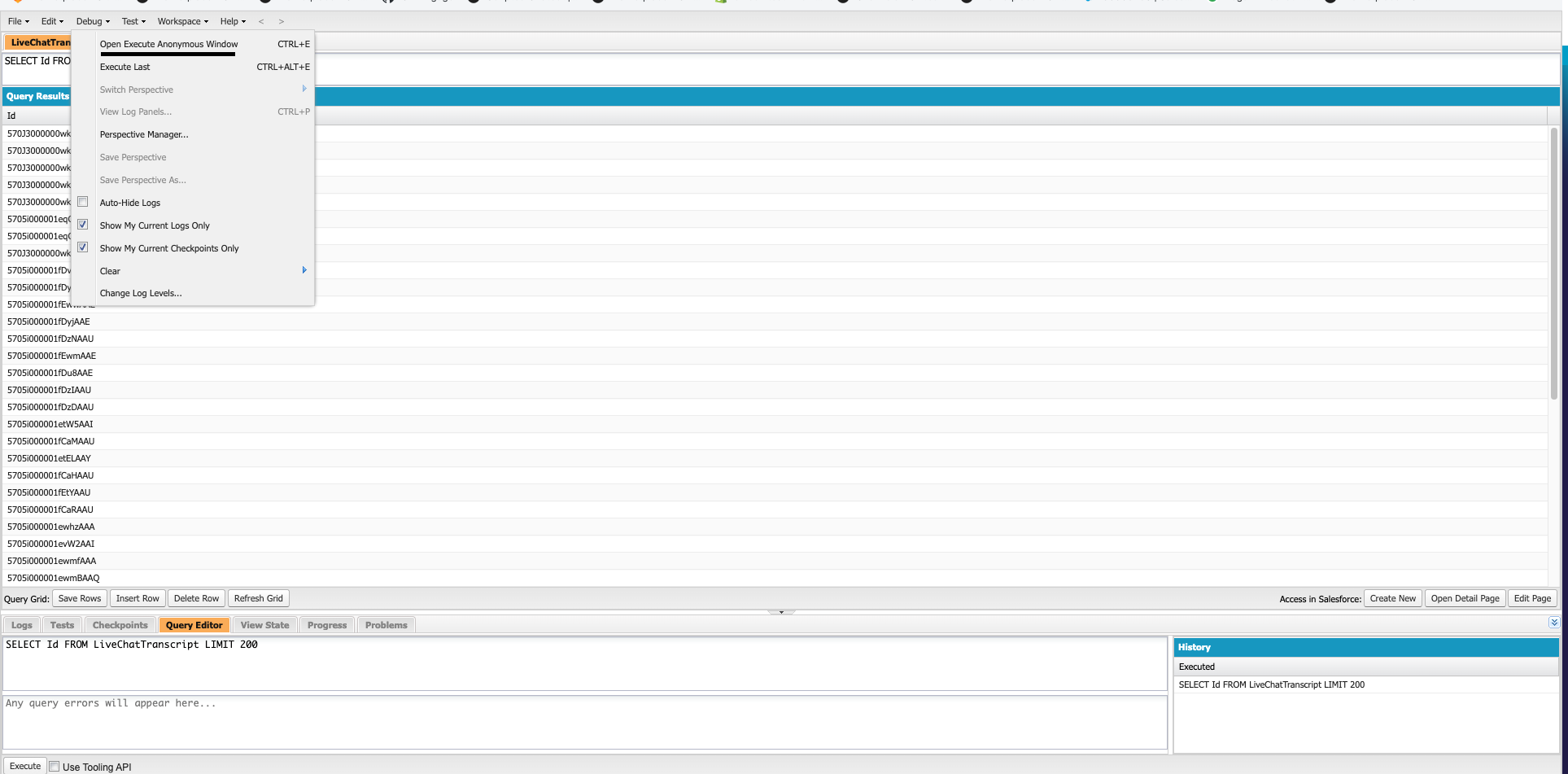
After opening the developer console navigate to “debug” on top left corner and after that navigate to “Open Execute Anonymous Window”
-
Enter the following query in the query executer window.
delete[select col1 , col2 , ...col n from table name];
Here col1 , col2 are the name of the columns of which you want to delete the records
table name is the name of the table
in this case records of livechat transcript table is deleted.
delete[select Id from LiveChatTranscript LIMIT 200];
Congratulations you have successfully free up the space from your storage now you can use the services of the salesforce livechat with the customers
Carefully review the records you want to delete.