Customer Setup - QContact
This guide explains what you, as the customer, need to provide to enable the integration between Qcontact Livechat and our platform.
1. Customer Setup in QContact
Retrieve the following information from the customer:
- Retrieve the default endpoint ID which will be used if there is no specific team/webstore configured.
- To hand over conversations to different teams/webstores within QContact, each team/webstore will have its own Endpoint ID. Retrieve each Endpoint ID of the corresponding teams/webstores from the customer.
- Retrieve the Organization ID from the customer.
2. Setup in Marketplace Form Fields for QContact Details
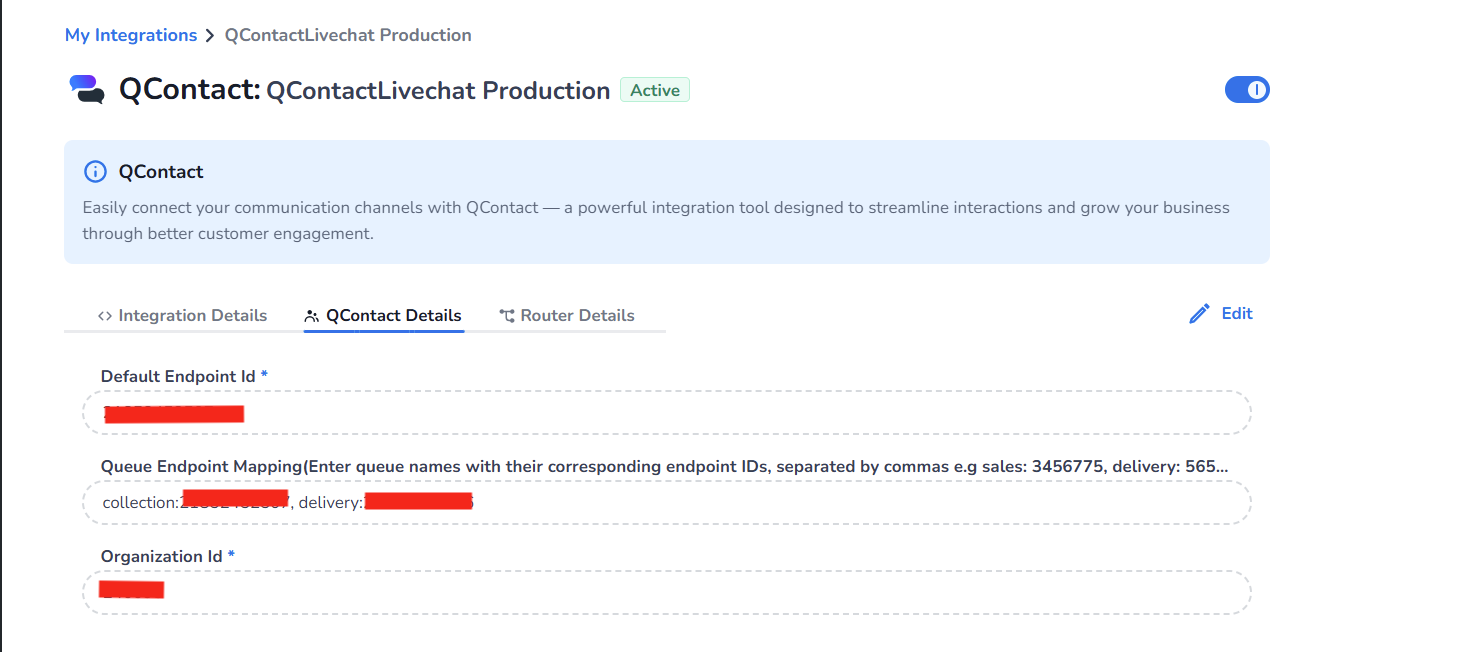
In the Marketplace form fields, input the following details:
-
Fill the Default Endpoint Id field in form details with the value retrieved in step 1 (https://cmcom.atlassian.net/wiki/spaces/MKT/pages/2443968602/Customer+Setup+-+QContact#1.-Customer-Setup-in-QContact ).
-
Fill the routing channel/teams/webstore name with the corresponding Endpoint ID retrieved from step 2 (https://cmcom.atlassian.net/wiki/spaces/MKT/pages/2443968602/Customer+Setup+-+QContact#1.-Customer-Setup-in-QContact ) in the Queue Endpoint Mapping field in form details.
Example:
Delivery: "xyz", Sales: "123"Where
Delivery,Salesare routing channel names and"xyz","123"are endpoint IDs. -
Fill the Organization Id field in form detail with the value retrieved in step 3 (https://cmcom.atlassian.net/wiki/spaces/MKT/pages/2443968602/Customer+Setup+-+QContact#1.-Customer-Setup-in-QContact ).