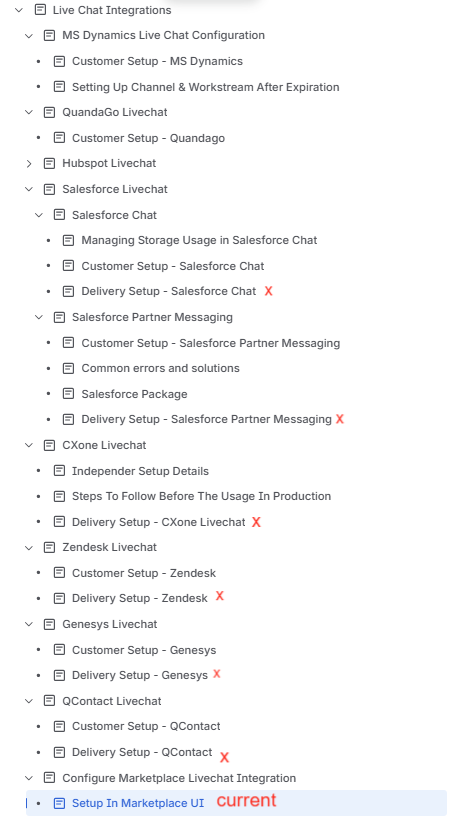
Setup In Marketplace UI
We are filling fields of CCaaS and Router and It will look like this at end
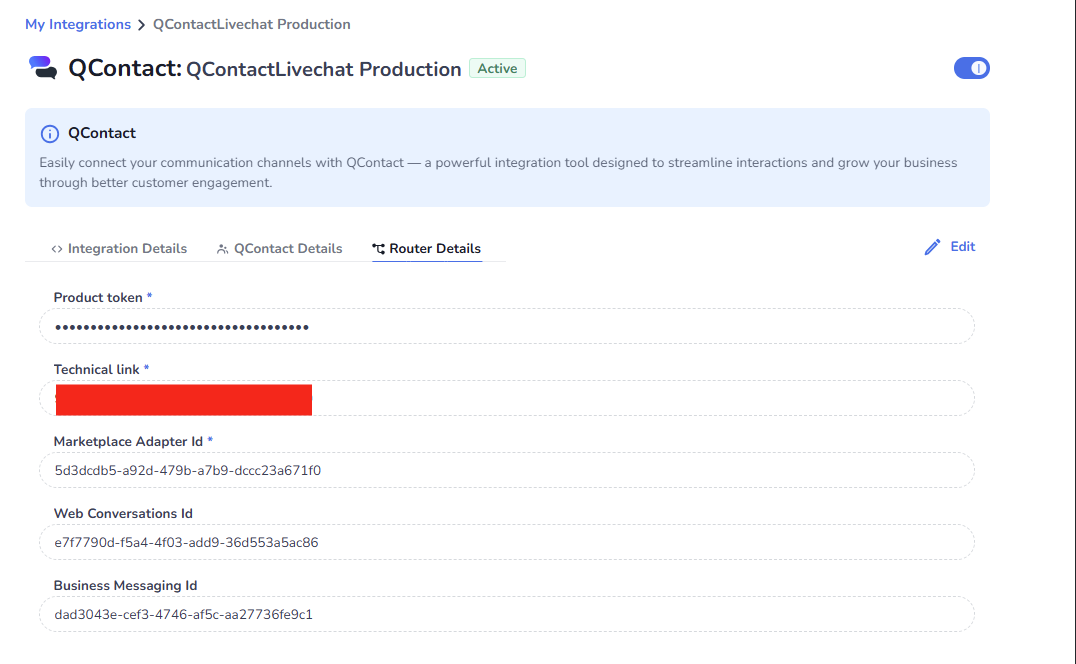
Fill Form Fields under CCaaS System details
Ask customer to provide the details and you can refer customer setup of corresponding integration
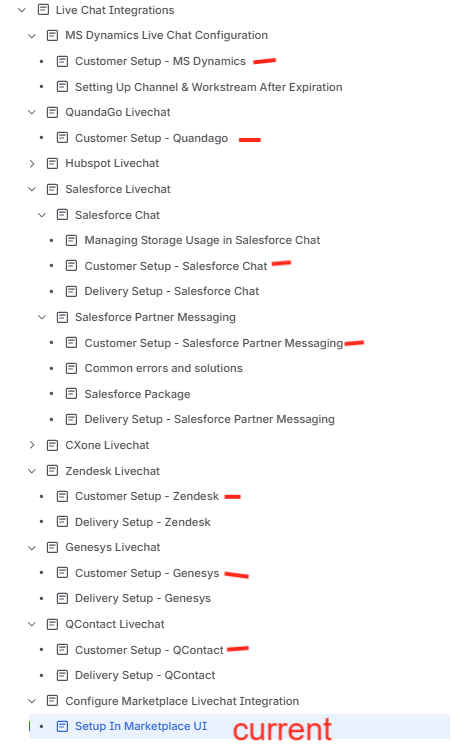
If you want to view integration-specific details (e.g., Genesys Details, Quandago Details, Zendesk Details, etc.), please navigate to Live Chat Integrations and then the corresponding livechat integration page (integration name followed by Customer Setup) as shown in the image below(marked in “-”)
Fill Form Fields under Router Details
-
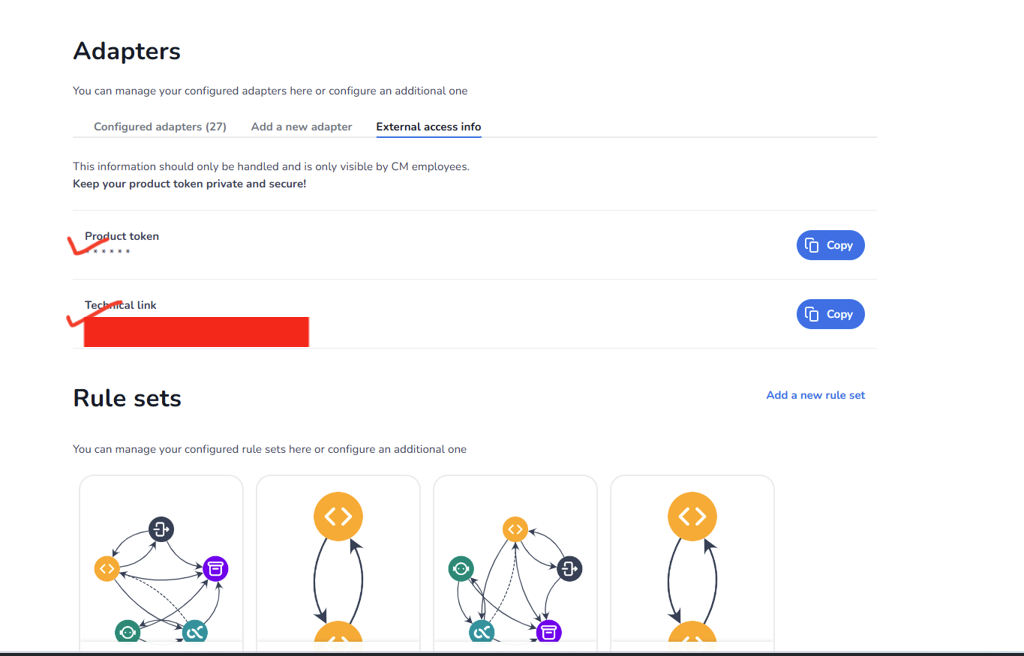
Navigate to External Access Info Tab in Conversational Router and copy down the Product Token and Technical link.
-
Now Copy Outbound URL of the Web conversations, Business Messaging, and marketplace Livechat two way adapter from the **Conversational Router ** paste the URL in a new tab and then extract/copy the adapter id from the URL i.e. copy the “x” part in /adapter/{x}
below is example do the same for the three.
Before following this step ensure initial setup in Conversational Router is done
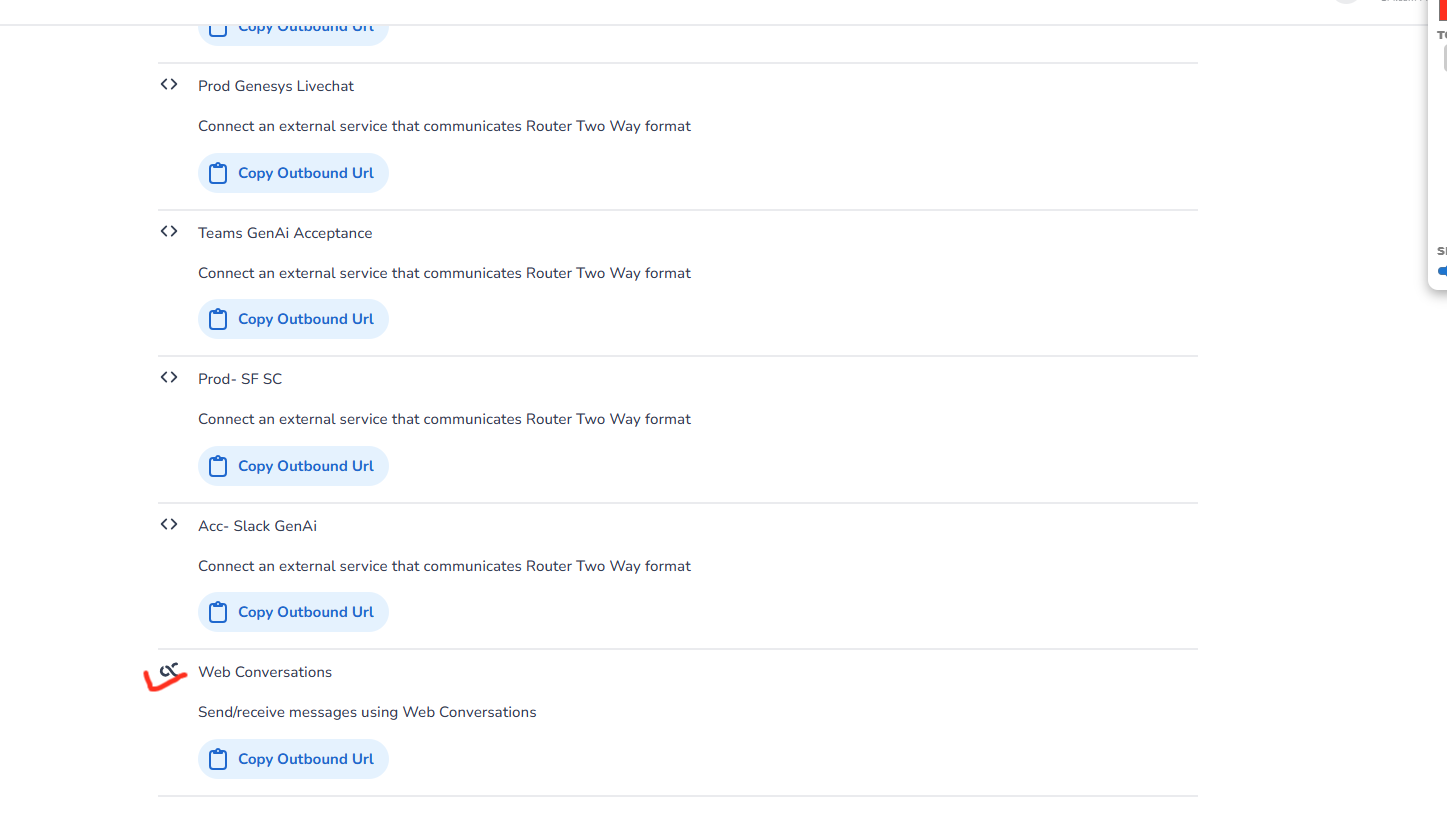
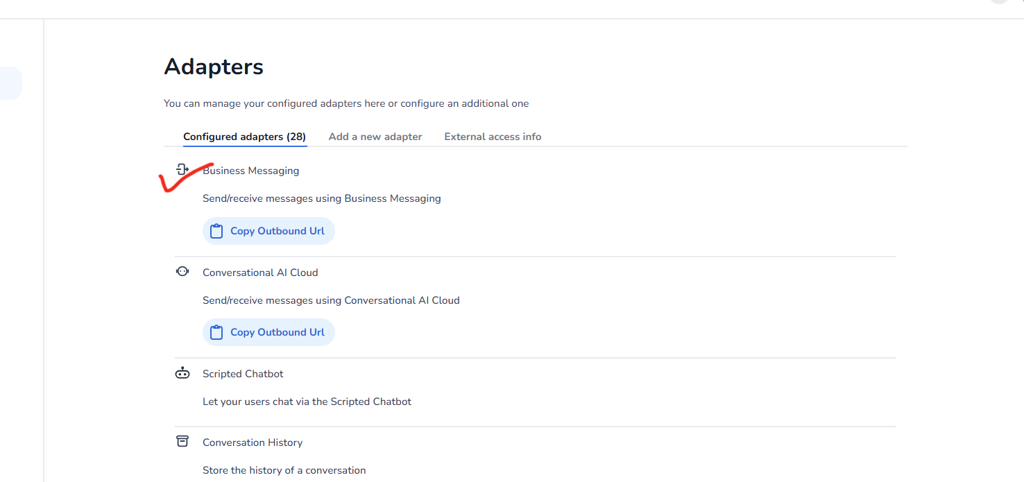
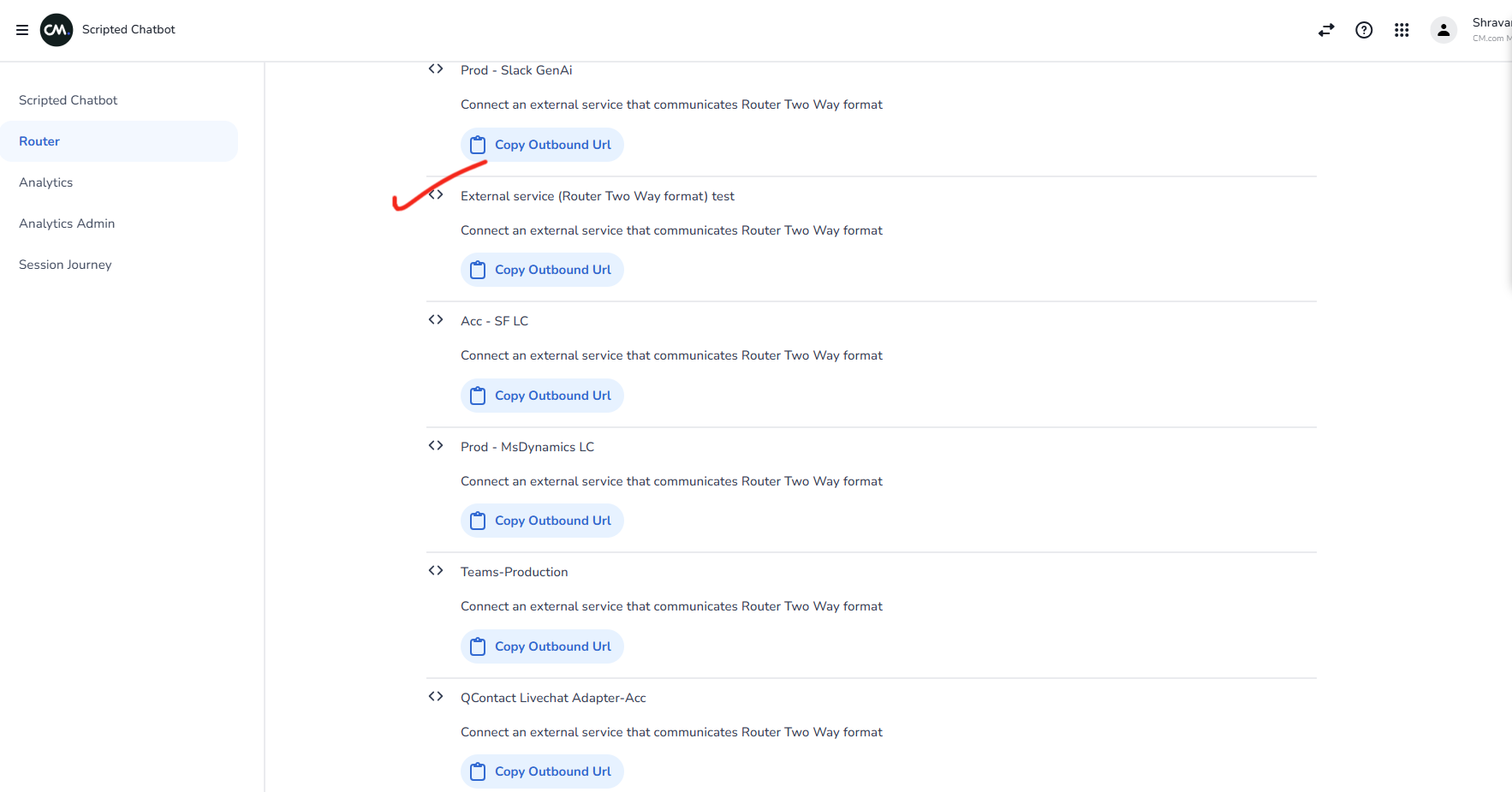

Now Input the Extracted Adapter Id of the Business Messaging adapter as Business Messaging Id, Web Conversation adapter as Web Conversations Id and the marketplace livechat two way adapter(created in Configure Marketplace Livechat Integration) as Marketplace Adapter Id in the form fields.
Note that Web Conversations Id and Business Messaging Id used is just for examples Customer may only use Web Conversations Id or Business Messaging Id or both. Accordingly copy the id’s and paste in the form fields.
Now you are all done as part of initial setup in marketplace!
If you want to view if the integration supports agent routing and presence check of agent please navigate to Live Chat Integrations and then the corresponding livechat integration page (integration name followed by delivery setup) as shown in the image below(marked in “x”)