Product Subscriptions
Product Subscription is a way that seamlessly connects external services with our internal tools (such as ConversationalAiCloud, Customer Data Platform, Mobile Service Cloud and more). It acts as a bridge, enabling smooth synchronization between these platforms by linking them through their event names.
Creating Product Subscriptions
-
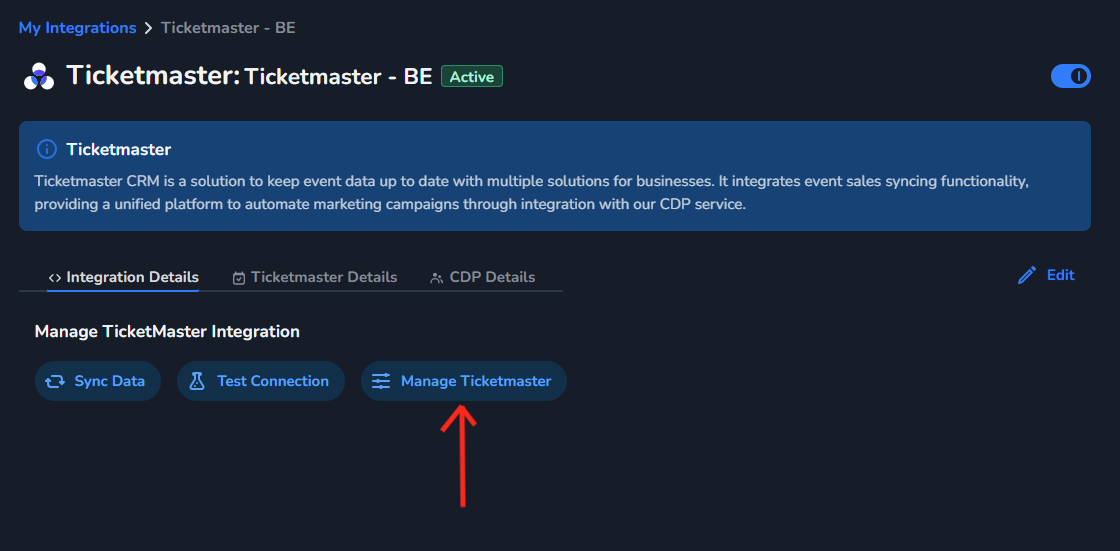
Open you Ticketmaster integration and click on the “Manage Ticketmaster” button.
-
Here three options will be available to you, open the tab that says “Product Subscriptions”
-
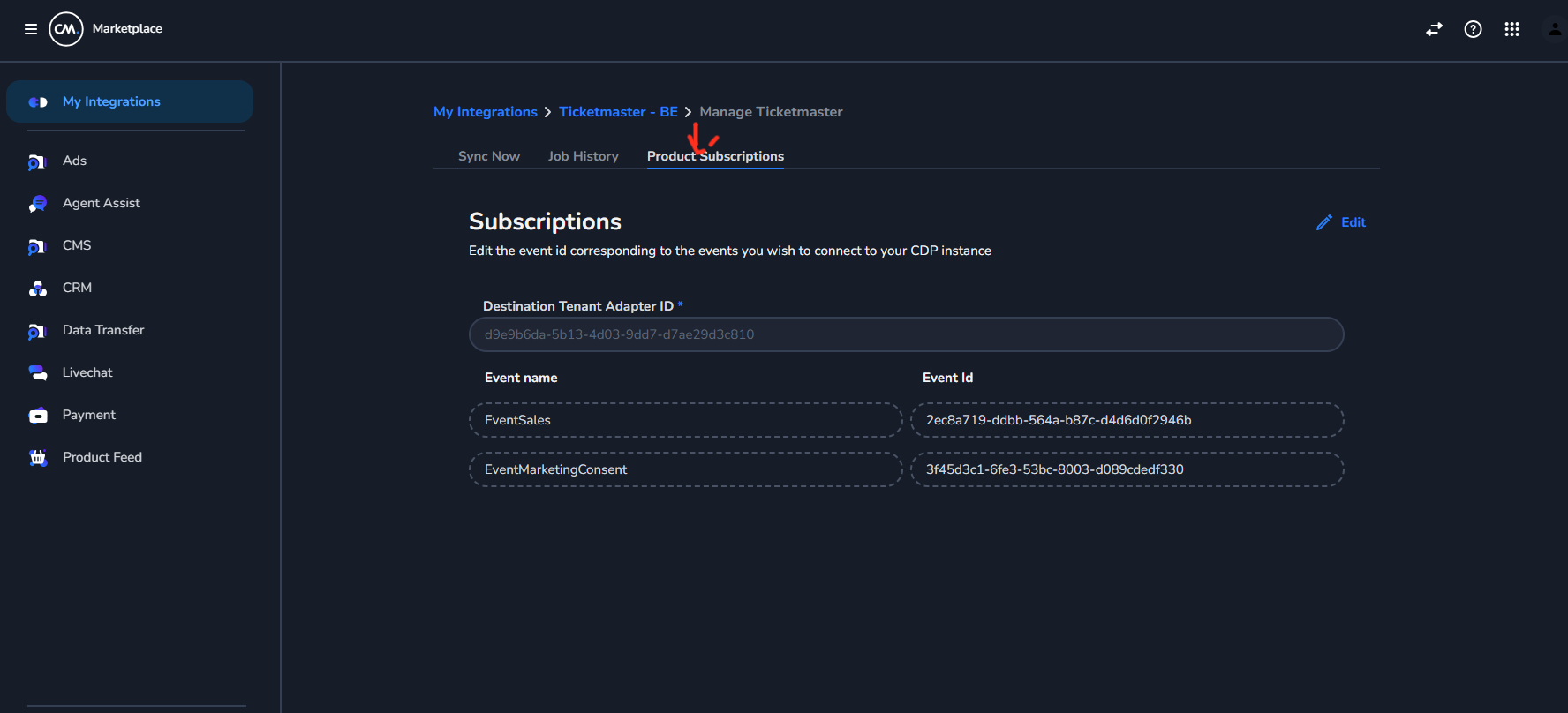
We have various products available like CDP, CAiC, MSC, you will have to insert the corresponding value of the product into the** Product Id** field.
-
Kindly refer https://cmcom.atlassian.net/wiki/x/EYCbng before proceeding to the setup of the Destination Tenant Adapter ID.
-
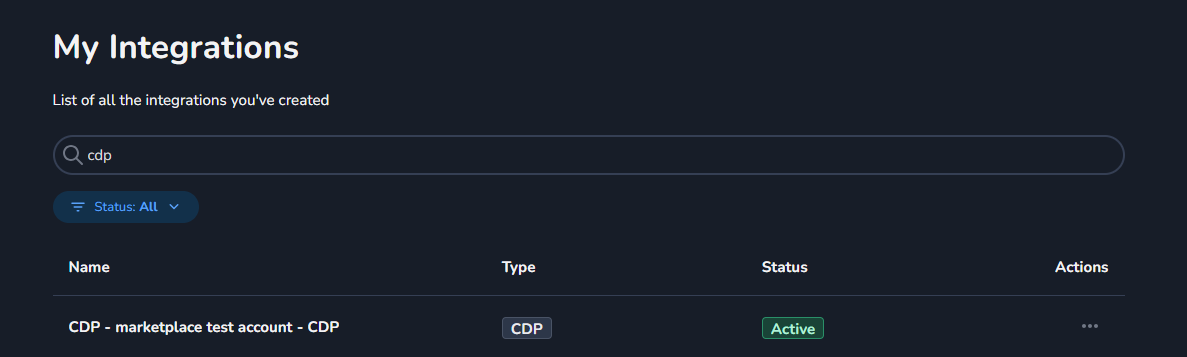
Search for the CDP Integration in the Marketplace Page as shown below.
Now copy this small section of the URL after my-integrations as shown below.
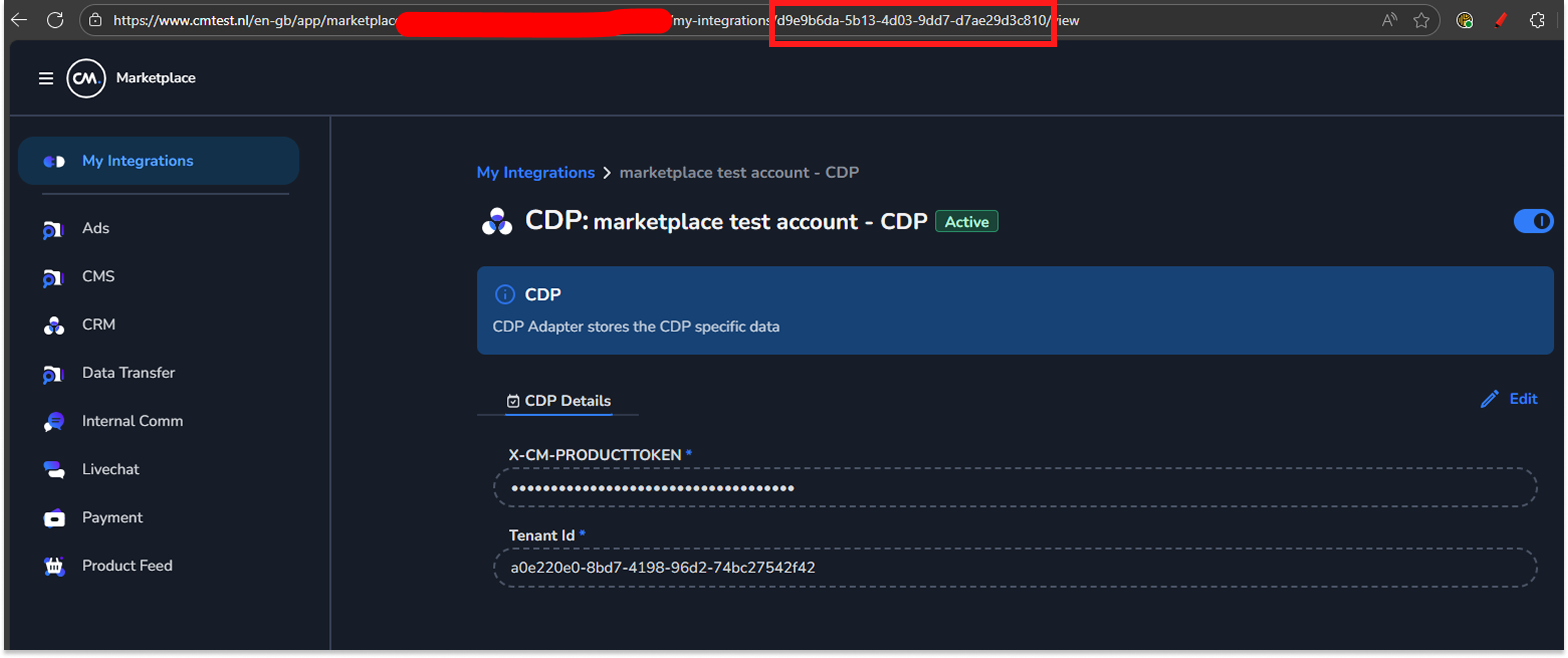
this shall be your **Destination Tenant Adapter ID **in the form field.
-
For Event Id for Mappings kindly refer to this document https://cmcom.atlassian.net/wiki/x/HACLnw wherein you’ll get the Event Types which is going to consist of Name and ID. Copy the ID within the Event Types and paste it to the corresponding Event ID into the Marketplace Ticketmaster Product Subscriptions page as shown below
-
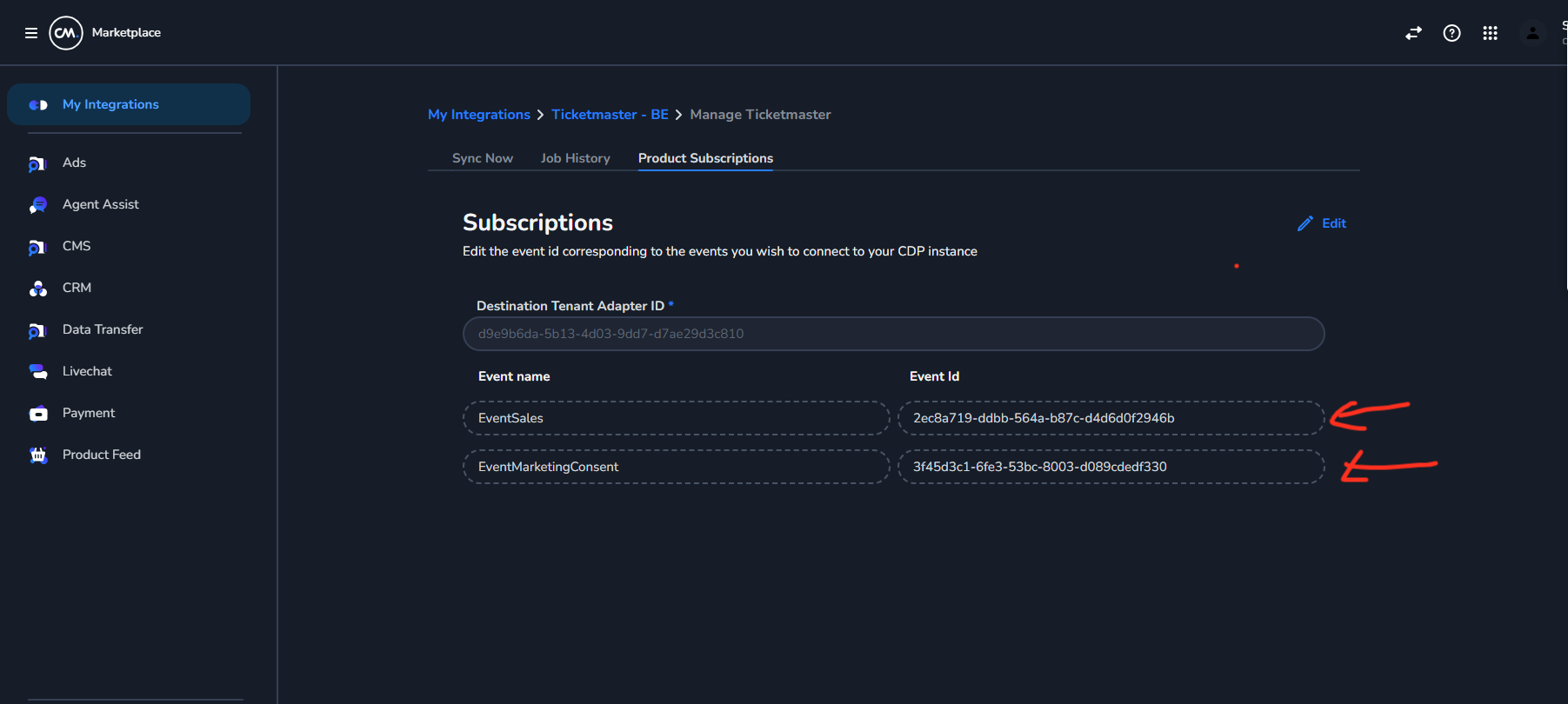
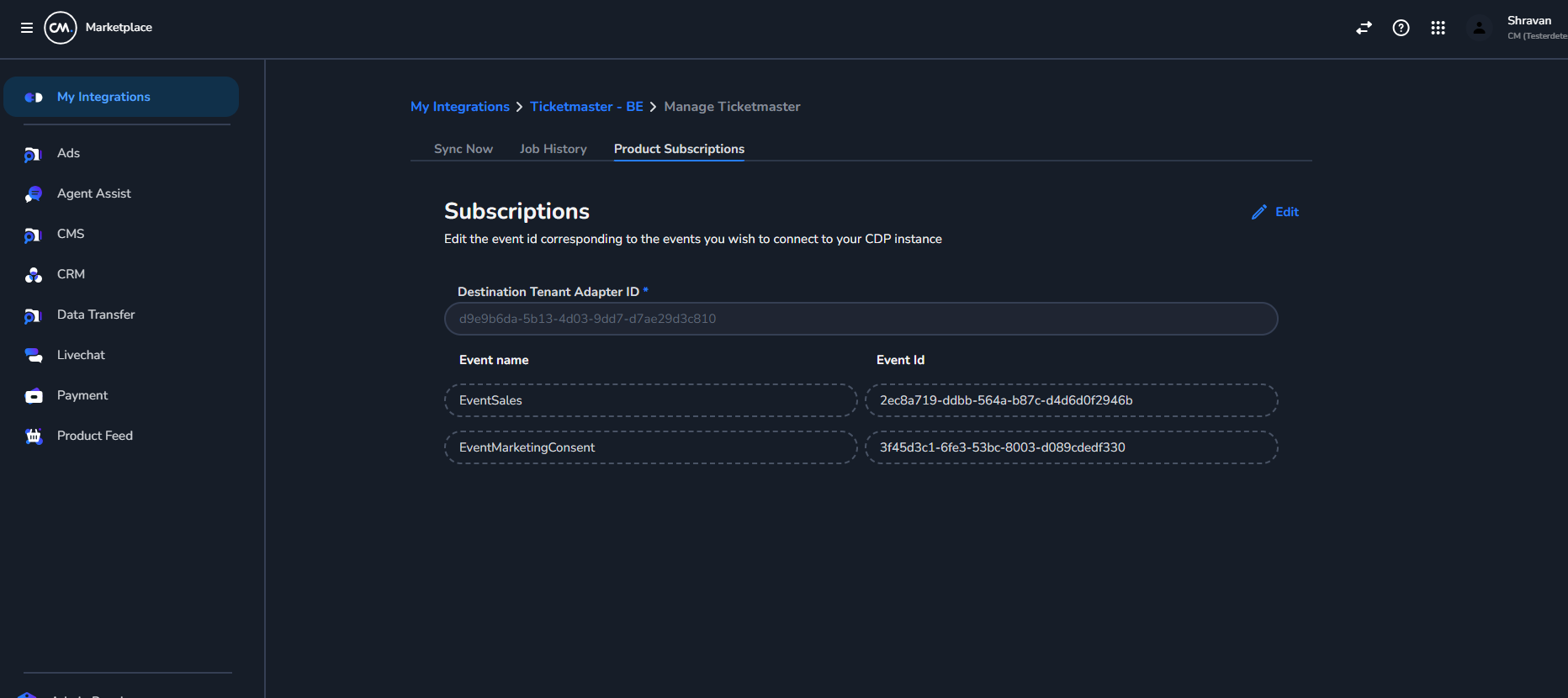
Finally, after making all the changes you can use the Save button to create a new Product Subscription and it will look like this in end.
Updating an existing Product Subscription
-
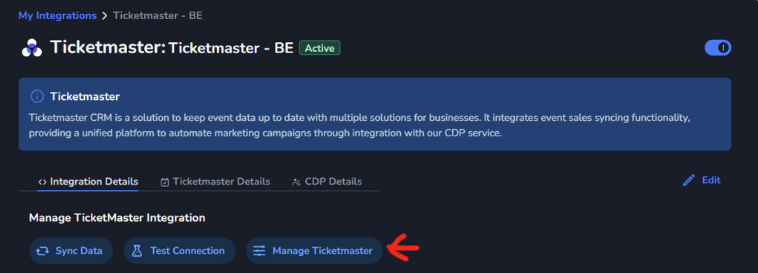
Find the Integration of the Product Subscription you need to modify. Click on Manage Ticket Master button as shown below.
-
Now Click On Product Subscriptions Tab.
-
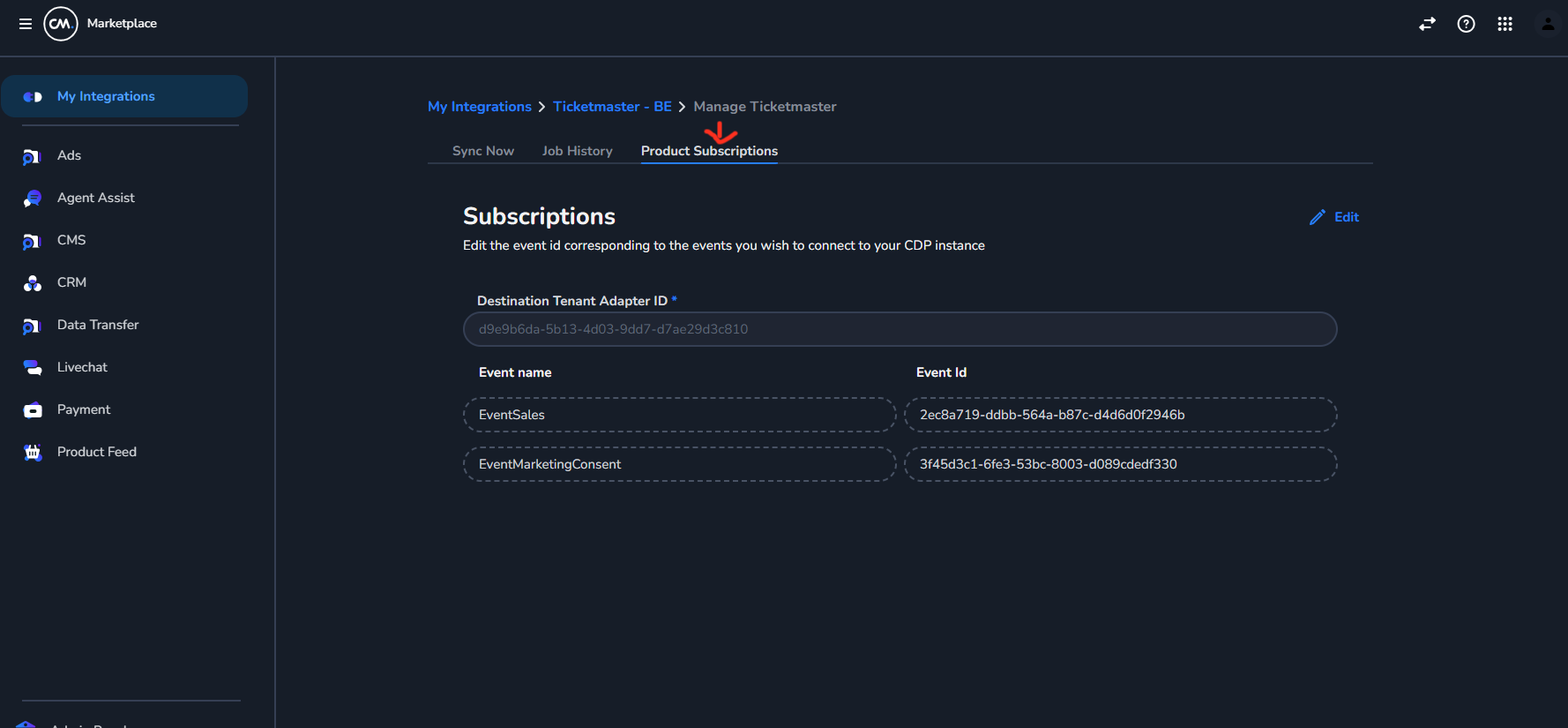
Click on the Edit button and update the Event Id as required and press Save when done.