Salesforce <-> CDP
Webhook creation in salesforce
Directly - using third party open-source tool
- Open this website https://salesforce-webhook-creator.herokuapp.com/
- Login to your salesforce instance where you want to create webhooks
- After logging in it will show something like this
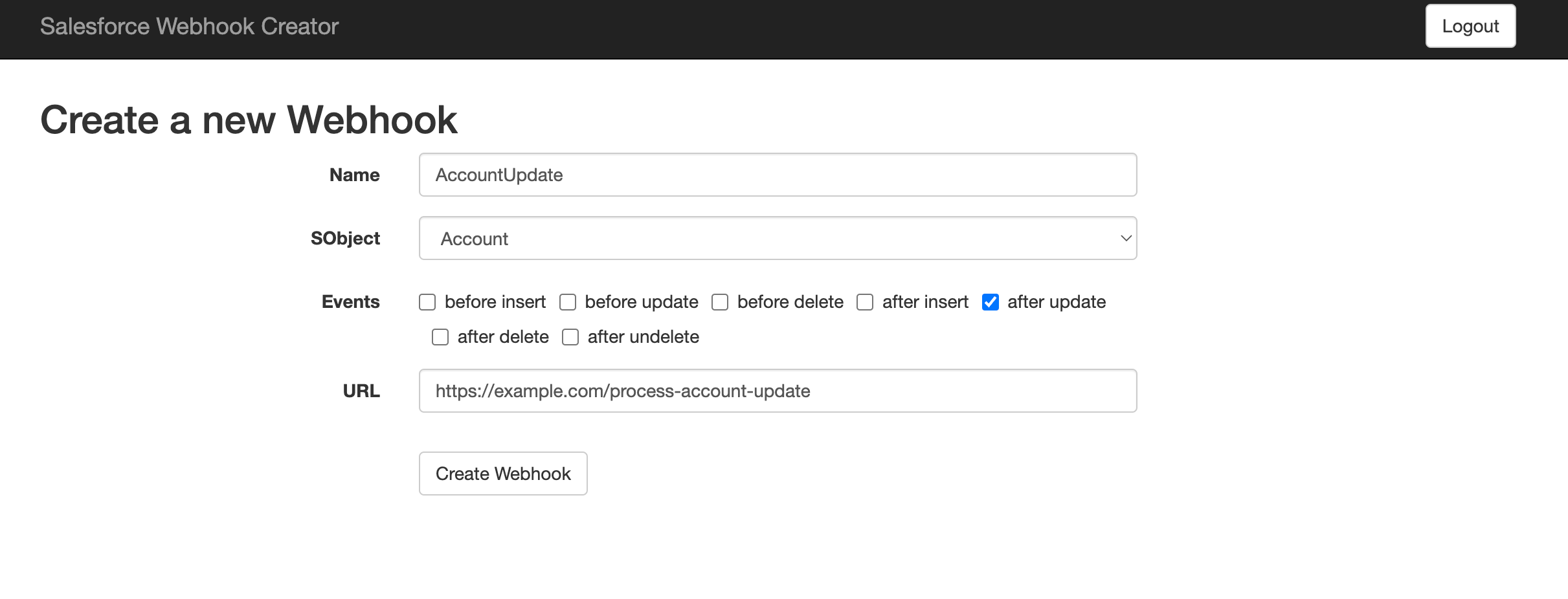
- In this form fill the details you want to create webhook for
- Name: Name contains the the string you want to identify specific webhook with you. It’s for users to understand webhook better, it can be anything
- sObject: Select the table/sobject you want to create webhook for, so whenever specific event occurs on that specific sobject it notifies via Post request
- Events: Events are the list of event you want to opt in for updates on the specific object. E.g. if you want update on accounts it will send you response only on update
- URL: URL is endpoint of where you want to receive the data at.
- Now after setup you should be able to receive updates on webhooks.
Alternative - Creating Apex Class and Trigger in Salesforce
Creating an Apex Class:
-
Log in to your Salesforce account.
-
Click on your profile picture or avatar in the top-right corner of the screen.
-
In the dropdown menu, select "Setup".
-
In the Salesforce Setup page, locate the "Quick Find" search box at the top of the left-hand sidebar.
-
Type "Apex Classes" in the search box and select "Apex Classes" from the search results.
-
On the "Apex Classes" page, click the "New" button to create a new Apex class.
-
In the "New Apex Class" page, provide a name for your Apex class in the "Class Name" field.
-
Optionally, you can choose to specify a different "API Version" if needed.
-
Write your Apex code in the code editor.
In this case:
public class Webhook implements HttpCalloutMock {
    public static HttpRequest request;
    public static HttpResponse response;

    public HTTPResponse respond(HTTPRequest req) {
        request = req;
        response = new HttpResponse();
        response.setStatusCode(200);
        return response;
    }

    public static String jsonContent(List<Object> triggerNew, List<Object> triggerOld, String eventType) {
        String newObjects = '[]';
        if (triggerNew != null) {
            newObjects = JSON.serialize(triggerNew);
        }

        String oldObjects = '[]';
        if (triggerOld != null) {
            oldObjects = JSON.serialize(triggerOld);
        }


        String userId = JSON.serialize(UserInfo.getUserId());
        String orgId = JSON.serialize(UserInfo.getOrganizationId());
        eventType = JSON.serialize(eventType);

        String content = '{"new": ' + newObjects + ', "old": ' + oldObjects + ', "userId": ' + userId + ', "organizationId": ' + orgId + ', "eventType": ' + eventType + '}';
        return content;
    }

    @future(callout=true)
    public static void callout(String url, String content, String authToken) {
        if (Test.isRunningTest()) {
            Test.setMock(HttpCalloutMock.class, new Webhook());
        }

        Http h = new Http();

        HttpRequest req = new HttpRequest();
        req.setEndpoint(url);
        req.setMethod('POST');
        req.setHeader('Authorization', authToken);
        req.setHeader('Content-Type', 'application/json');
        req.setBody(content);

        h.send(req);
    }
}
- Once you have finished writing your Apex code, click the "Save" button to save the Apex class.
Creating an Apex Trigger:
-
Follow steps 1 to 5 from the previous section to open the Salesforce Setup page and locate the "Quick Find" search box.
-
Type "Apex Triggers" in the search box and select "Apex Triggers" from the search results.
-
On the "Apex Triggers" page, click the "New Trigger" button to create a new Apex trigger.
-
In the "New Apex Trigger" page, provide a name for your Apex trigger in the "Name" field.
-
Choose the object that the trigger will be associated with from the "Select object" dropdown menu.
-
Write your Apex trigger code in the code editor.
In this case, for every webhook:
trigger ContactTest on Contact (after insert, after update, after undelete, after delete) {
    String url = 'https://api.cm.com/marketplace/crm/v1/tenants/{tenant_id}/adapters/{adapter_id}/events?apikey={apikey}';
    String event = ' ';

    if (Trigger.isInsert) {
        event = 'Insert';
    } else if (Trigger.isUpdate) {
        event = 'Update';
    } else if (Trigger.isDelete) {
        event = 'Delete';
    } else if (Trigger.isUndelete) {
        event = 'Undelete';
    }

    String content = Webhook.jsonContent(Trigger.new, Trigger.old, event);
    Webhook.callout(url, content, '');
}
- Once you have finished writing your Apex trigger code, click the "Save" button to save the Apex trigger.
Triggering issue:
If you’re setting up triggers initially there’s another setting also you need to do. please check Setup → Security → Remote site settings.
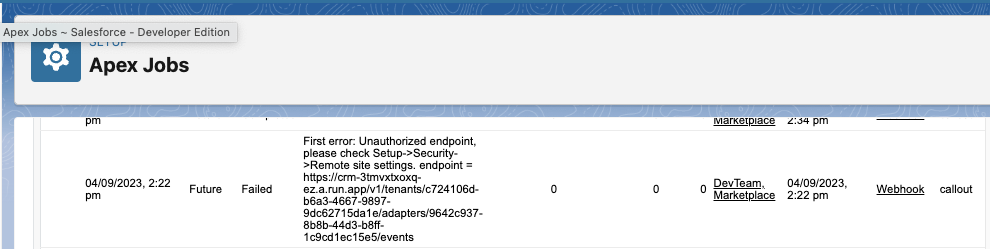
You can also check the logs from Setup → Environments → Jobs → Apex Jobs. Follow the instructions in log and add whitelist your site there.
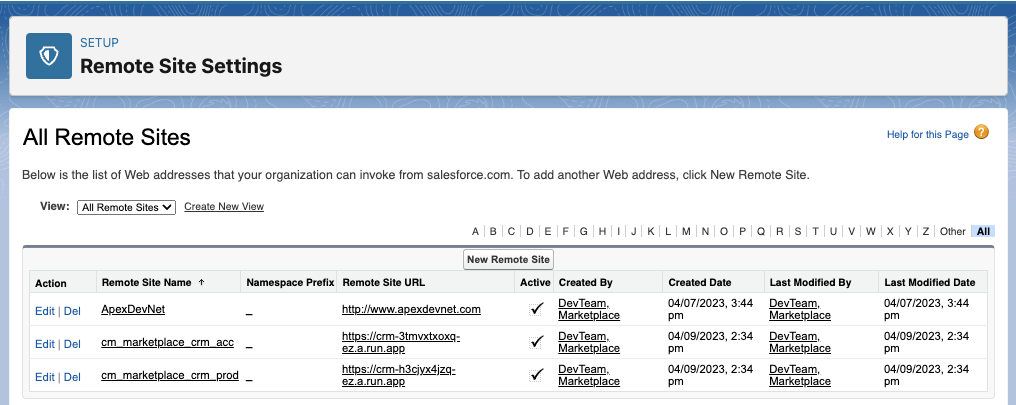
To debug salesforce APEX class and trigger
https://www.sfdc99.com/2014/02/22/debug-your-code-with-system-debug/