Customer Setup for Exact Online
This guide explains what you, as the customer, need to do in Exact Online and provide to enable the integration between your Exact Online administration and our platform. The whole process takes about 15–25 minutes.
1. Prerequisites
Before proceeding, make sure you have the following:
- An Exact Online administrator account with the Manage subscription right (needed to see App registrations).
- A shared mailbox controlled by your IT team (for example
[email protected]) for the dedicated integration user. - The name of the Exact Online administration (division) you want to connect.
Exact Online gives API access based on the user who authorizes the connection. The integration gets the same rights as that user. We therefore ask you to create a dedicated read-only user first, register the app, and then authorize the connection as that dedicated user.
2. Create a Dedicated Integration User
- Click your company name in the top-left corner of the Exact Online dashboard.
- Go to Master data > Users > Overview (Stamgegevens > Gebruikers > Overzicht).
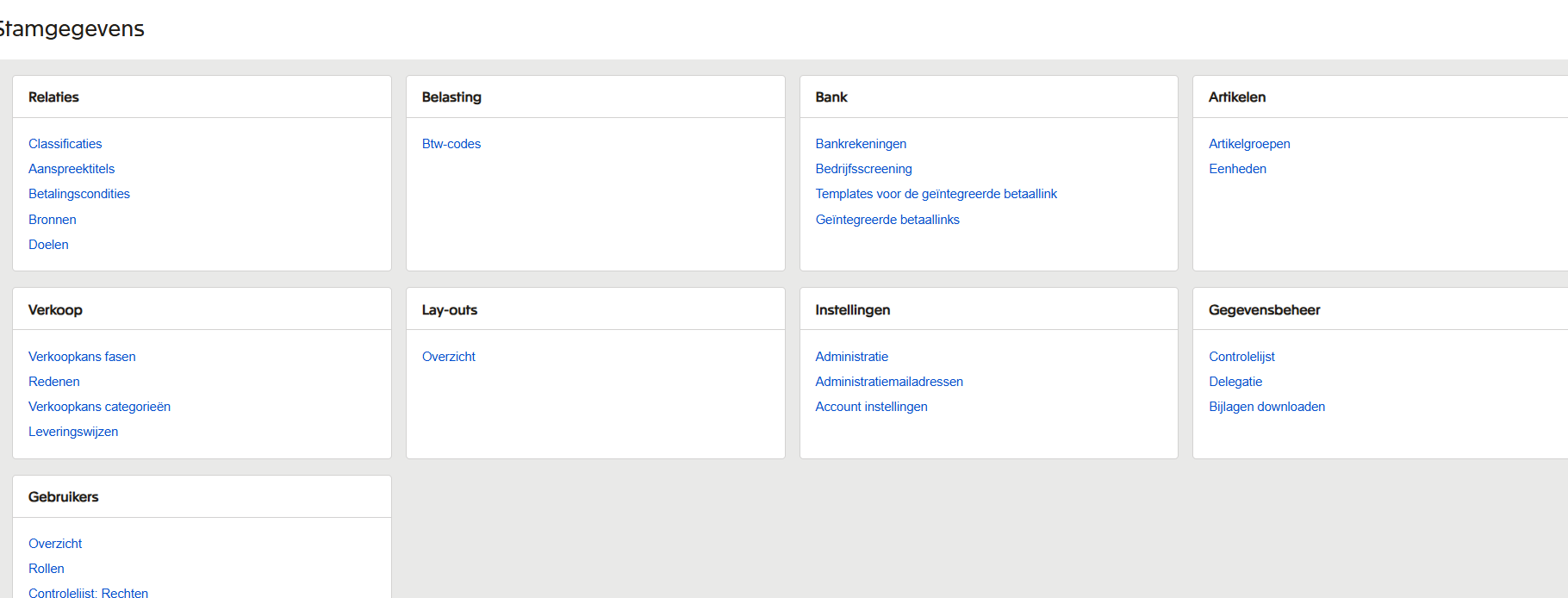
- Click New (Nieuw) and select Exact Online user as the user type.

- Fill in the details, for example First name
API, Last nameIntegration. Use the shared mailbox, not a personal email address.
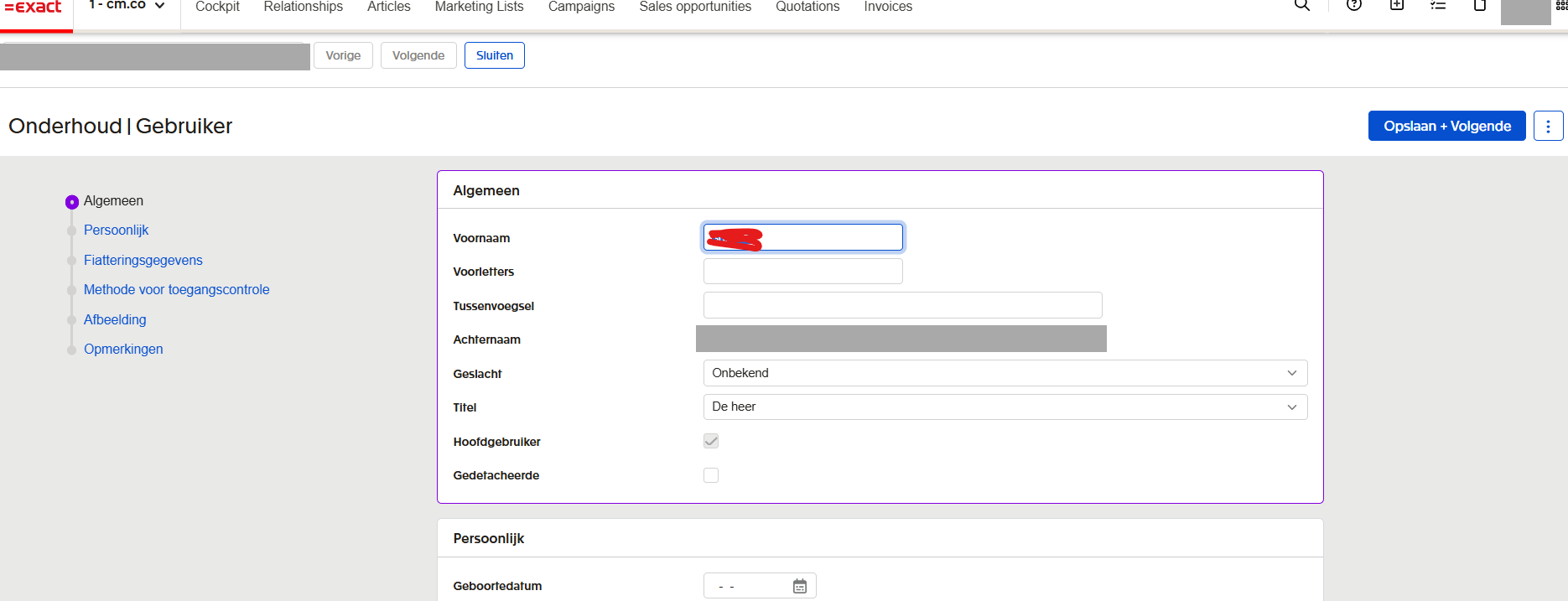
- Complete the wizard to send the invitation email.
- Open the invitation link from the shared mailbox, set a secure password and activate the account.
💡 Tip: Using a shared mailbox means the connection keeps working when an employee changes role or leaves the company.
3. Restrict the User to Read-Only Access
Log back in with your administrator account and configure the rights of the new user:
- Go to Master data > Users and click the new user's name to open the user card.
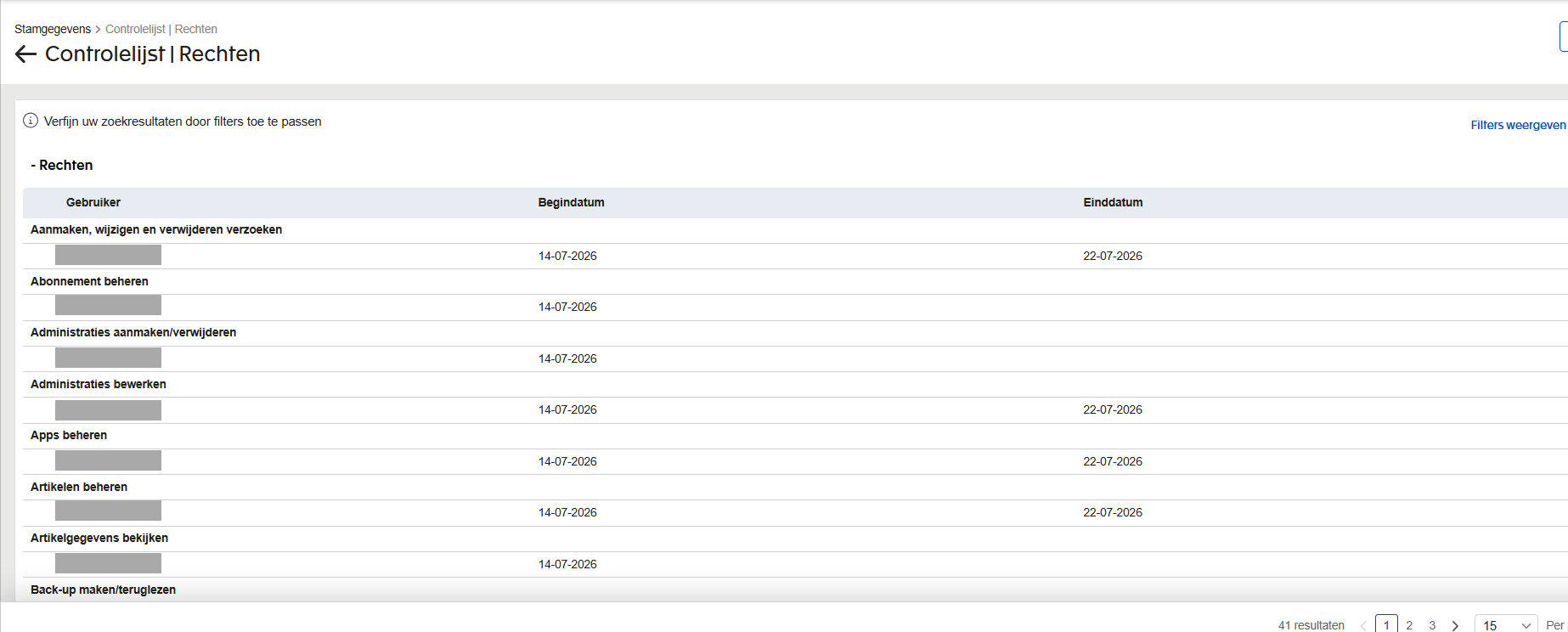
- In the right-hand column, click Rights (Rechten).
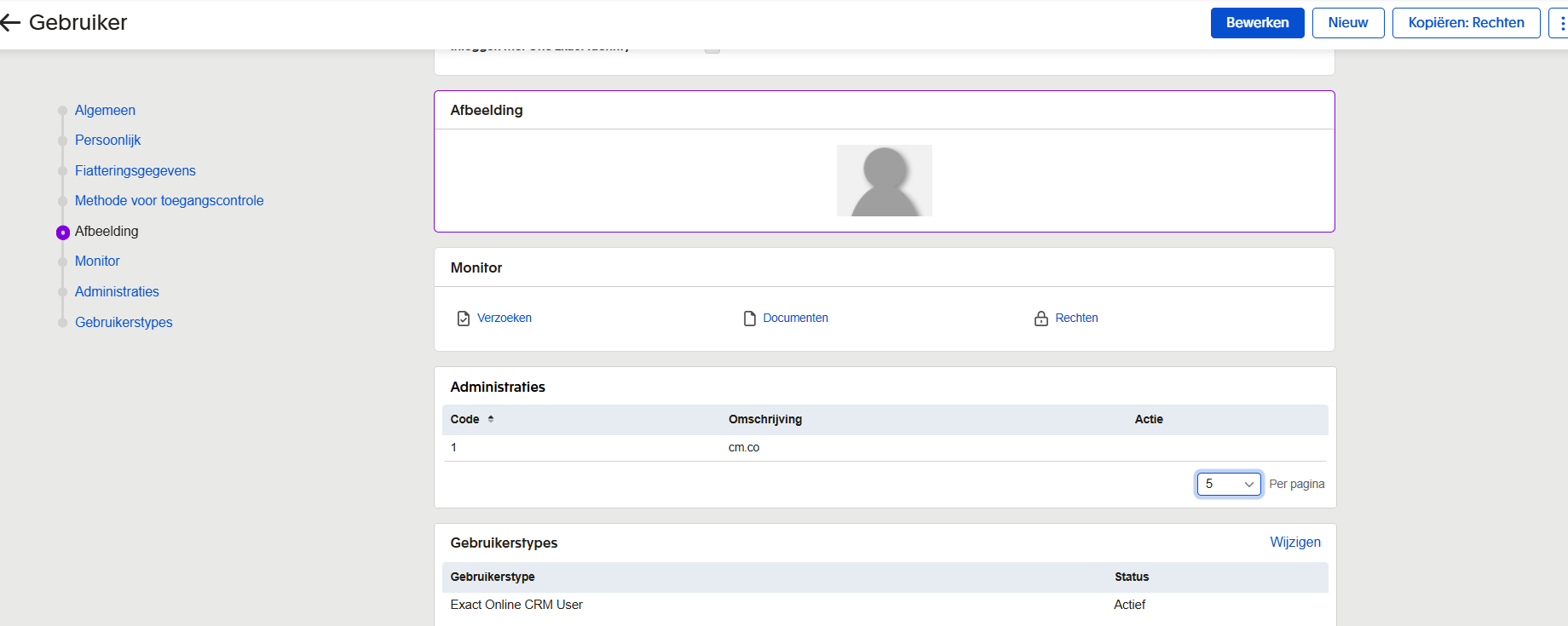
- Set the rights as shown in the tables below and click Save.
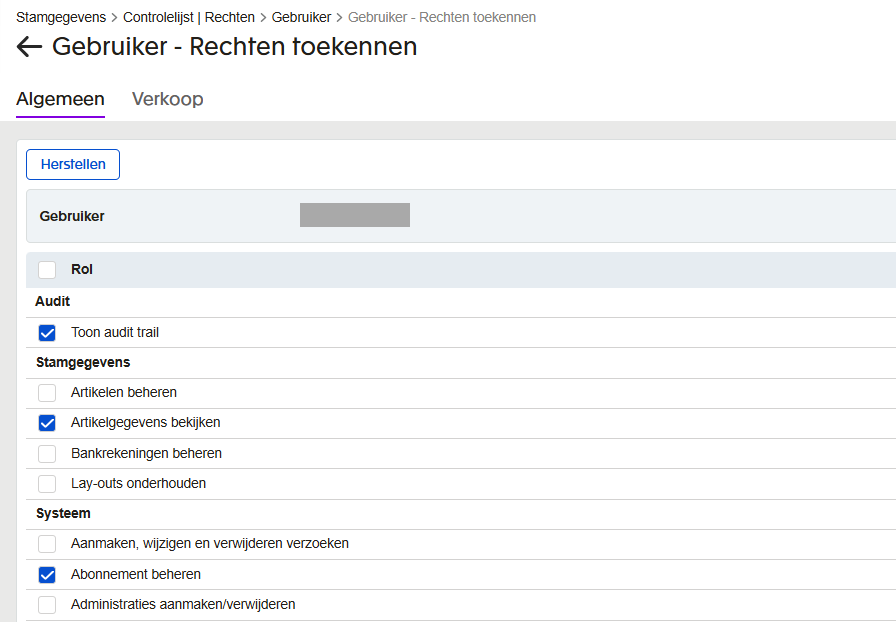
General tab
| Right | Setting | Why |
|---|---|---|
| Manage subscription (Abonnement beheren) | Checked | Needed to authorize the integration and manage its webhook (event) subscriptions. |
| View: Item details (Bekijken: Artikelgegevens) | Checked | Lets the integration read product descriptions on order lines. |
| Manage apps, Assign rights, View user data, Create/modify/delete requests | Unchecked | Administrative rights the integration does not need. |
CRM tab
| Right | Setting | Why |
|---|---|---|
| View: Accounts (Bekijken: Relaties) | Checked | Allows reading customer records. |
| Manage / Create / Edit / Delete accounts | Unchecked | The integration never writes customer data. |
Sales / Order management tab
| Right | Setting | Why |
|---|---|---|
| View: Sales orders (Bekijken: Verkooporders) | Checked | Allows reading order headers and order lines. |
| Enter / Manage / Create / Delete sales orders | Unchecked | The integration never creates or changes orders. |
All other tabs (Contacts, Documents, Financial, etc.): leave every option unchecked.
Note: Menu labels can differ slightly per Exact Online package and language. The goal is: view Accounts, view Sales orders, view Item details, and nothing that creates, edits or deletes data.
4. Register the Internal Application
This step is done by an administrator with the Manage subscription right.
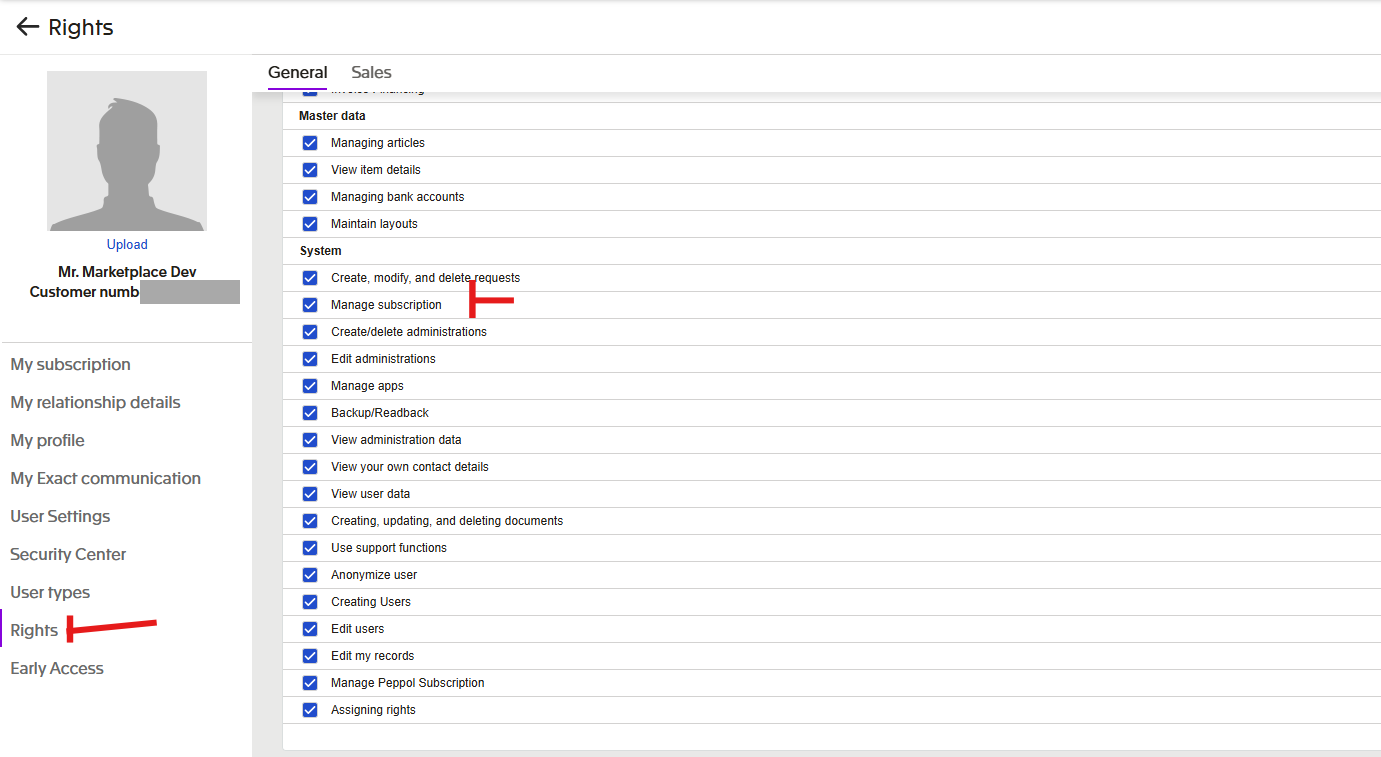
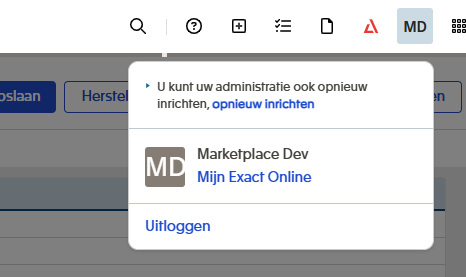
To check that you have this right, click your initials in the top-right corner, open My Exact Online and then Rights. Manage subscription must be listed.
Steps to Register the App
- Log in to Exact Online at https://start.exactonline.nl.
- Click your company name at the top of the screen and select Import/Export.
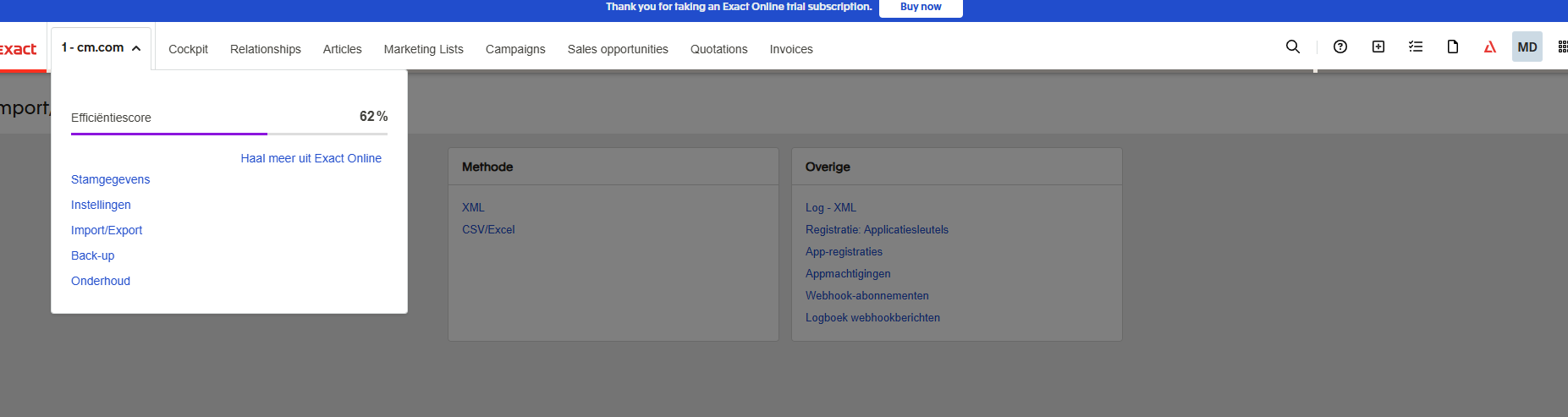
- Under the Other section, click App registrations.
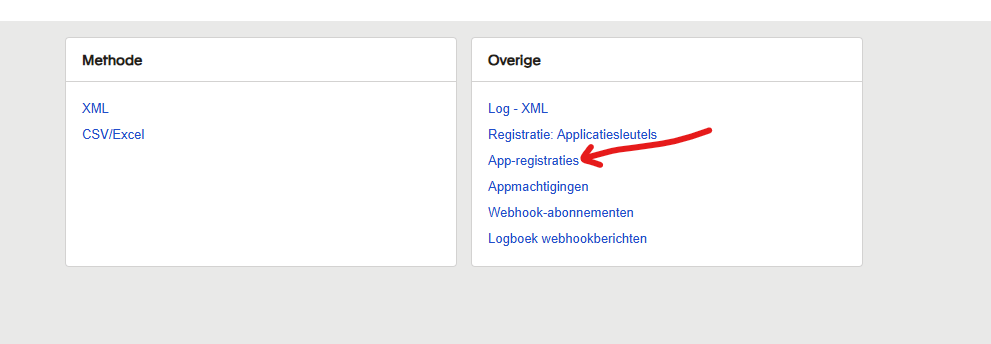
- On first access, review and Accept the App Store terms and conditions.
- Click New and fill in the form:
- Application name: for example
CM.com Marketplace CRM Integration. - Redirect URI:
https://www.cm.com/app/marketplace/oauth/callback(enter it exactly as shown).
- Application name: for example
- Click Save + Edit.
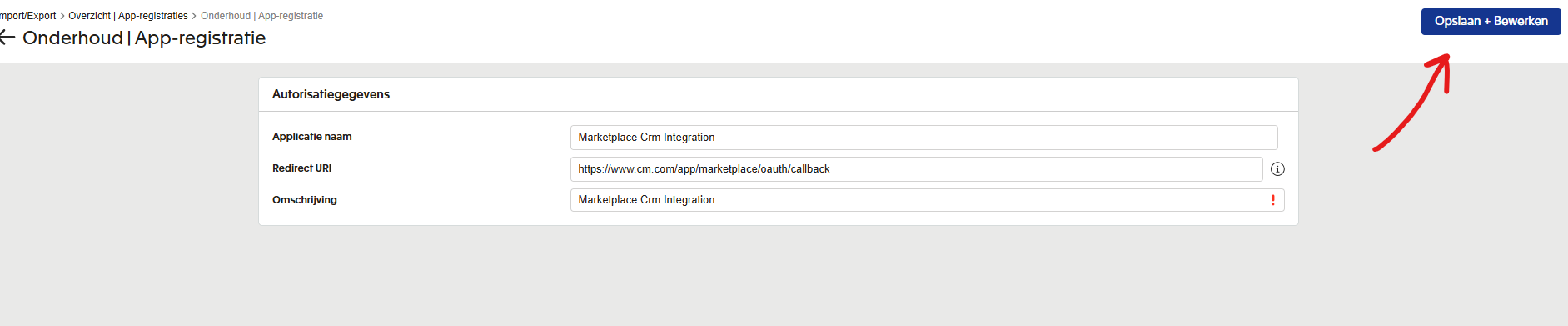
- Copy the generated Client ID and Client Secret and store them securely.
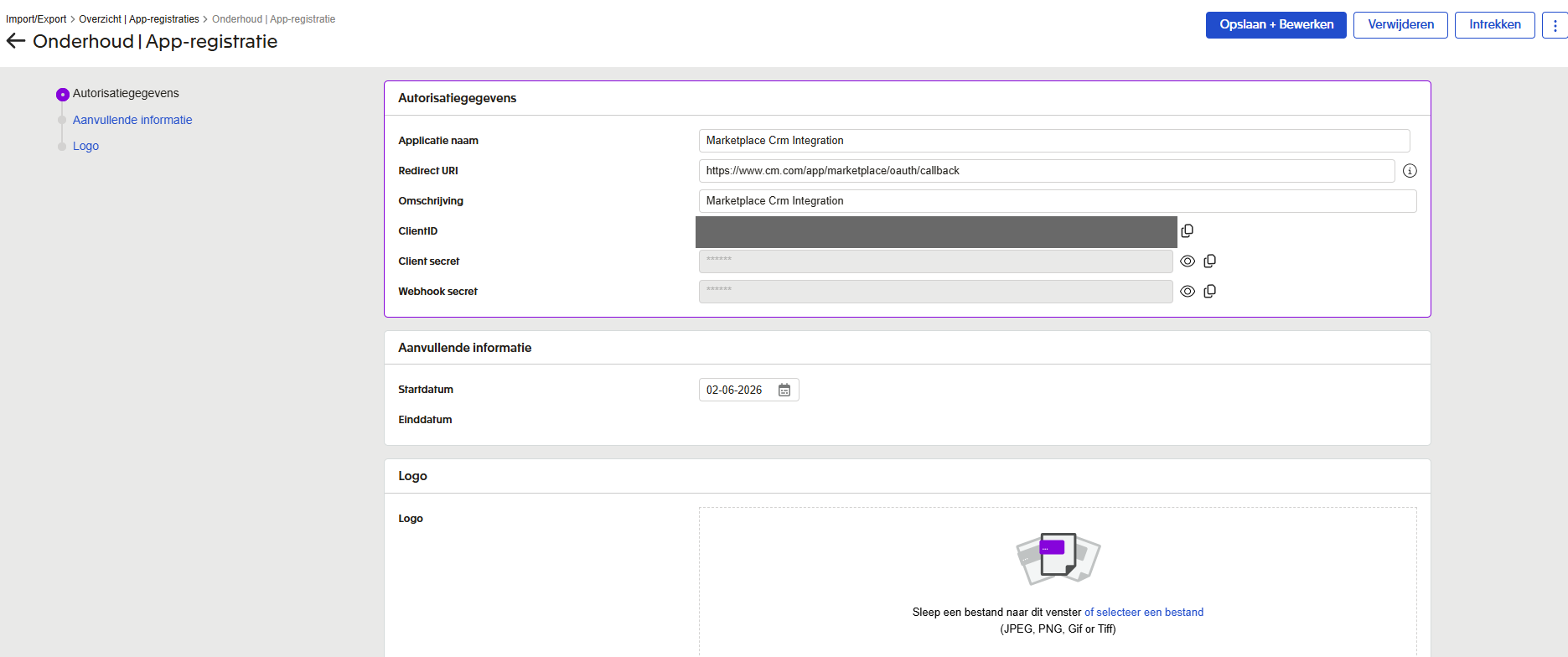
⚠️ Important: The Redirect URI must be HTTPS and must match exactly. A different value causes a
401error during authorization. Do not reuse an old app registration; always create a new one for this integration.
5. Provide Your Details
What to Share with Us
- Client ID
- Client Secret
- Division: the code of the Exact Online administration to connect (if you are not sure, share the administration name and we will help you find the code).
- Application name and Redirect URI as registered (for verification).
⚠️ Important: Do not share your credentials publicly or by plain email or chat. Only share them through the secure channel agreed with our team.
6. Authorize the Connection
After our team has configured the integration, you authorize the connection once. This must be done while logged in to Exact Online as the dedicated integration user from step 2.
- Log out of any administrator or personal Exact Online session.
- Log in to Exact Online as the dedicated integration user.
- Open the authorization link we provide (or click Authorize on the Exact Online integration in the Marketplace).
- You are redirected to Exact Online. Review the requested access and click Approve.
- You are returned to the Marketplace and the connection becomes active.
After this, the integration keeps the connection alive automatically. No further action is needed.
7. Operational Guidelines
- Do not regenerate or revoke the Client Secret, and do not delete the app registration. This immediately breaks the connection. If a rotation is needed, coordinate with us first.
- Keep the dedicated user active with access to the connected administration. If the user is removed, deactivated or loses rights, the integration stops.
- Do not use the same app credentials in other tools. Exact Online refresh tokens can be used only once; another tool refreshing the token will break the connection.
- Inform us about subscription changes (cancel, downgrade or changes to the administration structure) in advance.