Dynamics <-> CDP
Starting with Dynamics 365 for Customer Engagement apps version 9.0 you can send data about events that occur on the server to a web application using webhooks. Webhooks is a lightweight HTTP pattern for connecting Web APIs and services with a publish/subscribe model. Webhook senders notify receivers about events by making requests to receiver endpoints with some information about the events.
Get Started
These are steps to configure and using web hooks:
- Install Microsoft PAC TOOL.
- Launch and configure Plugin Registration Tool (PRT)
- Creating or configuring a webhook.
- Register a step for a webhook.
Install PAC Tool
Install Power Platform CLI for Windows
To install Power Platform CLI for Windows, you can either install via DotNet tool or .msi.
- To install via DotNet tool, you must have .NET installed (.NET 6.0 recommended). Install Power Platform CLI by using this command:
dotnet tool install --global Microsoft.PowerApps.CLI.Tool
- To install via .msi download and run the .msi file found here: Microsoft Power Platform CLI, choose the Install option.
Install Power Platform CLI for Linux/macOS
To install Power Platform CLI for Linux/macOS using DotNet tool, you must have .NET installed (.NET 6.0 recommended). Install Power Platform CLI by using this command
dotnet tool install --global Microsoft.PowerApps.CLI.Tool
Now let's see what tools are installed.
> pac tool list

ToolName Installed Version Nuget     Status
CMT      No        N/A     9.1.0.80  not yet installed; 'pac tool CMT' will install on first launch
PD       No        N/A     9.1.0.104 not yet installed; 'pac tool PD' will install on first launch
PRT      No        N/A     9.1.0.155 not yet installed; 'pac tool PRT' will install on first launch
Launch and configure Plugin Registration Tool (PRT)
Let's download and launch PRT.
> pac tool prt

Installing 9.1.0.155 version of PRT....
Shortcut in start menu created for 'Plugin Registration Tool'
Installation complete
Launched PRT (9.1.0.155).
-
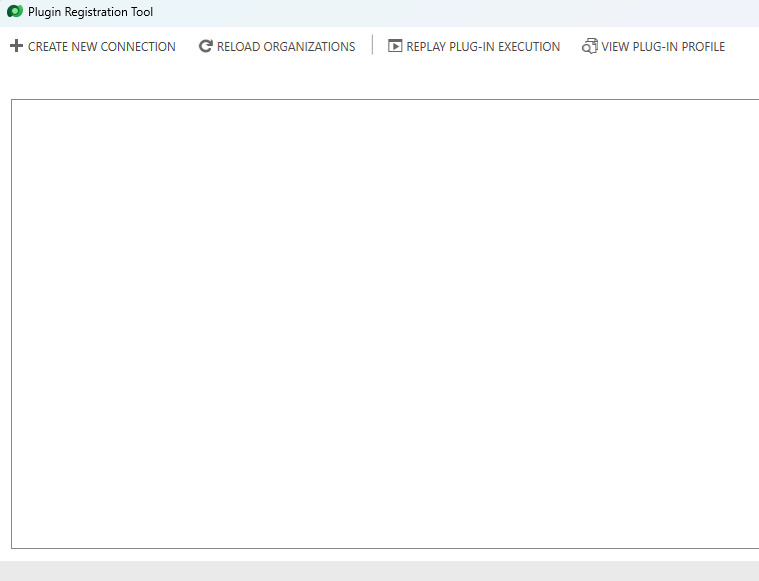
It should Launch
-
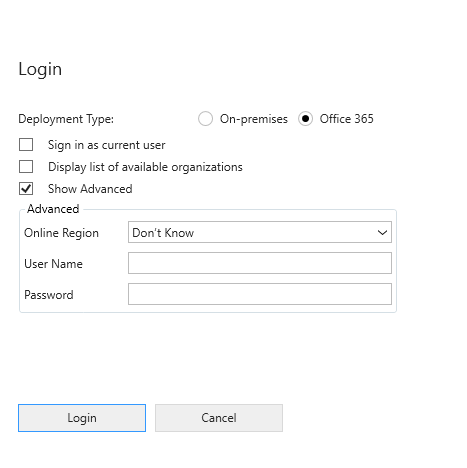
Click on **Create New Connection **and login to your organization.
Creating or configuring a Webhook
-
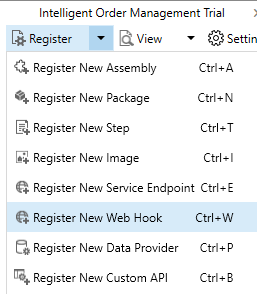
In the Plug-in Registration tool there is a new Register New Web Hook option to select.
-
When you register a webhook you must provide three items of information:
| Item | Description |
|---|---|
| Name | A unique name describing the web hook. |
| Endpoint URL | https://api.cm.com/marketplace/crm/v1/tenants/{tenant_id}/adapters/{adapter_id}/events?apikey={api_key} |
- Save it.
Register a step for a webhook
Registering a step for a webhook is like registering a step for a plugin. The main difference is that you cannot specify any configuration information.
Just like a plugin, you specify the message, and information about entities when appropriate. You can also specify where in the event pipeline to execute the web hook, the execution mode and whether to delete any AsyncOperation when the operation succeeds.
How to create new step:
-
From the list find the webhook you have recently created.
-
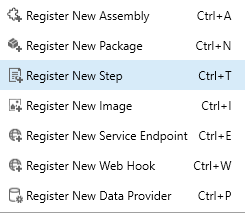
Right click on it, and select register new step
-
Now enter the details like:
| Attribute | Value | Mandetory |
|---|---|---|
| Message | Create/ Update/ Delete or what ever operation you want. | yes |
| Primary Entity | Must select the entity like: contact, leads, order etc | Yes |
| Filtering Attribute | Filtering attributes are a list of entity attributes that, when changed, cause the plug-in to execute. If no attributes are set, then the plug-in executes every time an update message occurs. | No |
| Event Pipeline | PostOperation | Yes |
| Execution Mode | ASynchoronous | Yes |
| Deployment | Server | Yes |
- Click on Register
Its done, Now you can test it by changing in MS Dynamics and It should reflect in CDP Logs.