Manage Templates in Marketplace
Overview
Templates define the data format and structure for information exchange between the CRM and MSC. Templates define the data format and structure for information exchange between the CRM and MSC. JSLT templates are essential for converting API responses from your integrated system into the format that MSC requires.
In the context of MSC integrations, JSLT templates serve as a bridge between your CRM/system's API response format and the standardized format that MSC expects.
**Why Do We Need JSLT Templates? **
- Format Standardization: Different CRM systems return data in various formats, but MSC requires a consistent, standardized format
- Data Transformation: Convert field names, data types, and structures from your system's format to MSC's expected format
- Field Mapping: Map your system's field names to MSC's required field names
- Data Filtering: Include only the necessary data that MSC needs to display
What Does JSLT Template Do?
When MSC makes a request to your integrated system's API, the response needs to be transformed before MSC can display it properly. The JSLT template:
- Receives the raw API response from your integrated system
- Transforms the data structure and field names
- Formats the data according to MSC requirements
- Returns the transformed response that MSC can understand and display
Example: Customer Information Transformation
Original API Response from desired CRM System:
For example, this is the response from the API
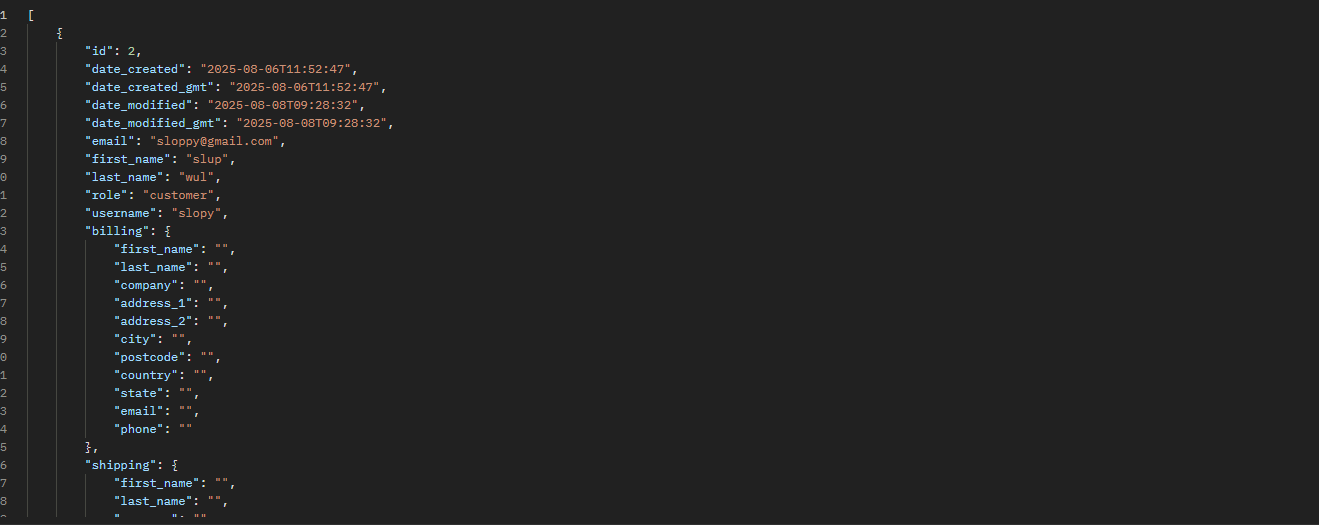
but MSC requires it in a different format
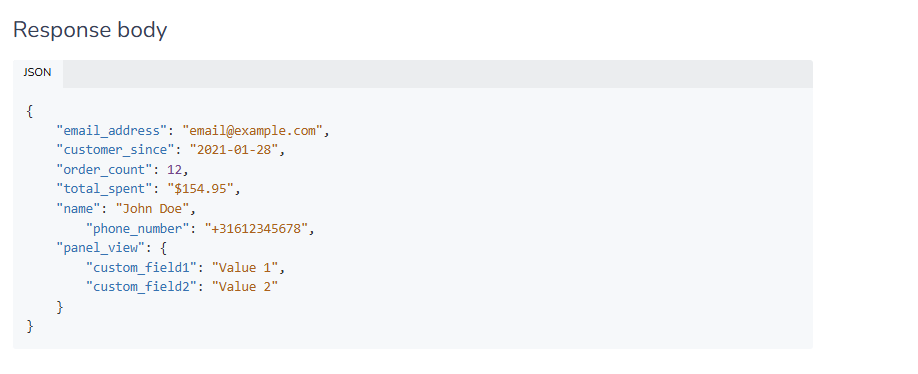
Therefore, we need to use JSLT to transform the response into the desired template.
Steps
- After creating the integration, locate the Manage Template button
- Click Manage Template
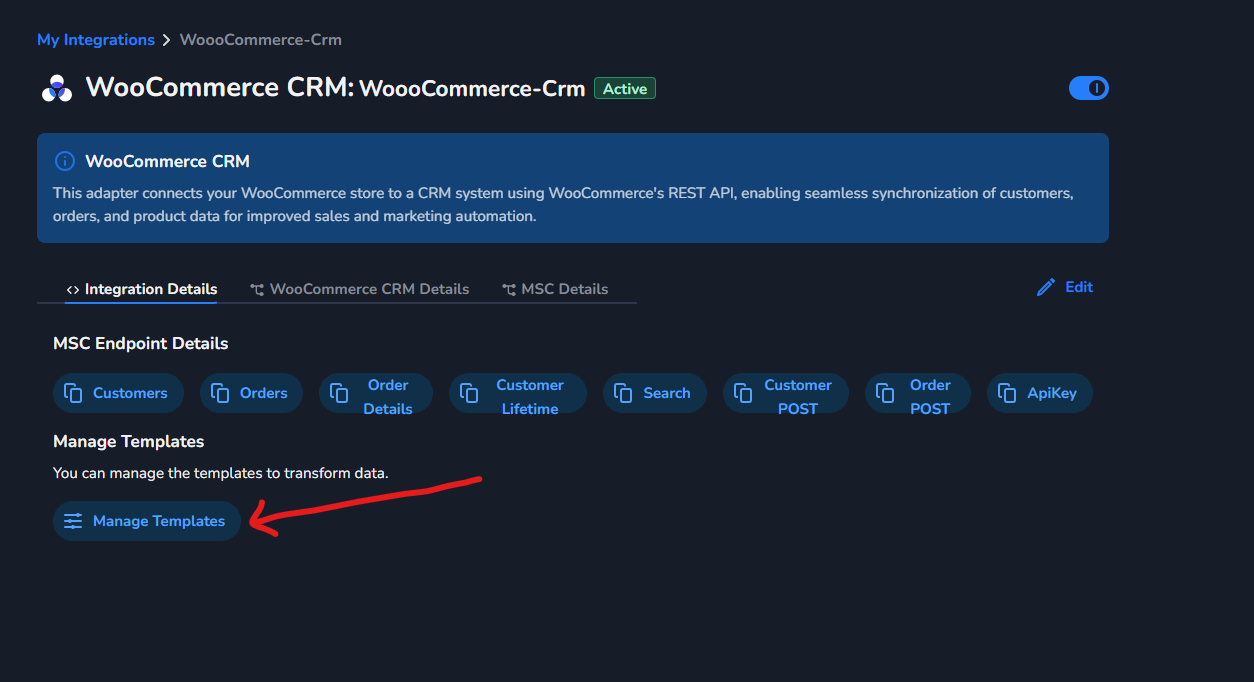
- Choose one of the following options:
- Create New Template: Write a custom template according to your requirements

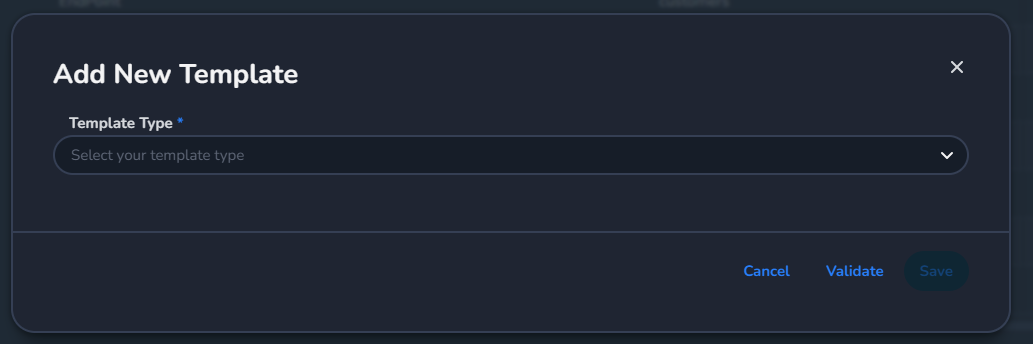
**b. **Select the Entity Type for which you need to configure the template. Then, choose the corresponding endpoint in MSC that you need to create.
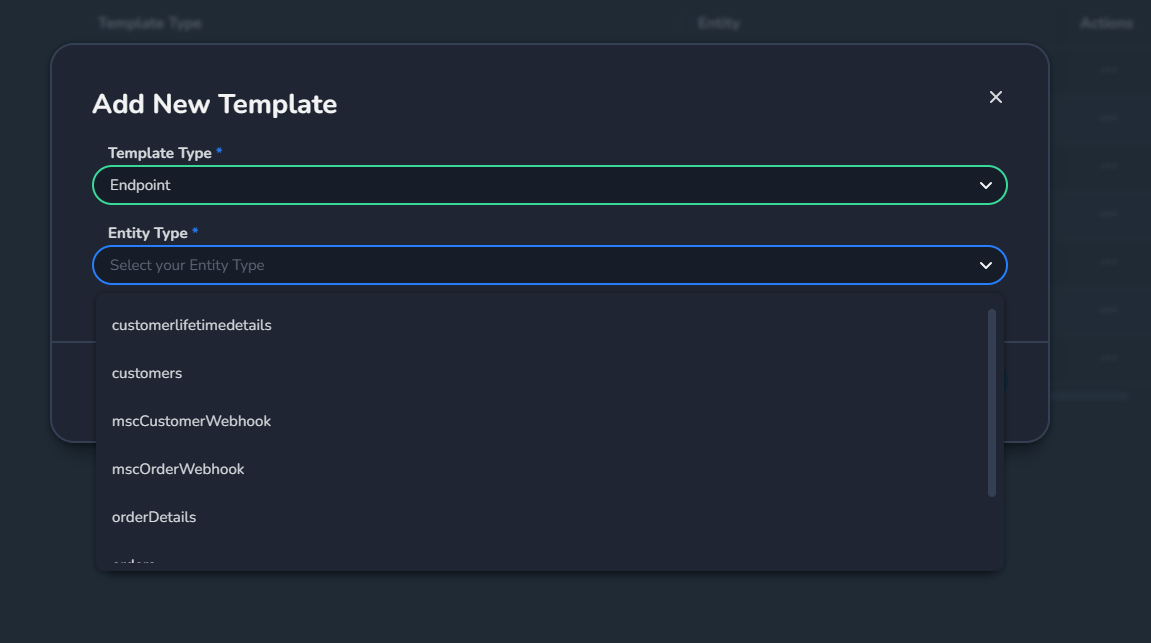
c. You will see the Default Template provided as a reference. This template is accurate and can be used as is. If you wish to use it, simply copy and paste it into your Template Editor tab. Additionally, if you need to make any modifications, you can edit the template as required.
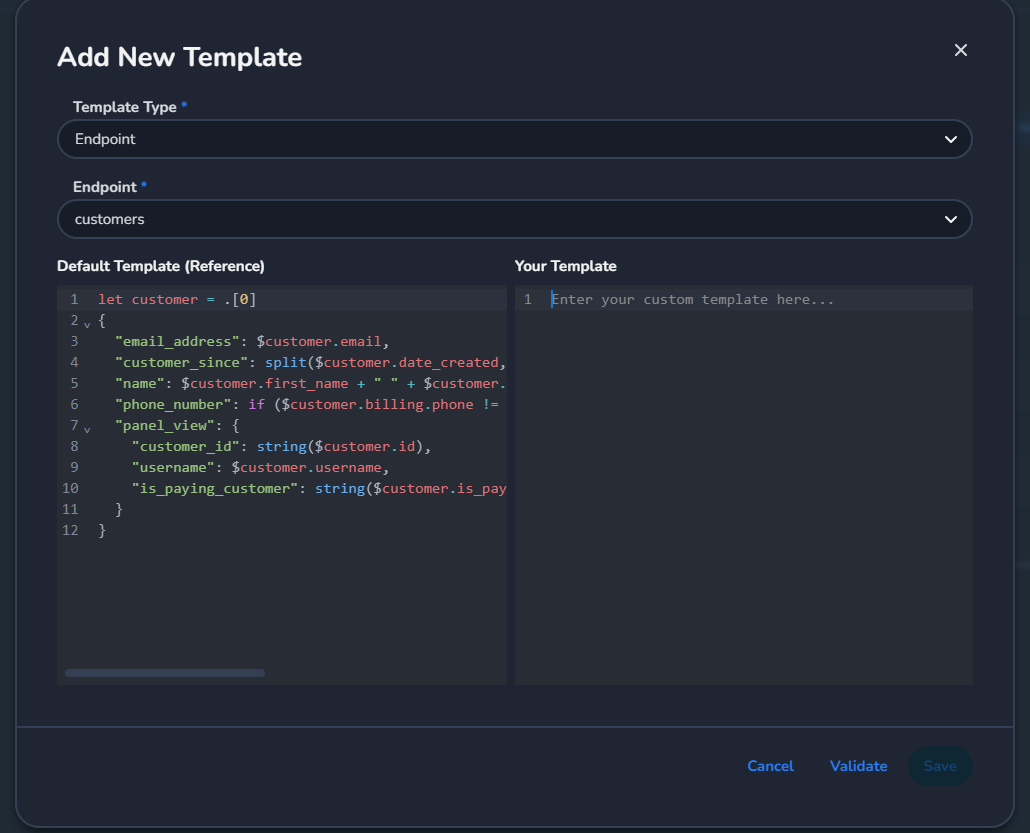
Next, you need to validate the template. If the template is correct, you can proceed to save it.
Below is the table view that you might see after saving
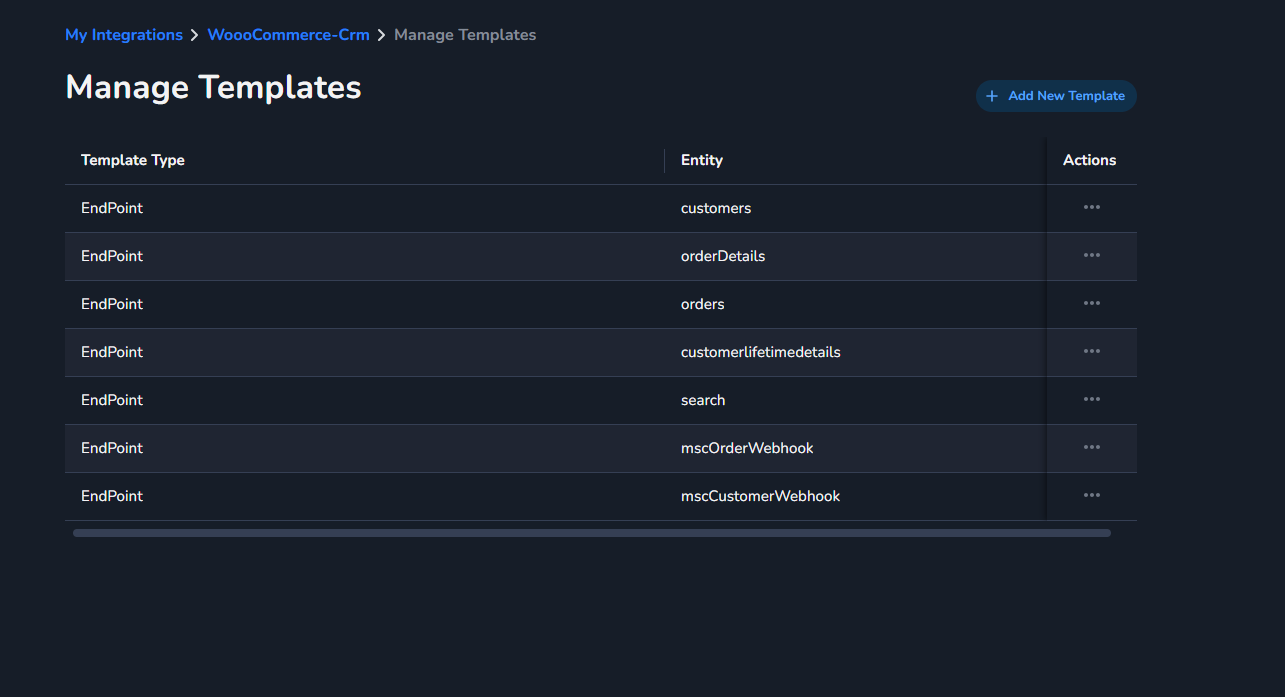
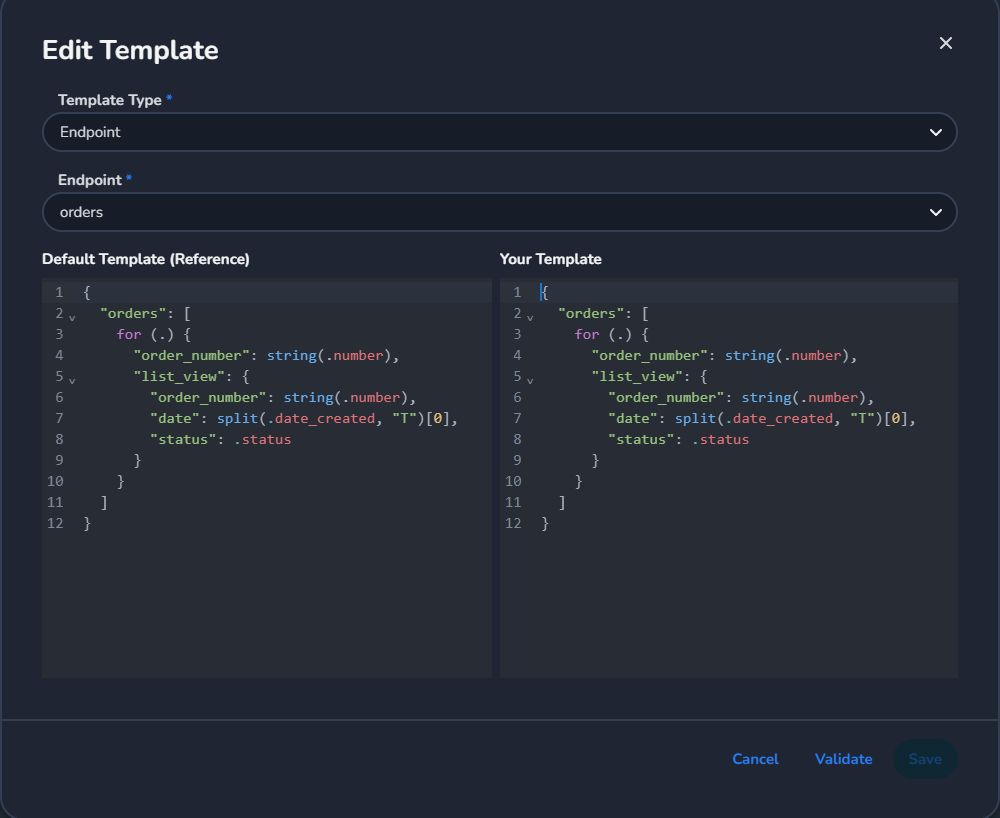
- Edit Existing Template: To modify an existing template to meet your requirements, click on "Actions," then select "Edit." This will allow you to make the necessary changes to the template.
Template Configuration
- Define what data you want to fetch from the CRM
- Specify how the data should be displayed in MSC
- Ensure the template follows MSC format requirements