Manage Request Payload In Marketplace
Overview
Request payloads specify the exact data fields customers want to extract from their integrated systems. These fields represent the customer’s interests and requirements, allowing the integration to deliver only the relevant information. By defining these fields clearly, customers can customize their data extraction and apply filters for further transformations. This approach ensures flexibility and precision when dealing with multiple platforms and varying data structures.
Why Do We Need Request Payload?
- Field Identification: Different customers or systems may label the same data property differently (e.g., “email” vs. “id”). Request payloads help clearly specify which fields are needed for the customer.
- Customization: Customers can modify the request payload to include any additional fields they want in the final response, ensuring the extracted data fits their unique business needs.
Example: Customer Information Via Request Payload if a customized field is required in final response
** Original API Response from desired CRM System:**
For example, this is the response from the API
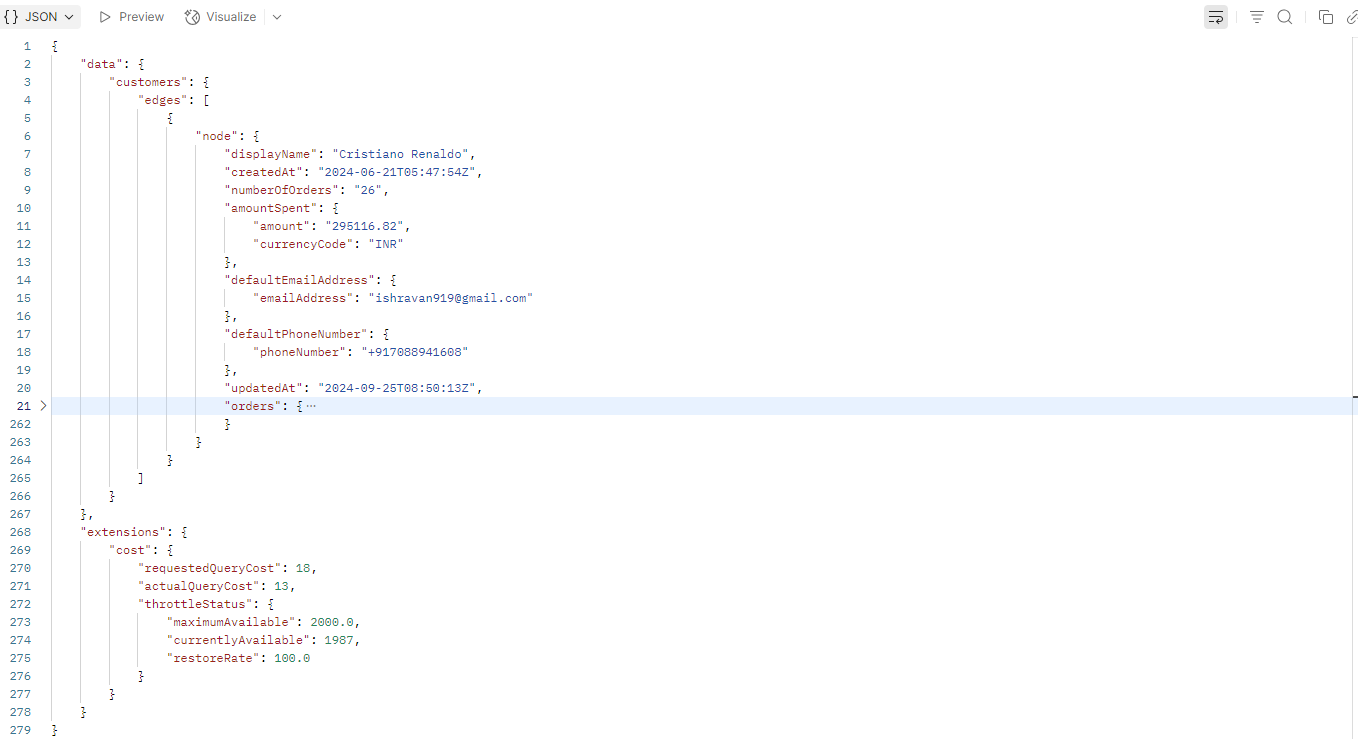
but in MSC you can specify panel_view, so if a customer wants when the customer was last updated
they can include updatedAt in request payload and then JSLT Template will use that field and add in the final response.
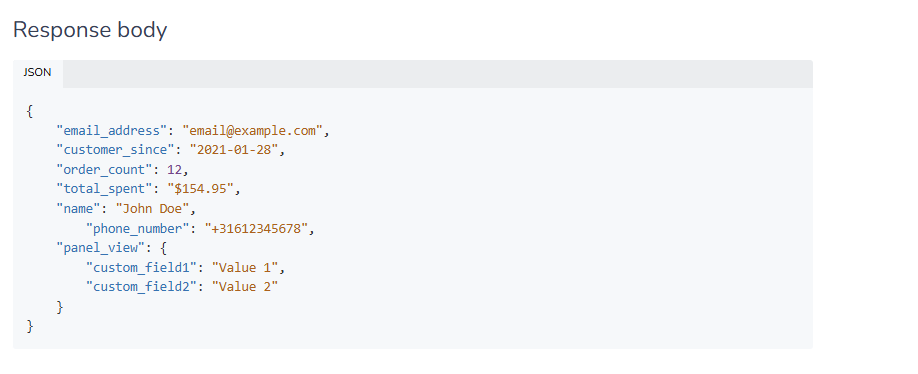
Therefore, we need to use Request Payload for such cases.
Steps
- After creating the integration, locate the Manage Request Payload button
- Click Manage Request Payload
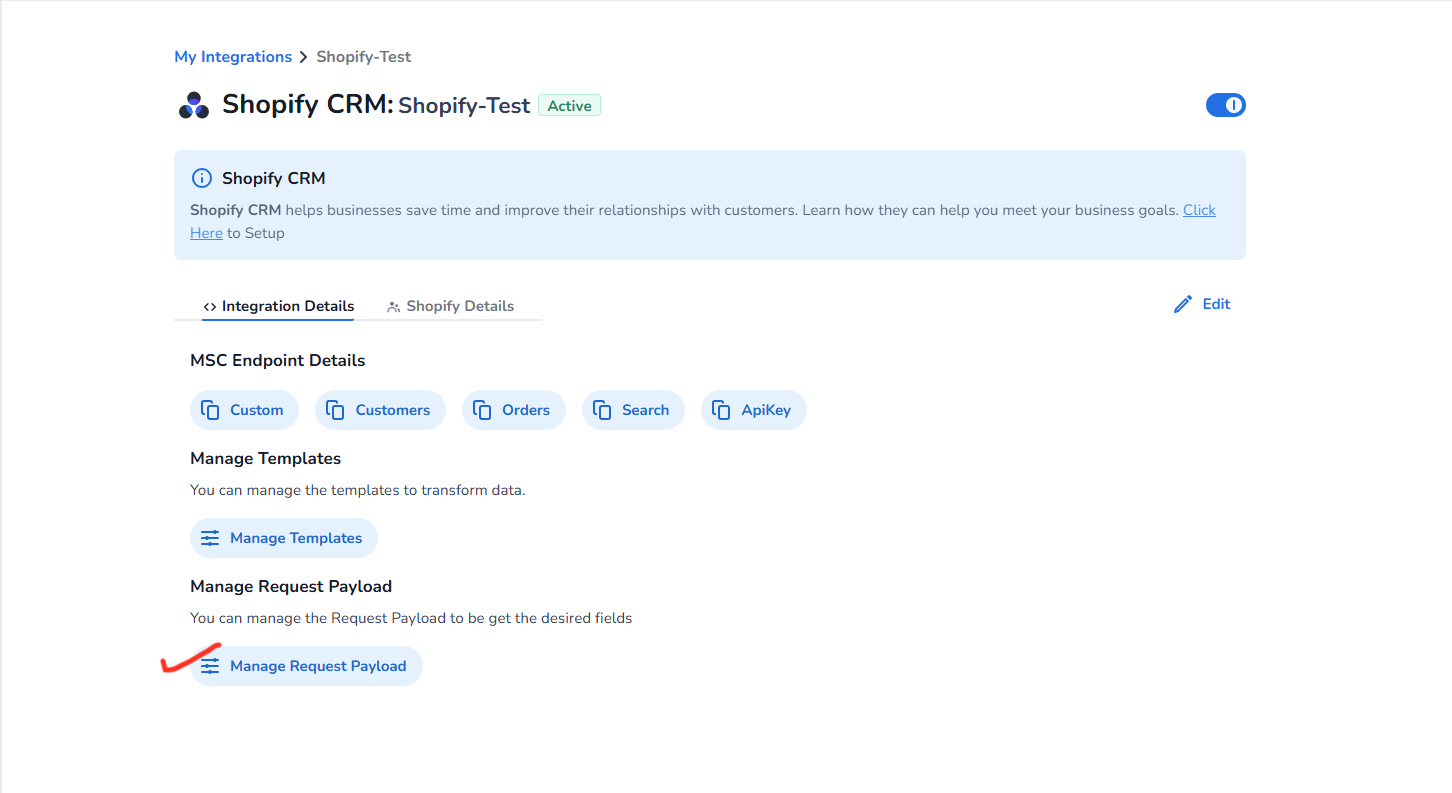
- Choose one of the following options:
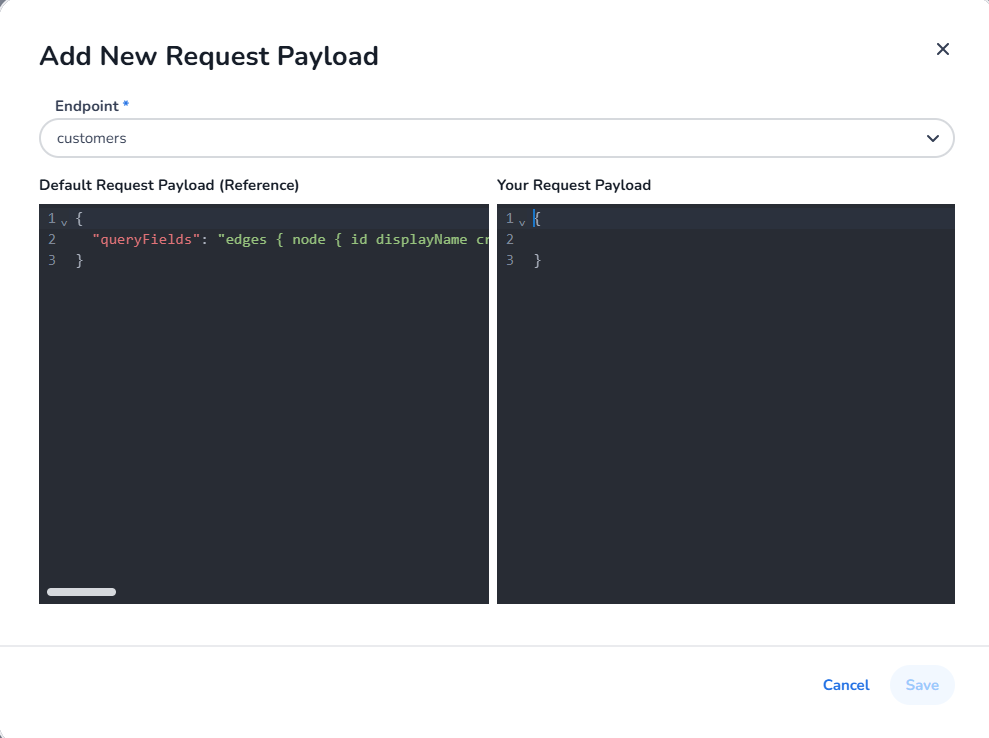
Create New Request Payload: Write a Request payload according to your requirements
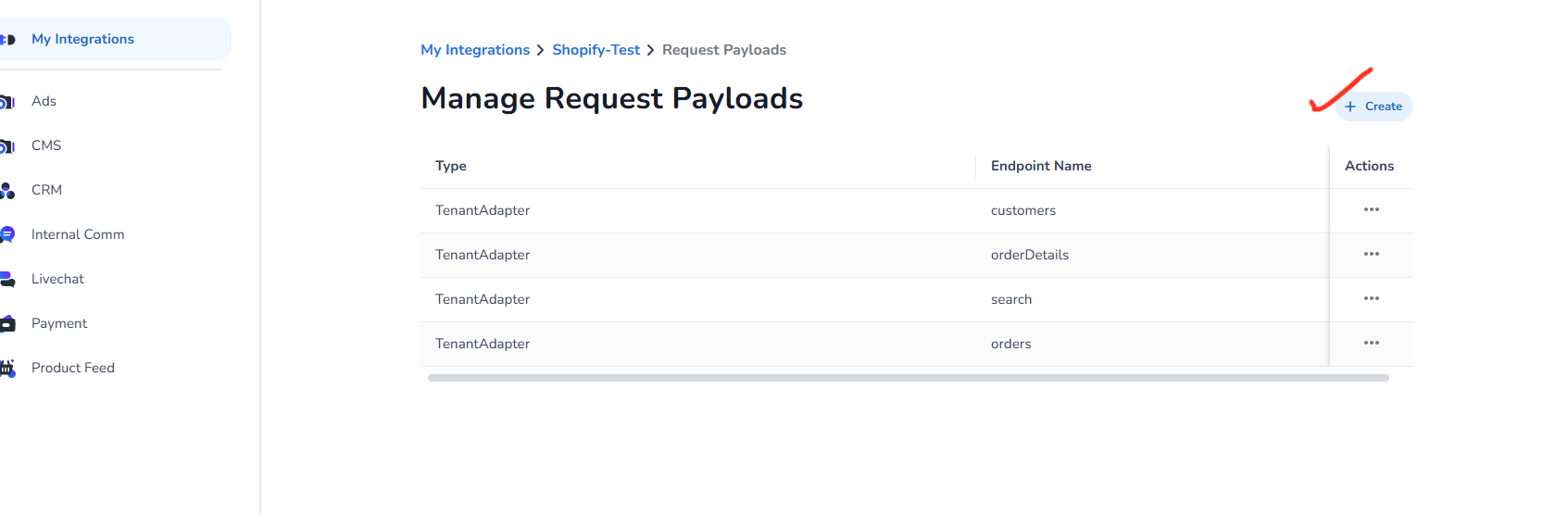
- You will see the Default Request Payload provided as a reference. This template is accurate and can be used as is. If you wish to use it, simply copy and paste it into your Template Editor tab. Additionally, if you need to make any modifications, you can edit the template as required.
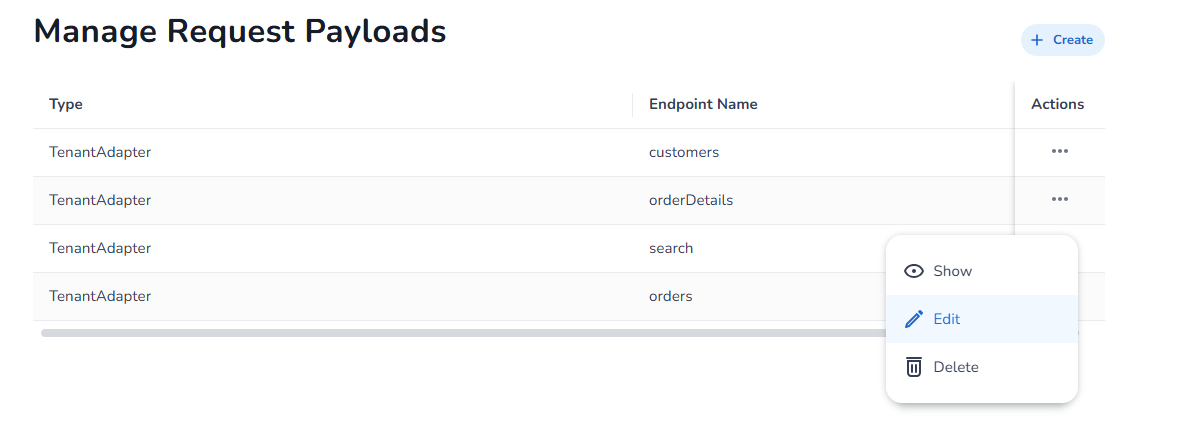
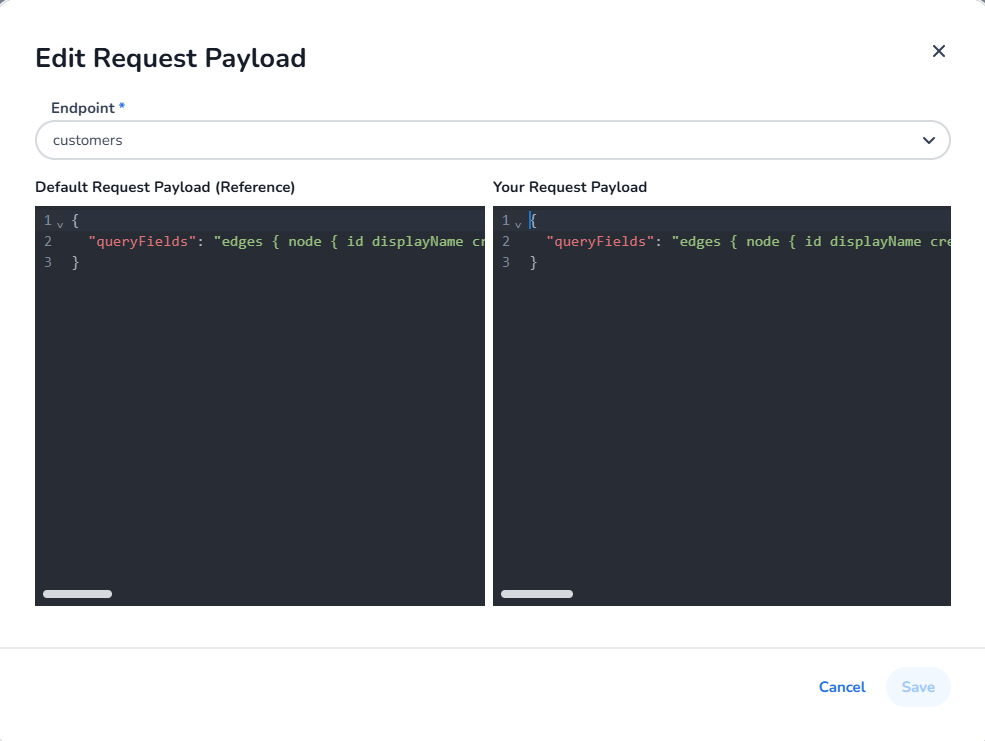
Edit Existing Request Payload: To modify an existing template to meet your needs click on three dots under **Actions **and click Edit
Request Payload Configuration
Request payloads vary from adapter to adapter. Please click on the specific adapter doc to choose the generic request payload you need.