Configure Endpoints from Marketplace to MSC
Configure Endpoints
Steps
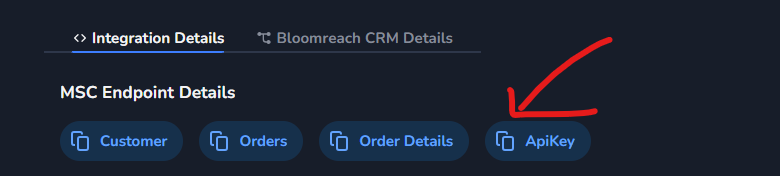
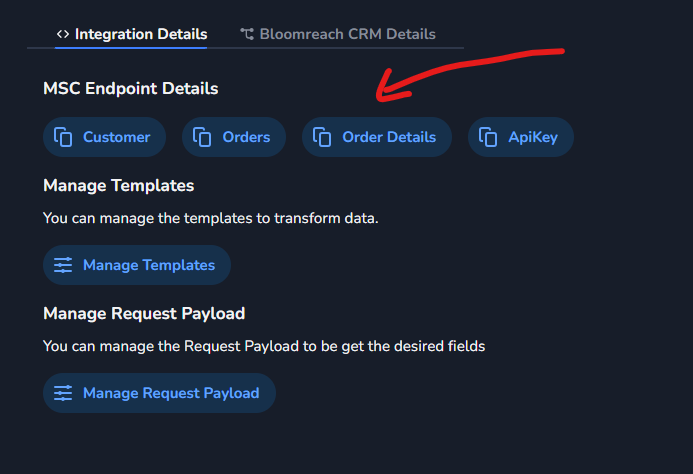
- Navigate to Integration Details section
- Locate the Endpoint Details
- Copy the endpoint URL provided
- Save the endpoint information for MSC configuration
Important Notes
- Endpoint details are automatically generated after integration creation
- Keep the endpoint URL secure and accessible for MSC configuration
MSC Configuration
Steps
- Access your MSC platform
- Log into your MSC account
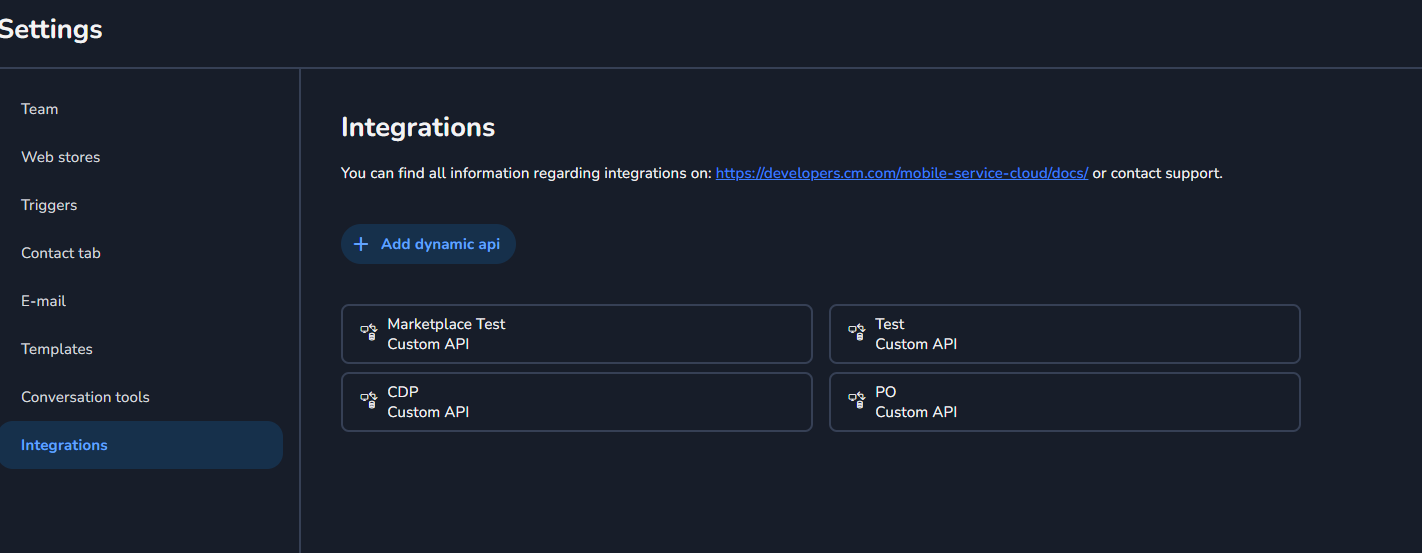
- Navigate to the integration settings section
-
Add Dynamic API Configuration
- Click on Add Dynamic API button
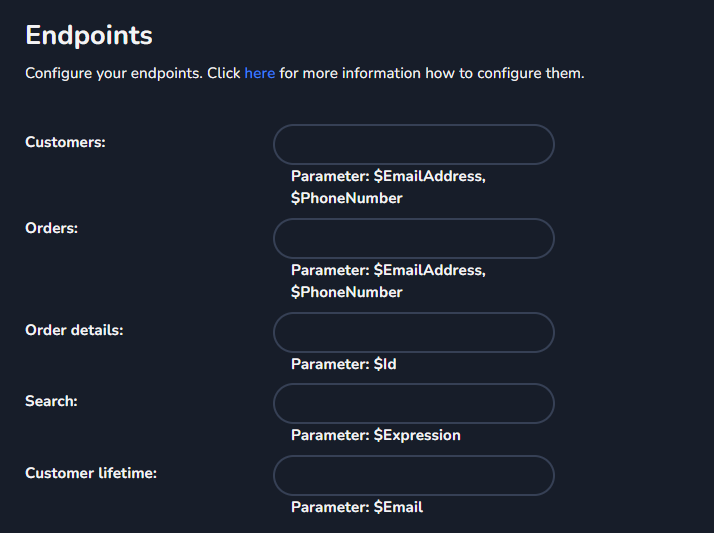
- Scroll down to locate the Endpoint section
-
Configure the Endpoint URL
Initial Setup:
- Take the marketplace URL from the previous step
- Paste it in the endpoint field
-
Configure Authentication
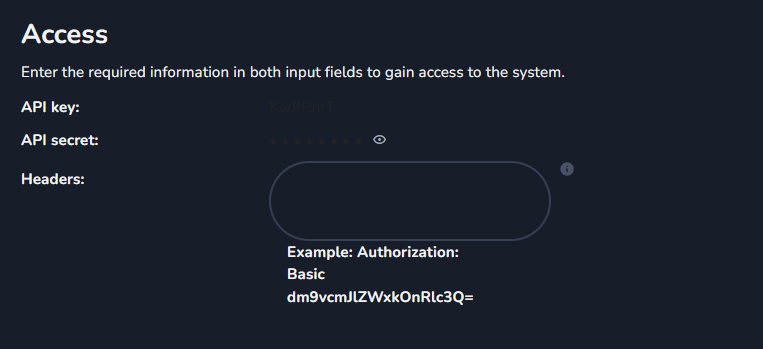
Access Tab Configuration:
- Navigate to the Access tab
- Under the Headers section, copy the API key from the Marketplace and paste it into the Headers section of MSC.