Delivery Setup for CDP
Delivery Setup
This guide explains how to configure the CDP CRM integration on our platform using the information provided by the customer.
1. Prerequisites
Ensure you have the following details from the customer:
- Tenant ID
- **API Token (Product Token) **
- Profile Type ID
2. Configure the CDP CRM Integration
**Steps to Configure API Access: **
- Log in to the Marketplace platform.
- Navigate to the Integrations > CRM section.
- Select CDP CRM from the list of available integrations.
- Click on Create Integration and provide a descriptive name (e.g., "CDP CRM Production Integration").
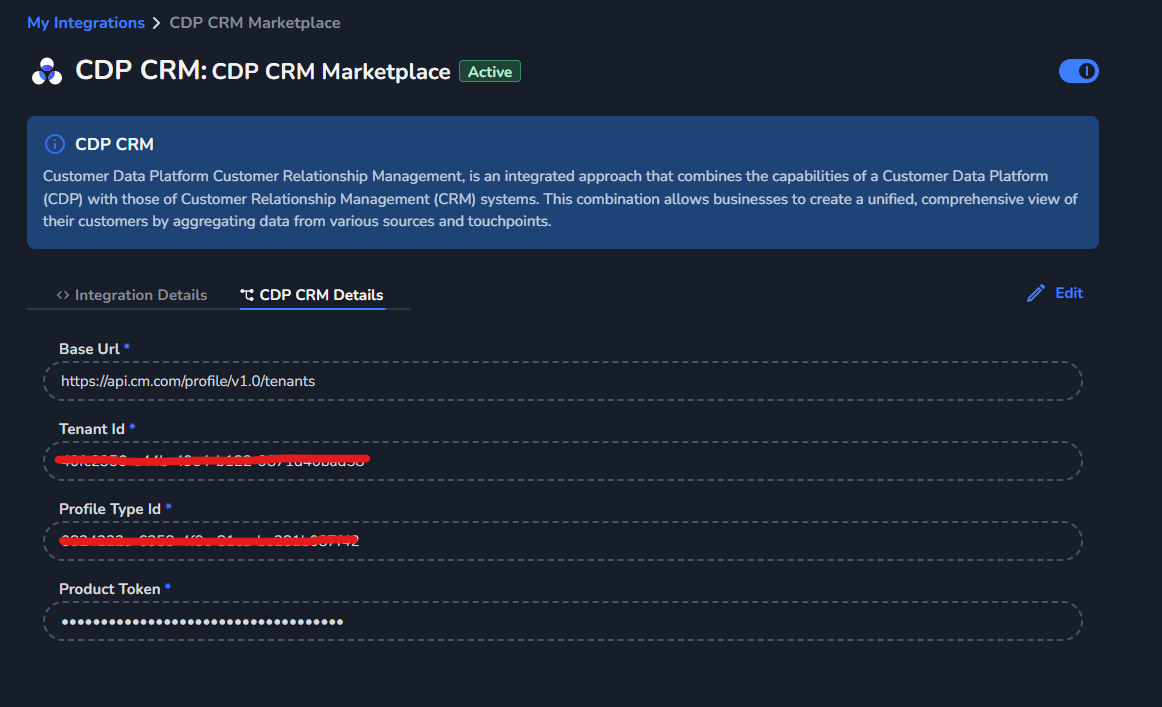
- In the CDP CRM Details section, enter the following:
- Base URL: Use the default base URL:
https://api.cm.com/profile/v1.0/tenants - Tenant ID: Paste the Tenant ID provided by the customer.
- API Token: Paste the API Token provided by the customer.
- Profile Type ID: Paste the Profile Type ID provided by the customer.
- Base URL: Use the default base URL:
- Save the integration to establish the connection.
3. Configure MSC Endpoint
To enable data synchronization, configure the MSC endpoint in the Marketplace platform. Follow these steps:
Steps to Configure MSC Endpoint:
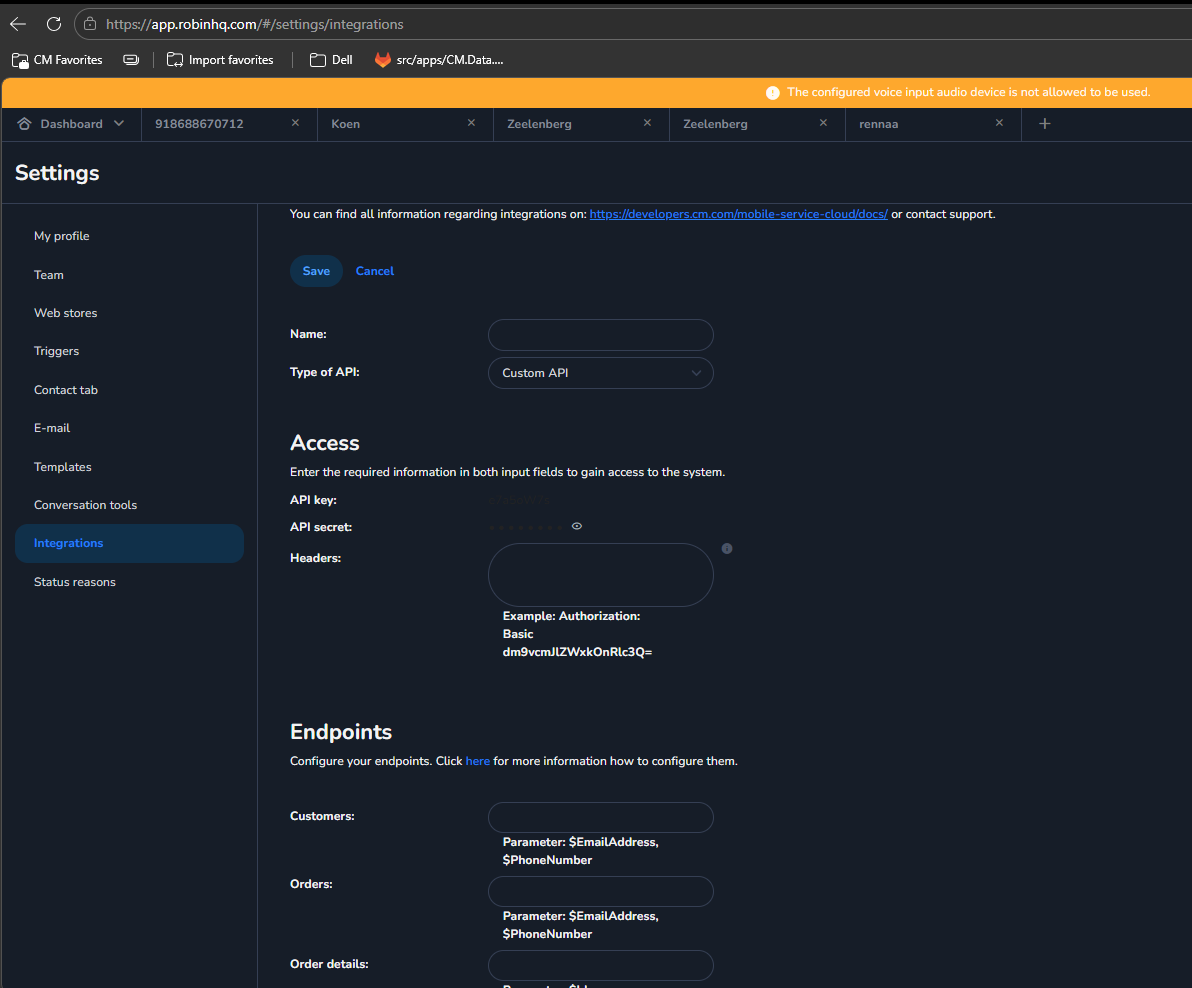
- In the Marketplace platform, navigate to the Integration Details section under CDP CRM.
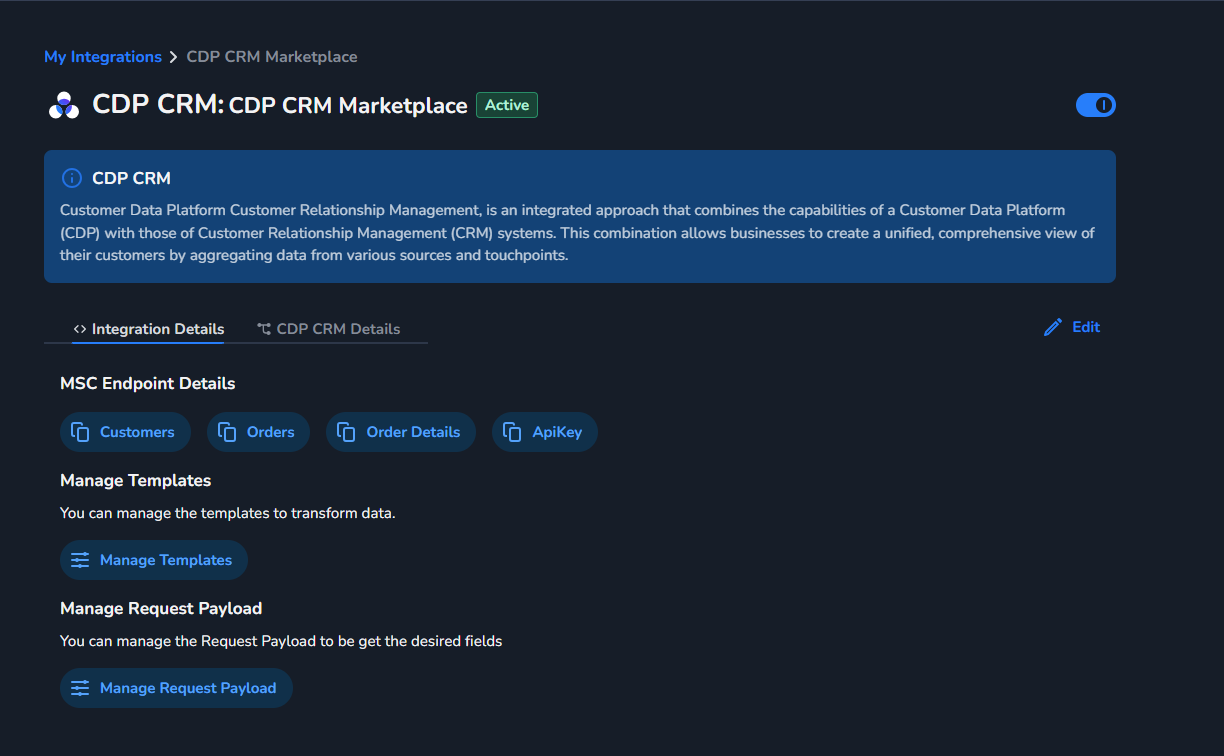
- Locate the MSC Endpoint Details.
- Copy the endpoint details provided in the Integration Details section.
- Log in to the MSC platform.
- Configure the copied endpoint details in MSC to enable data retrieval from CDP CRM.