Delivery Setup for Google Drive
This guide explains how to configure the Google Drive CMS integration on our platform using the information provided by the customer.
2. Configure the Google Drive CMS Integration
Steps to Configure API Access:
- Log in to the Marketplace platform.
- Navigate to the CMS section in the left panel and select Google Drive.
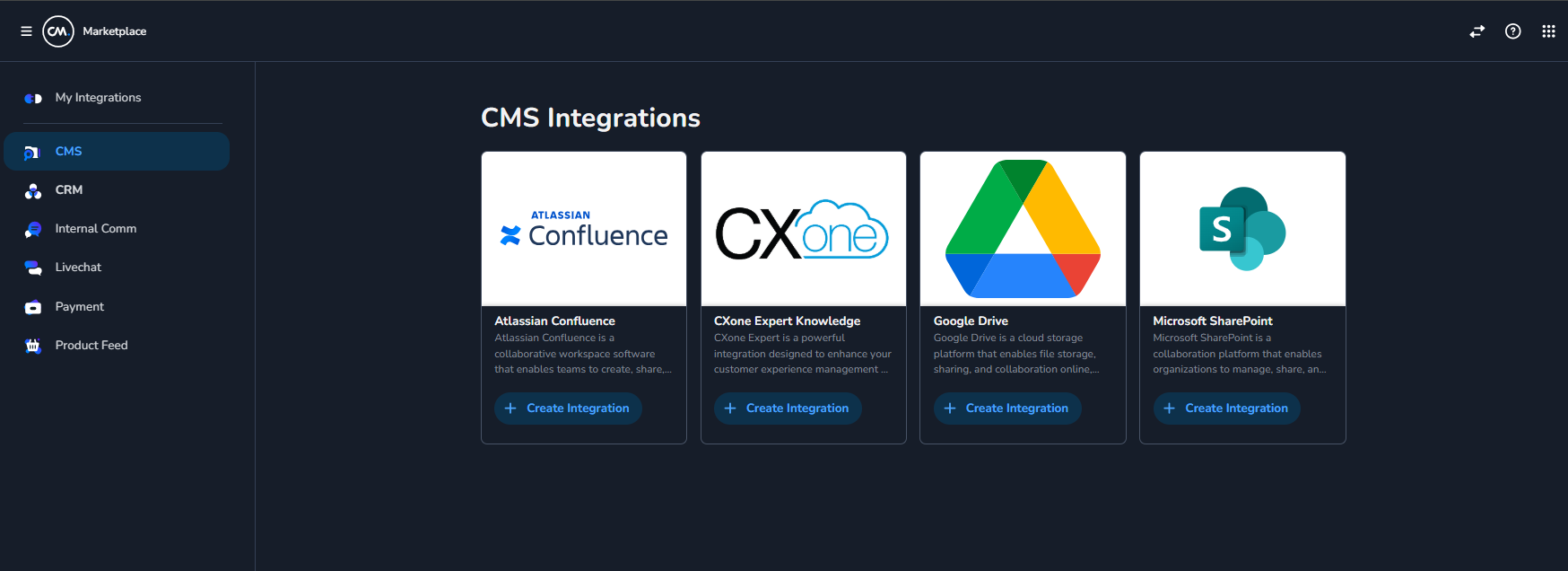
- Click on Create Integration and provide a descriptive name (e.g., "Google Drive CMS Integration").
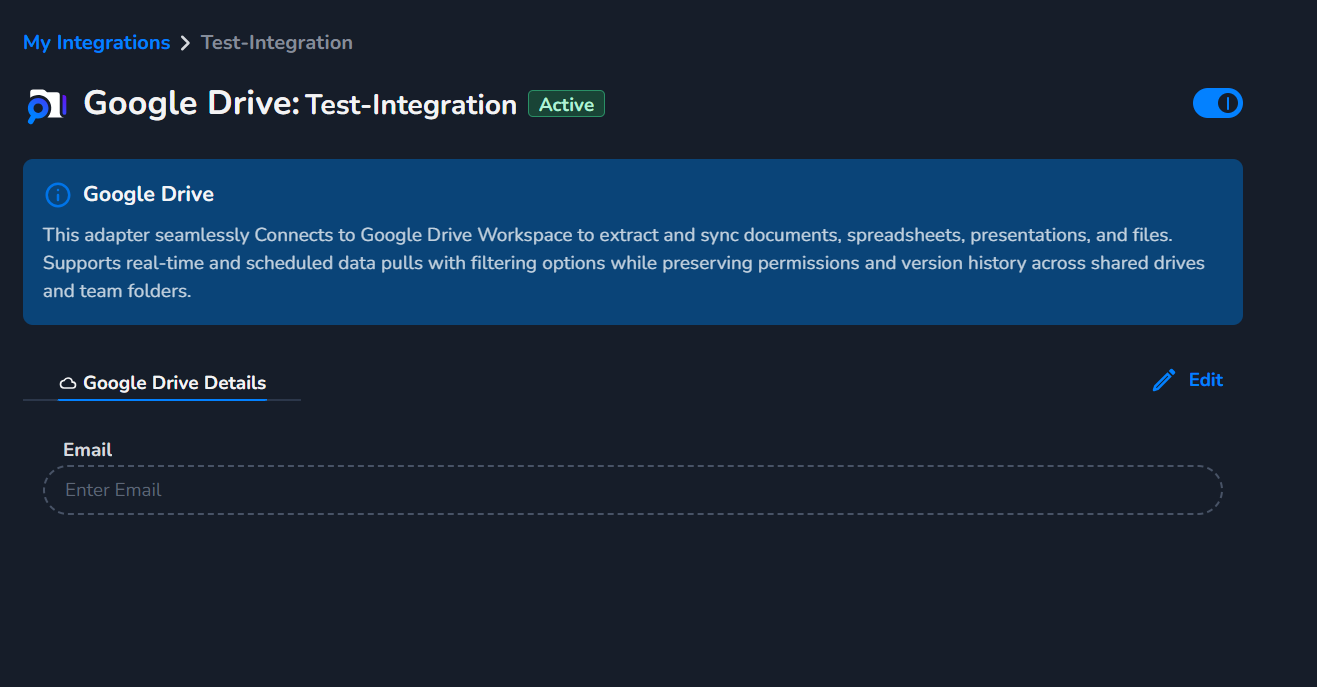
Email is optional field no need to enter any email here.
⚠️ Important: target file/folder must be in "My Drive", not a Shared Drive
The current integration only sees files and folders that have been shared directly with the service account's email ([email protected]). Items located inside a Google Shared Drive / Team Drive are not visible to the integration, even if the service account is added as a member of that Shared Drive. Confirm with the customer that their target content lives in a personal "My Drive". See the Customer Setup guide for details.
3. Sync Data
Steps to Sync Data:
- To pull data from Google Drive, make a
POSTrequest to the/contentsendpoint of the Marketplace platform.
- If you put the folder name, it will pull all content from that folder.
{
  "file": "Cheat-Sheet-Kubernetes.pdf"
}
- Provide the file or folder name in the request body.
- If you specify a folder name, all content from that folder will be pulled.
Example Request cURL:
curl -L 'https://api.cm.com/marketplace/cms/v1/tenants/{tenant_id}/adapters/{adapter_id}/contents?apiKey=YOUR_API_KEY' \
-H 'accept: */*' \
-H 'Content-Type: application/json' \
-d '{
  "file": "Cheat-Sheet-Kubernetes.pdf"
}'
4. Example Response
The response contains a list of attachmentFiles with signed URLs for objects stored in the Google Cloud bucket. These URLs are valid for 1 hour.
Response Example:
[
  {
    "id": "1nmok6jeLr5rflMnEIfuwQPHe4otG8j9m",
    "title": "Cheat-Sheet-Kubernetes.pdf",
    "content": null,
    "path": null,
    "attachmentFiles": [
      {
        "name": "Cheat-Sheet-Kubernetes.pdf",
        "url": "https://storage.googleapis.com/cm-marketplace-cms-bucket-prod/1f65ff84-d302-4edd-8fd6-d1d70e11856b/8f0b7c8f-ff01-4df7-bffa-50a703c852de/gdrive//Cheat-Sheet-Kubernetes.pdf?signed-here",
        "fileType": "pdf"
      }
    ],
    "metaData": null
  }
]
6. Integrating Google Drive Data into Halo
To integrate the Google Drive CMS data into the Halo product, follow these steps:
Steps to Integrate with Halo:
- Log in to the Halo platform.
- Navigate to the Sidebar and find the Knowledge section.
- Click on the Plus (+) icon in the dropdown menu.
- Select Add Marketplace from the options.
- Provide an appropriate name for the integration (e.g., "Google Drive Knowledge Base").
- Choose the Integration Type that you created in the Marketplace platform.
- Enter the configuration details:
- File/Folder: Specify the file or folder name you want to sync.
- Click Save to create the integration.
Syncing Data:
- After creating the integration, trigger a sync to fetch the Google Drive data.
- You can sync specific files, folders, or both, based on your requirements.
7. Troubleshooting: Sync returns empty content
If a customer reports that sync "succeeds" but no content appears (the API returns 200 OK with an empty list []), the most common cause is that the target file or folder lives inside a Shared Drive (Team Drive) rather than a personal "My Drive". The current Google Drive integration only sees files that are shared directly with the service account's email — Shared Drive membership does not grant API visibility.
How to confirm with the customer:
- Ask them to open the Google Drive web UI and check whether the folder is listed under "My Drive" or under "Shared drives" in the left sidebar.
- If it is under "Shared drives", point them to the Customer Setup guide and have them move the folder into a personal "My Drive" and share it directly with
[email protected]as Viewer.
How to verify in Cloud Logging: a failed sync of this kind produces log lines from CM.Marketplace.Adapters.CMS.GDrive.Services.GDriveContentService of the form No items found with name: <folder-or-file-name> followed by an HTTP 200 with ResponseContentBody: "[]".