Delivery Setup CX-One
Delivery Setup
This guide explains how to configure the CX-One Expert Knowledge CMS integration on our platform using the information provided by the customer.
1. Prerequisites
Ensure you have the following details from the customer:
- Base URL
- Username
- Key
- Secret
- Tag
2. Configure the CX-One Expert Knowledge CMS Integration
Steps to Configure API Access:
- Log in to the Marketplace platform.
- Navigate to the CMS section in the left panel and select CX-One Expert Knowledge.
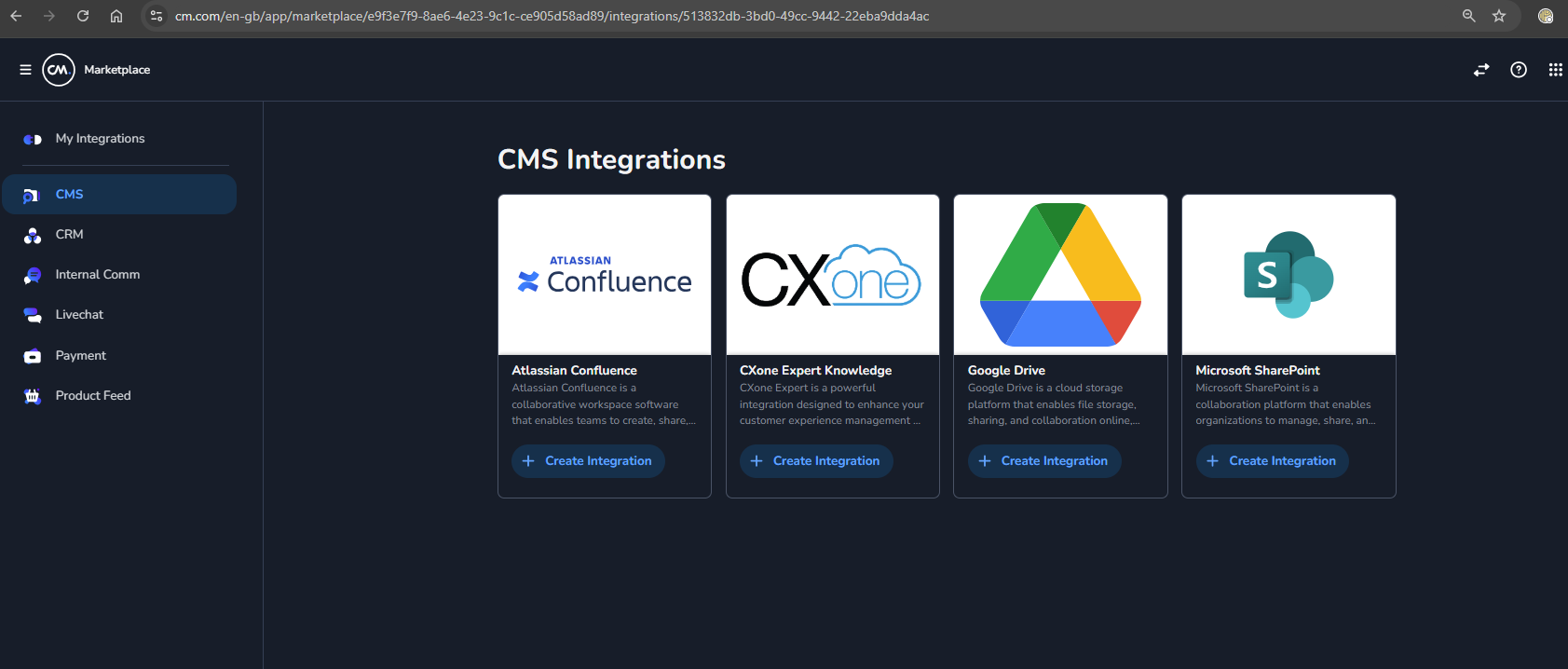
- Click on Create Integration and provide a descriptive name (e.g., "CX-One Expert Knowledge Integration").
- Enter the following details:
- Base URL: Paste the Base URL provided by the customer.
- Username: Enter the username provided by the customer.
- Key: Enter the key provided by the customer.
- Secret: Enter the secret provided by the customer.
- Tag: Enter the tag to filter the data.
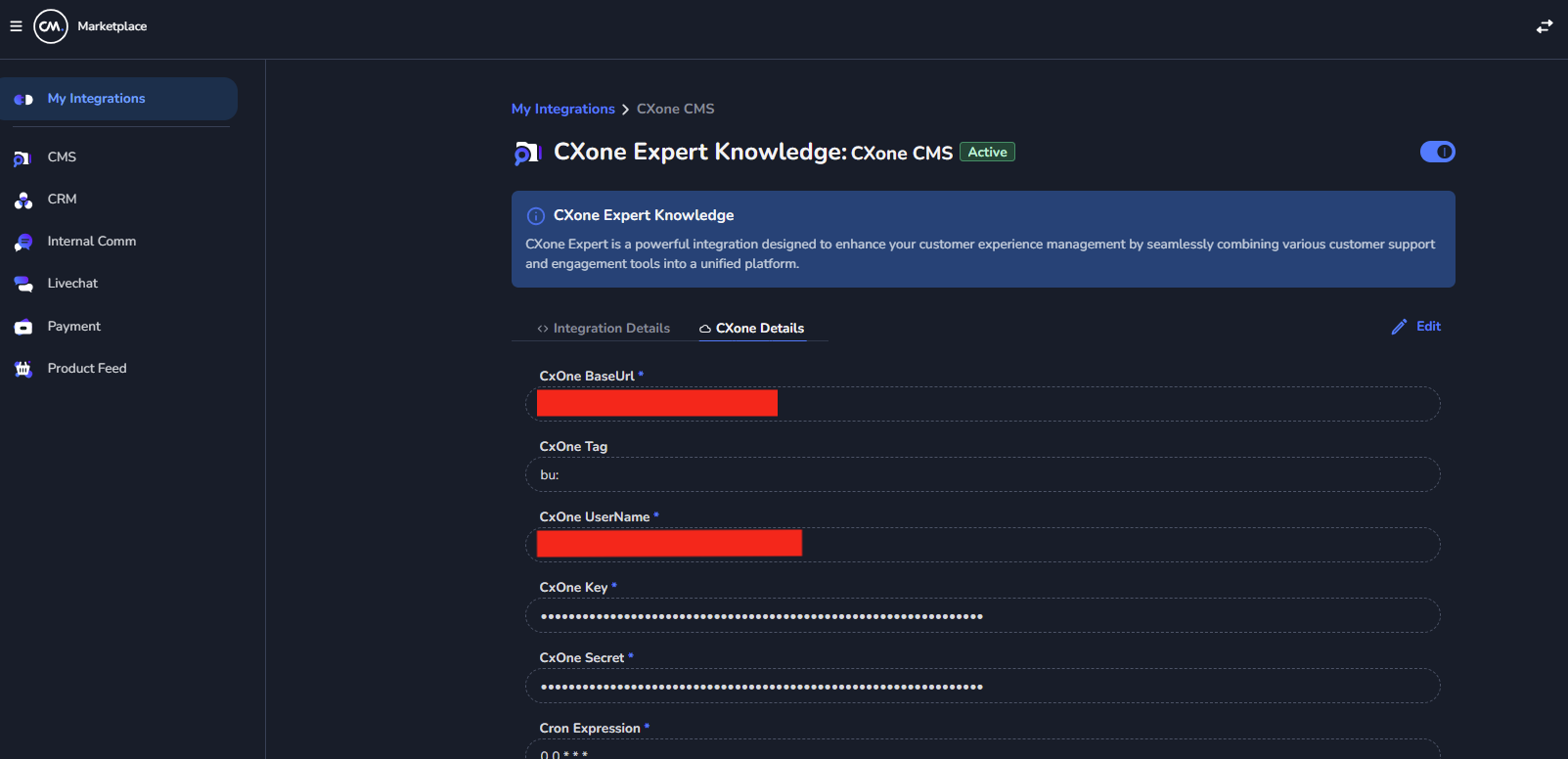
- Save the integration to establish the connection.
How to pull the data from the CX-One?
- You need to do a HTTP
POSTrequest to the/contentsendpoint of the marketplace with body having Classification name (Business Unit Name).
{
  "classifications": "kvn_nl"
}
Example Request cURL:
curl -L 'https://api.cm.com/marketplace/cms/v1/tenants/1f65ff84-d302-4edd-8fd6-d1d70e11856b/adapters/3417b19b-564e-487a-9d4b-46644b5a5370/contents?apiKey=YOUR_API_KEY' \
-H 'accept: */*' \
-H 'Content-Type: application/json' \
-d '{
  "classifications": "kvn_nl"
}'
Example Response:
[
    {
        "id": "3618",
        "title": "Wat zijn Kruidvat verkooppartner producten?",
        "content": "Kruidvat partnerproducten worden aangeboden door externe verkopers via onze website. Deze producten worden niet in onze winkels aangeboden. Met deze producten kan Kruidvat jou een groter en completer online assortiment aanbieden. Je profiteert dus van nog meer verrassende deals en voordelige aanbiedingen! We werken samen met [betrouwbare verkooppartners en heldere voorwaarden](https://www.kruidvat.nl/kruidvatpartners), dus altijd het vertrouwde voordeel dat je van ons gewend bent. Je herkent een partner product aan de labels 'verkoop via partner' en 'verkocht en verstuurd door ' op de productpagina.",
        "path": null,
        "attachmentFiles": [],
        "metaData": null
    },
    {
        "id": "884",
        "title": "Mijn pakket is niet geleverd op het gekozen bezorgmoment. Wat nu?",
        "content": "We doen altijd ons best om je pakket te bezorgen op het door jou gekozen bezorgmoment. Het kan helaas voorkomen dat dit uiteindelijk niet haalbaar is en je pakket 1-3 dagen later wordt geleverd. Heeft je pakket vertraging opgelopen? Dan krijg je hier op de dag van je gekozen bezorgmoment een e-mail over. Soms komen onze mails binnen in de SPAM-mailbox, dus neem daar ook een kijkje! Heb je jouw pakket na 3 dagen nog niet ontvangen? Neem dan [contact](/Kruidvat/Kruidvat_Nederland/Organisatie/Info_&_Contact/Hoe_neem_ik_contact_op_met_een_Kruidvat_verkooppartner%3F) op met onze klantenservice. Heb je jouw pakket niet ontvangen, maar staat deze bij PostNL wel als bezorgd? Klik dan [hier](/Kruidvat/Kruidvat_Nederland/Mijn_online_bestelling/Bezorgen/Volgens_de_Track_&_Trace_is_mijn_pakket_bij_mij_afgeleverd._Ik_heb_het_echter_niet_ontvangen._Wat_nu%3F).",
        "path": null,
        "attachmentFiles": [],
        "metaData": null
    }
]
What are the types of sync available?
- Earlier, marketplace was syncing the data periodically using Cron job and saving the response in a GCP bucket and Halo used to make a
GETrequest to/contentsendpoint of the marketplace to get the data - But now, marketplace has a
POSTrequest in/contentsendpoint, where the data can be fetched on fly. Halo’ssyncronisation-serviceis usingPOSTrequest.
3. Integrating CX-One Expert Knowledge Data into Halo
To integrate the CX-One Expert Knowledge CMS data into the Halo product, follow these steps:
Steps to Integrate with Halo:
- Log in to the Halo platform.
- Navigate to the Sidebar and find the Knowledge section.
- Click on the Plus (+) icon in the dropdown menu.
- Select Add Marketplace from the options.
- Provide an appropriate name for the integration (e.g., "CX-One Knowledge Base").
- Choose the Integration Type that you created in the Marketplace platform.
- Enter the configuration details:
- Classification: Specify the classification name (Business Unit Name) you want to sync.
- Click Save to create the integration.
Syncing Data:
- After creating the integration, trigger a sync to fetch the CX-One Expert Knowledge data.
- You can sync specific classifications based on your requirements.