Delivery Setup Confluence
Delivery Setup
This guide explains how to configure the Confluence CMS integration on our platform using the information provided by the customer.
1. Prerequisites
Ensure you have the following details from the customer:
- Base URL
- API Key
- Email ID
2. Configure the Confluence CMS Integration
Steps to Configure API Access:
- Log in to the Marketplace platform.
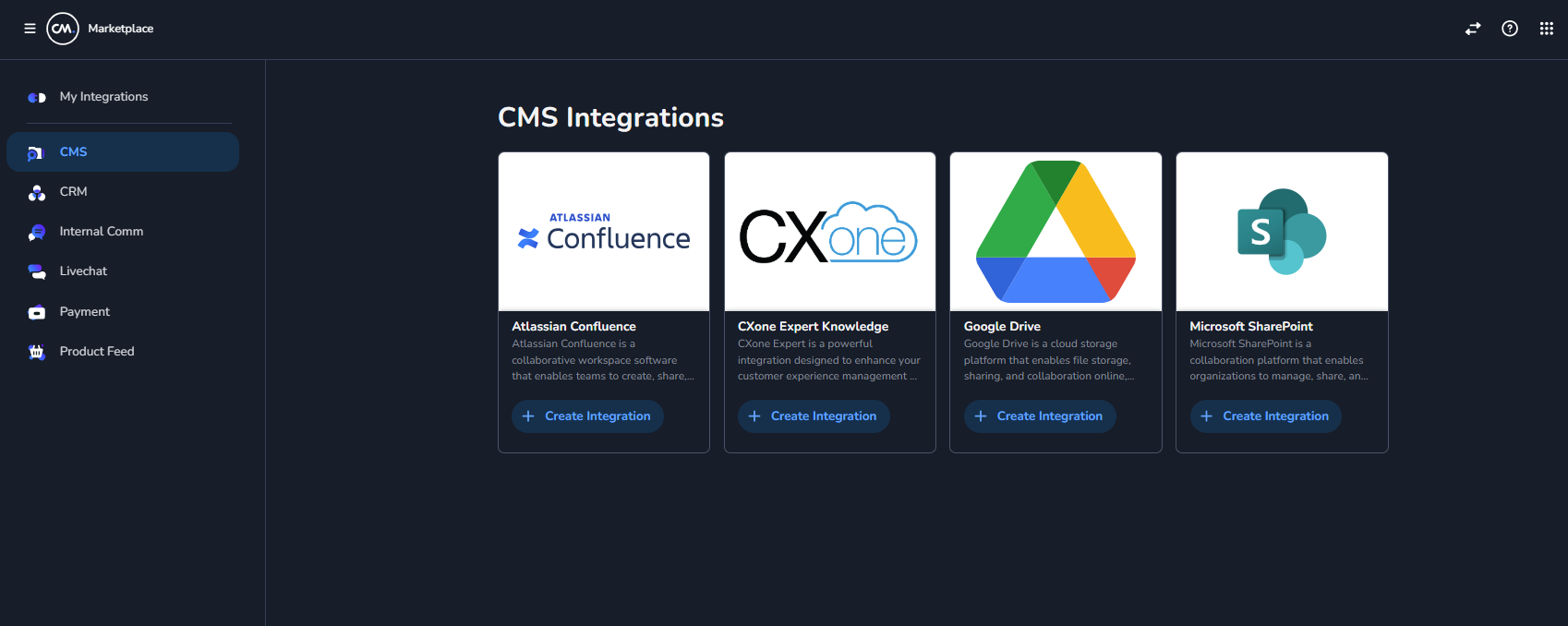
- Navigate to the CMS section in the left panel and select Confluence.
- Click on Create Integration and provide a descriptive name (e.g., "Confluence CMS Integration").
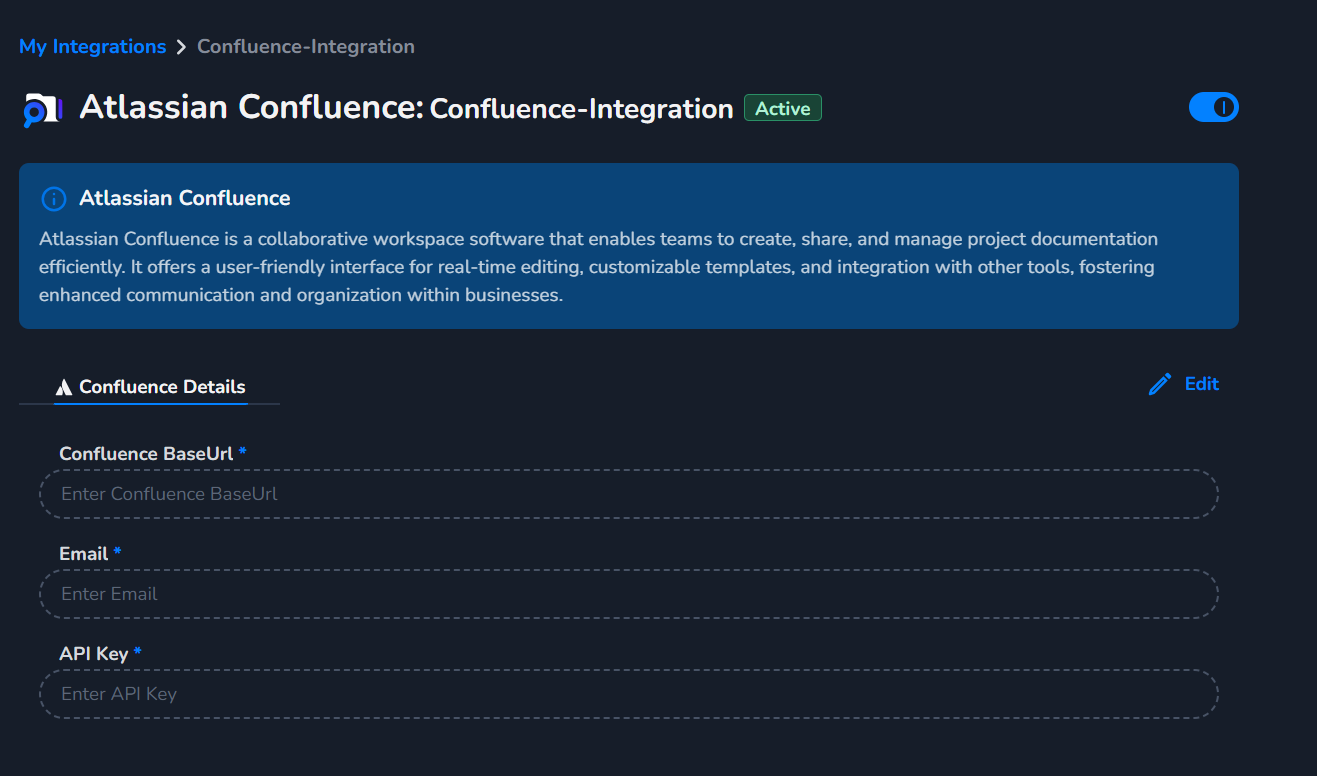
- Enter the following details:
- Base URL: Paste the Base URL provided by the customer.
- API Key: Paste the API Key provided by the customer.
- Email ID: Enter the customer's Confluence login email.
- Save the integration to establish the connection.
3. Configure Labels and Spaces
How Labels and Spaces Work?
- Labels and Spaces in marketplace are required only for periodic sync.
- If you don't provide any value in labels or **spaces **then it wont be able to fetch any data
- If you provide only **labels **then it fetches all the pages with labels user has access to
- If you provide only **spaces **then it fetches all the pages under space user has access to
- If you provide both **labels **(marketing,pricing)and **spaces **(MKT,SLS)then it fetches pages having all the labels (and condition) by iterating over each space provided in spaces user has access to. We look for pages having both marketing and pricing as label in spaces MKT and SLS
- If you kept labels as empty and provided space with label under spaces like MKT{marketing, pricing}, SLS{sales,leads} then it fetches content with labels (or condition) available within that space user has access to. We look for pages having labels either marketing or pricing under space MKT and pages having labels either sales or leads under space SLS
- It is background service which runs as per schedule provided in Cron Expression
- Sync Data is used to trigger the background job immediately.
- **Contents Endpoint ** can be clicked to copy URL. This endpoint provides data fetched from confluence in JSON format. This can be added as link to web crawler in Halo Knowledge.
- If Only include verified pages is checked, it will only pull the data from the verified pages. More about Verified pages here https://community.atlassian.com/forums/Confluence-articles/Verified-Pages-Now-Available-in-Confluence/ba-p/2664827
- If you don't want anything to be crawled then its better not to provide access to the user. Its the customer responsibility to follow least privilege.
- You can provide multiple labels or spaces as comma separated values.
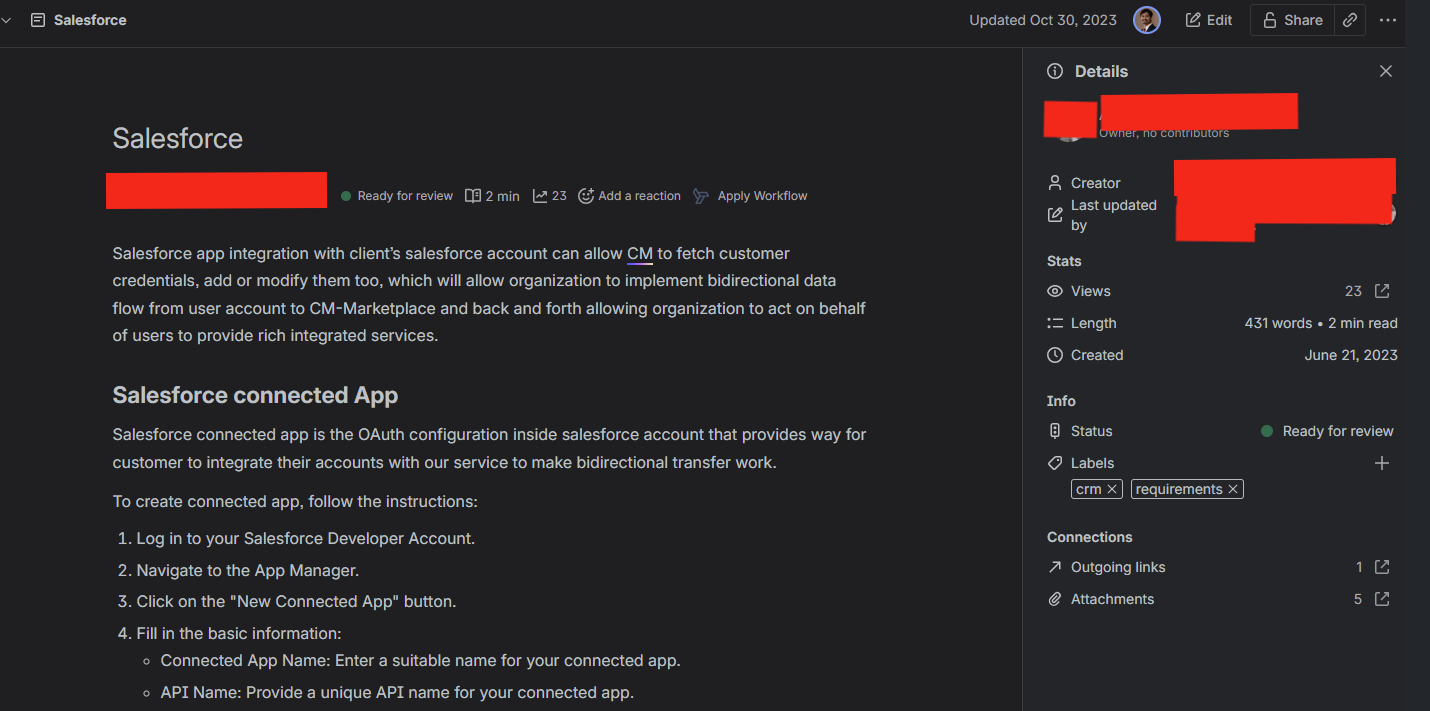
You can visit https://support.atlassian.com/atlassian-account/docs/manage-api-tokens-for-your-atlassian-account/#Create-an-API-token for more information
4. Sync Data
What are the types of sync available?
- Earlier, marketplace was syncing the data periodically using Cron job and saving the response in a GCP bucket and Halo used to make a
GETrequest to/contentsendpoint of the marketplace to get the already synced data. - But now, marketplace has a
POSTrequest in/contentsendpoint, where the data can be fetched on fly. Halo'ssyncronisation-serviceis usingPOSTrequest.
How to pull the data from the Confluence?
- You need to do a HTTP
POSTrequest to the/contentsendpoint of the marketplace with body having Spaces or Labels.
{
  "spaces" : "AI",
  "labels" : "crm",
  "isVerified" : true
}
Example Request cURL:
curl -L 'https://api.cm.com/marketplace/cms/v1/tenants/1f65ff84-d302-4edd-8fd6-d1d70e11856b/adapters/b34f72c5-7ddb-471b-b899-69dcc7da4153/contents?apiKey=YOUR_API_KEY' \
-H 'accept: */*' \
-H 'Content-Type: application/json' \
-d '{
  "spaces" : "AI", // name of the space in confluence which you want to sync
  "labels" : "crm", // labels can be found in the confluence page
  "isVerified" : true // this is a boolean, it will fetch only verified pages
}'
Example Response:
[
    {
        "id": "988020737",
        "title": "Reporting",
        "content": "content goes here",
        "path": "https://cmcom.atlassian.net/wiki/spaces/MKT/pages/1/Reporting",
        "attachmentFiles": [
            {
                "name": "image-20220721-083438.png",
                "url": "https://storage.googleapis.com/cm-marketplace-cms-bucket-prod/4d79fe67-e538-40cc-b0d6-67b27310ba23/b34f72c5-7ddb-471b-b899-69dcc7da4153/confluence/attachments/image-20220721-083438.png?X-Goog-Algorithm=GOOG4-RSA-SHA256&X-Goog-Credential=sa-cms%40connect-core-prod.iam.gserviceaccount.com%2F20250509%2Fauto%2Fstorage%2Fgoog4_request&X-Goog-Date=20250509T000021Z&X-Goog-Expires=3600&X-Goog-SignedHeaders=host&X-Goog-Signature=4b7e338bde6150e43509066f02f4264659164513841b548829b8adebf010b058ea881513b3fb4c66bbc848de0829884b0fcf5c0c9e4ba40053355969825132946defefbd911e673e6c6f403ec28a13798f94ae3c66c2ec45eaff083436abc6e189991d303f9b38c21c5d92ea5a34f55907d93ffe42cbecde16131b17b5f75bb550a0d986f160a8d84989a4ded860effa394de2117b27f8910df42a34b1005b3673d01b4b154e60bd7072e128e2fa9ffa0bc9715b20a1cfa6ed1e731185cedd5f82d8c1a0446764d1f84ecf29e01369819e004990ae9a94394cdd1380c820a560052a98c6a8a2ea348a0e856e18e59edc04d53cc9f06d3335b7da12a926bf8b1e",
                "fileType": "png"
            }
        ],
        "metaData": {
            "OwnedBy": "Jane Stepanova (Deactivated)",
            "CreatedBy": "Jane Stepanova (Deactivated)"
        }
    },
    {
        "id": "2224128025",
        "title": "Widget migration",
        "content": "",
        "path": "https://cmcom.atlassian.net/wiki/spaces/AI/pages/3/Widget+migration",
        "attachmentFiles": [],
        "metaData": {
            "OwnedBy": "Seren Lurvink | CM.com",
            "CreatedBy": "Seren Lurvink | CM.com"
        }
    }
]
Note:
Try to** limit syncing the pages**, sync only which are required by giving labels and marking page status to verified.
6. Notes for Delivery Team
- Verified Pages: If the Only Include Verified Pages option is checked, only verified pages will be fetched. Learn more about verified pages here .
- Least Privilege: Ensure the user account used for integration has the least privilege required to access the necessary data.
- Limit Syncing: Sync only the required pages by providing specific labels and spaces.
7. Integrating Confluence Data into Halo
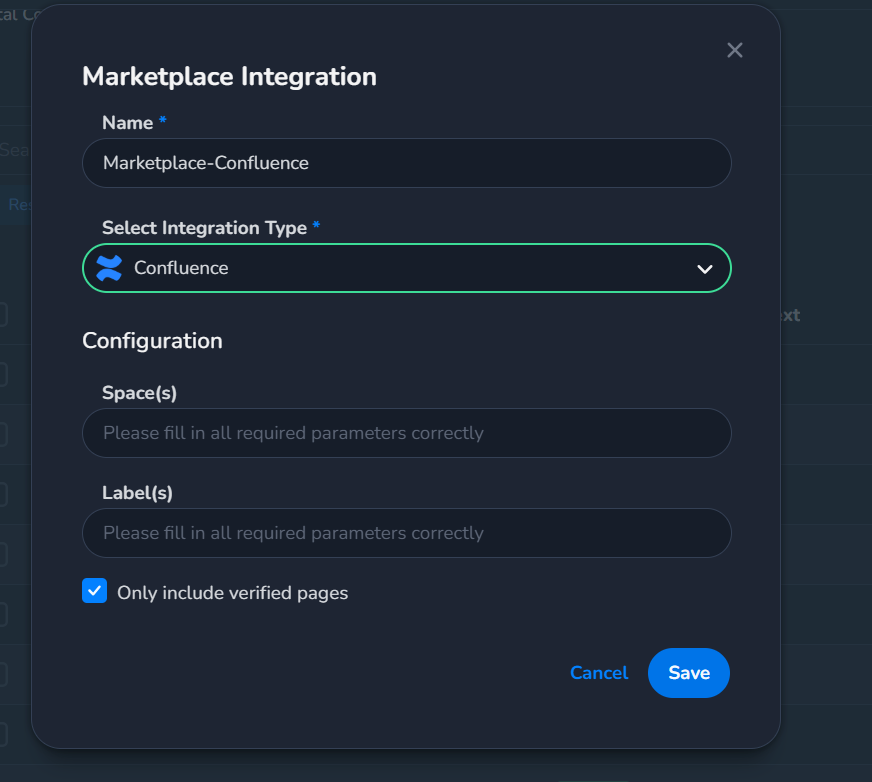
To integrate the Confluence CMS data into the Halo product, follow these steps:
Steps to Integrate with Halo:
- Log in to the Halo platform.
- Navigate to the Sidebar and find the Knowledge section.
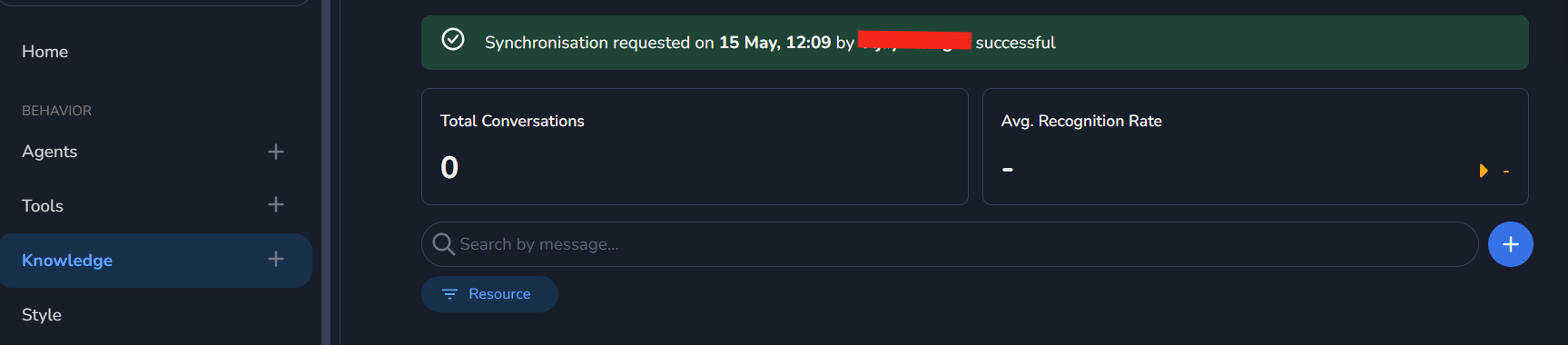
- Click on the Plus (+) icon in the dropdown menu.
- Select Add Marketplace from the options.
- Provide an appropriate name for the integration (e.g., "Confluence Knowledge Base").
- Choose the Integration Type that you created in the Marketplace platform.
- Enter the configuration details:
- Spaces: Specify the spaces you want to sync. (Specify the Space Key (not the space name). You can find the Space Key in the URL when viewing the space, e.g.,
https://your-domain.atlassian.net/wiki/spaces/MKT— hereMKTis the Space Key.) - Labels: Specify the labels you want to sync.
- Only Include Verified Pages: Check this option if you want to sync only verified pages.
- Spaces: Specify the spaces you want to sync. (Specify the Space Key (not the space name). You can find the Space Key in the URL when viewing the space, e.g.,
- Click Save to create the integration.
First-Time Configuration:
- For the first-time setup, ensure that the Only Include Verified Pages option is checked.
- After the integration is created, you can edit it later to uncheck this option if needed.
Syncing Data:
- After creating the integration, trigger a sync to fetch the Confluence data.
- You can sync specific spaces, labels, or both, based on your requirements.