Customer Setup Google Ads
This guide explains what you, as the customer, need to provide and configure to enable the integration between your Google Ads account with the Marketplace.
1. Prerequisites
Before proceeding, ensure you have the following:
- Admin access to your Google Ads account.
- Your Google Ads Customer ID.
- Access to the Marketplace platform.
- If you want to sync from CXP Segments instead of AddressBook: your CXP Tenant ID — contact the CM CDP/CXP team if you don't already have this.
2. Authorize Google Ads Integration
To enable the integration, you need to authorize our app to access your Google Ads account. Follow these steps:
Steps to Authorize
- Log in to the Marketplace platform.
- Navigate to the Integrations > Google Ads section.
- Click on the Authorize button.
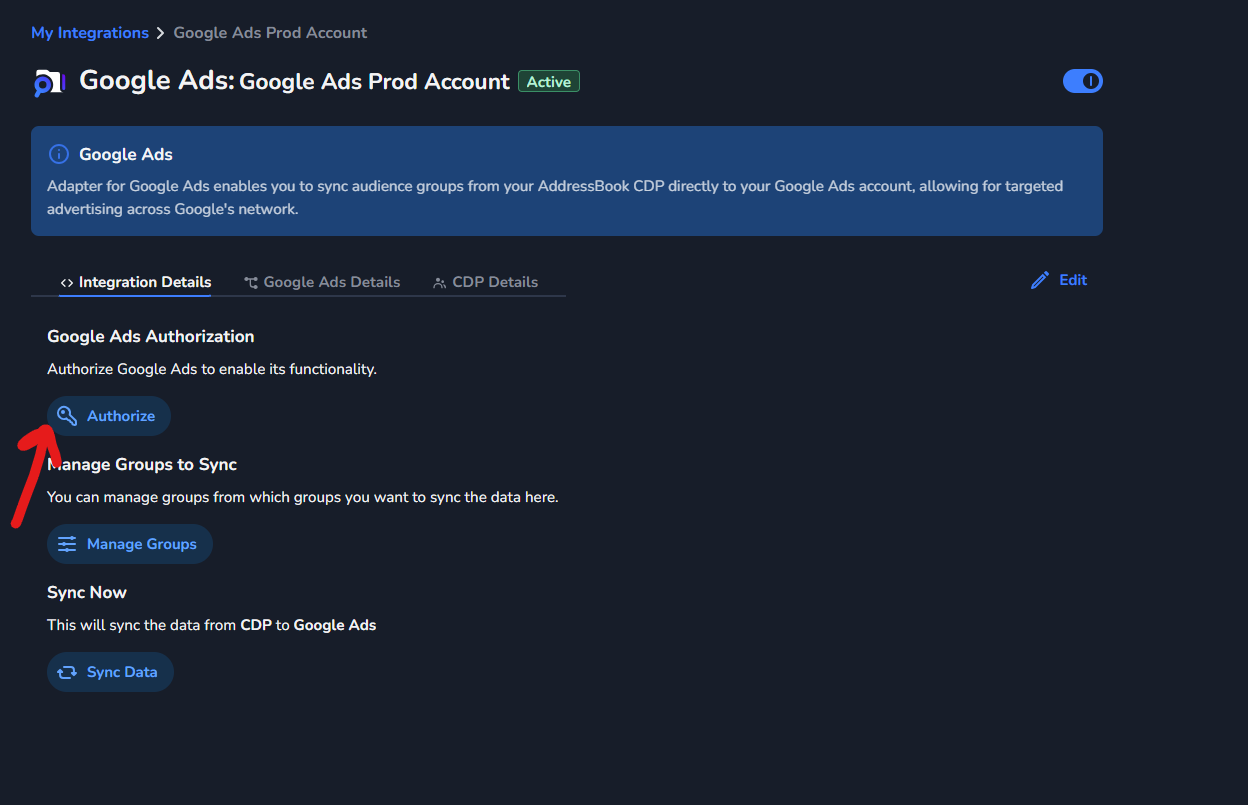
- You will be redirected to the Google authorization page.
- Log in with your Google account that has access to your Google Ads account.
When you connect your Google Ads account, Google may prompt you to create a passkey. Set one g.co/passkeys up at ahead of time new passkeys need up to 7 days before they work.
- Grant the necessary permissions to our app.
- Once authorized, our platform will generate a Refresh Token that will be used to access the Google Ads API.
What to Provide
- Google Ads Customer ID: This is your unique identifier for your Google Ads account. You can find it in the top-right corner of your Google Ads dashboard.
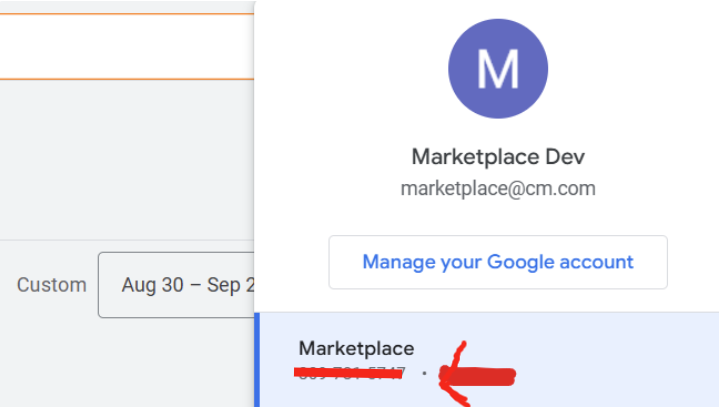
Copy it without the Dashes.
4. Manage Groups for Syncing
If you want to sync specific groups from your Address Book with Google Ads, follow these steps:
Steps to Manage Groups
- In the Marketplace platform, go to the Integration Details section under Google Ads.
- Click on Manage Groups.
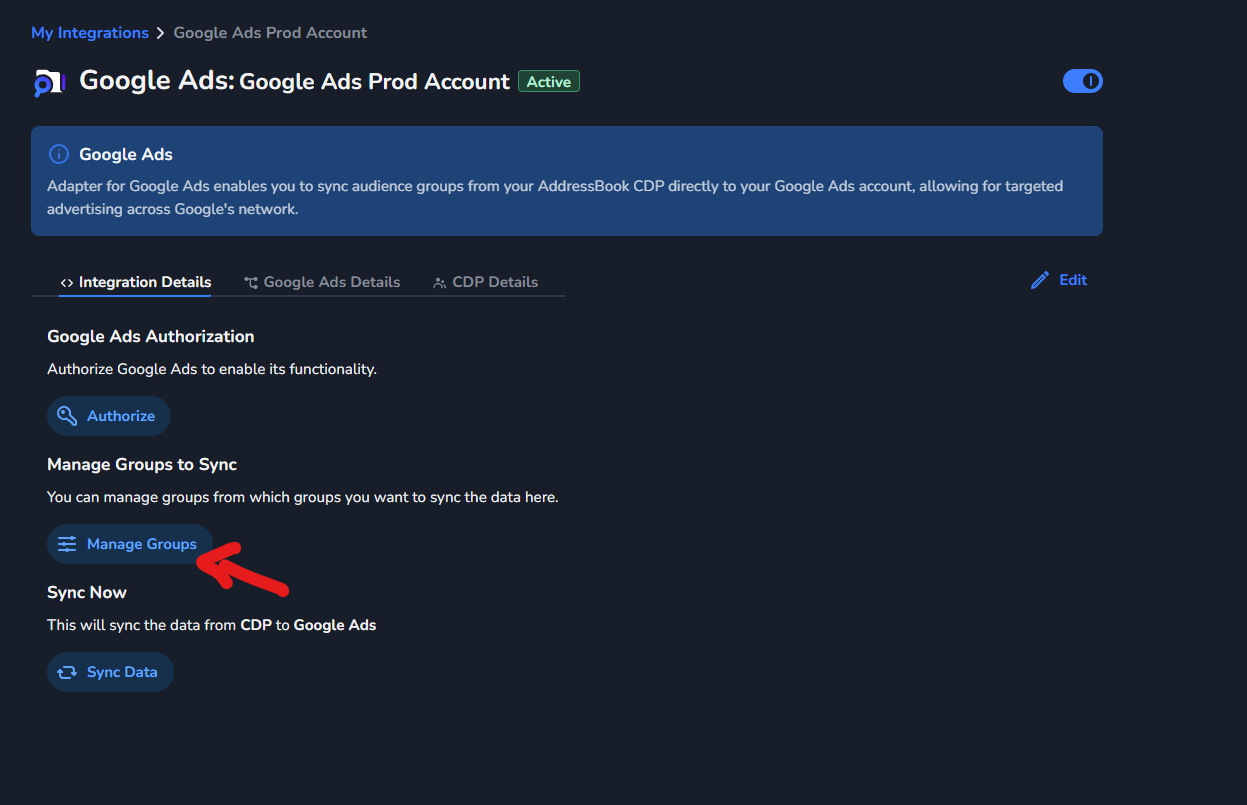
- Select the groups you want to sync with Google Ads.
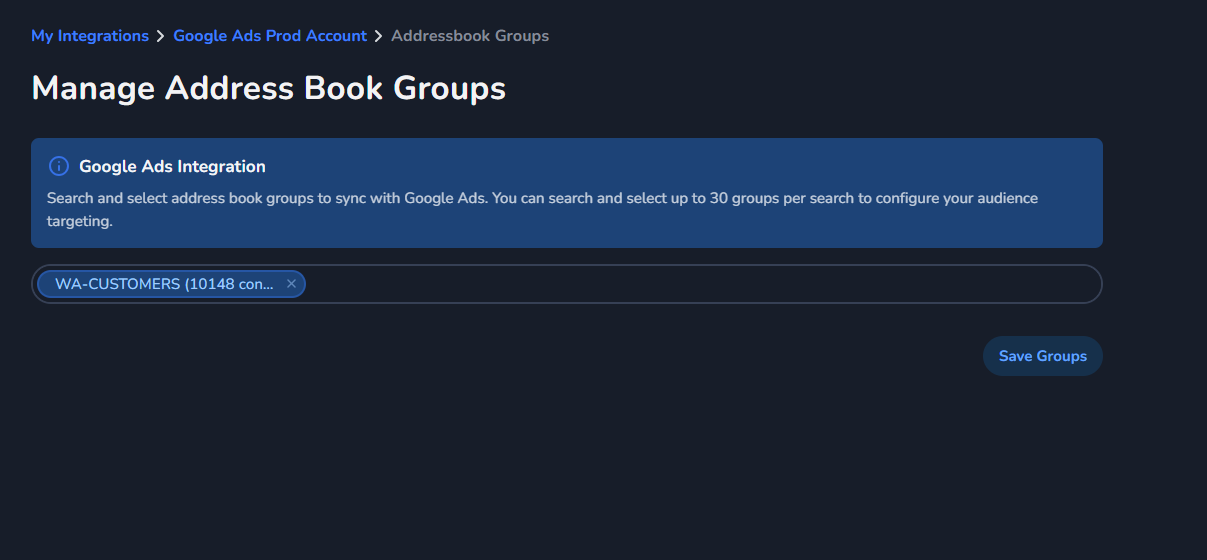
4. Choose Your Audience Source
Google Ads Customer Match lists can be synced from either of the following (pick one per adapter):
- AddressBook Groups, or
- CXP Segments — segments built in CM's CDP/CXP platform.
If using AddressBook
- In the Marketplace platform, go to the Integration Details section under Google Ads.
- Click on Manage Groups.
- Select the group(s) you want to sync with Google Ads.
If using CXP Segments
- Provide your CXP Tenant ID to the CM delivery team so it can be configured on your adapter.
- In the Marketplace platform, go to the Integration Details section under Google Ads.
- Click on Manage Segments.
- Select the segment(s) you want to sync with Google Ads.
- If a segment has more than one email-type property, choose which one to use — if it only has one, it's selected automatically.
Only one source is active per adapter at a time. Switching sources is non-destructive — your existing configuration for the other source is kept.