Set up automatic reports
Get your quality dashboard sent to your email automatically — weekly, twice a month, or monthly.
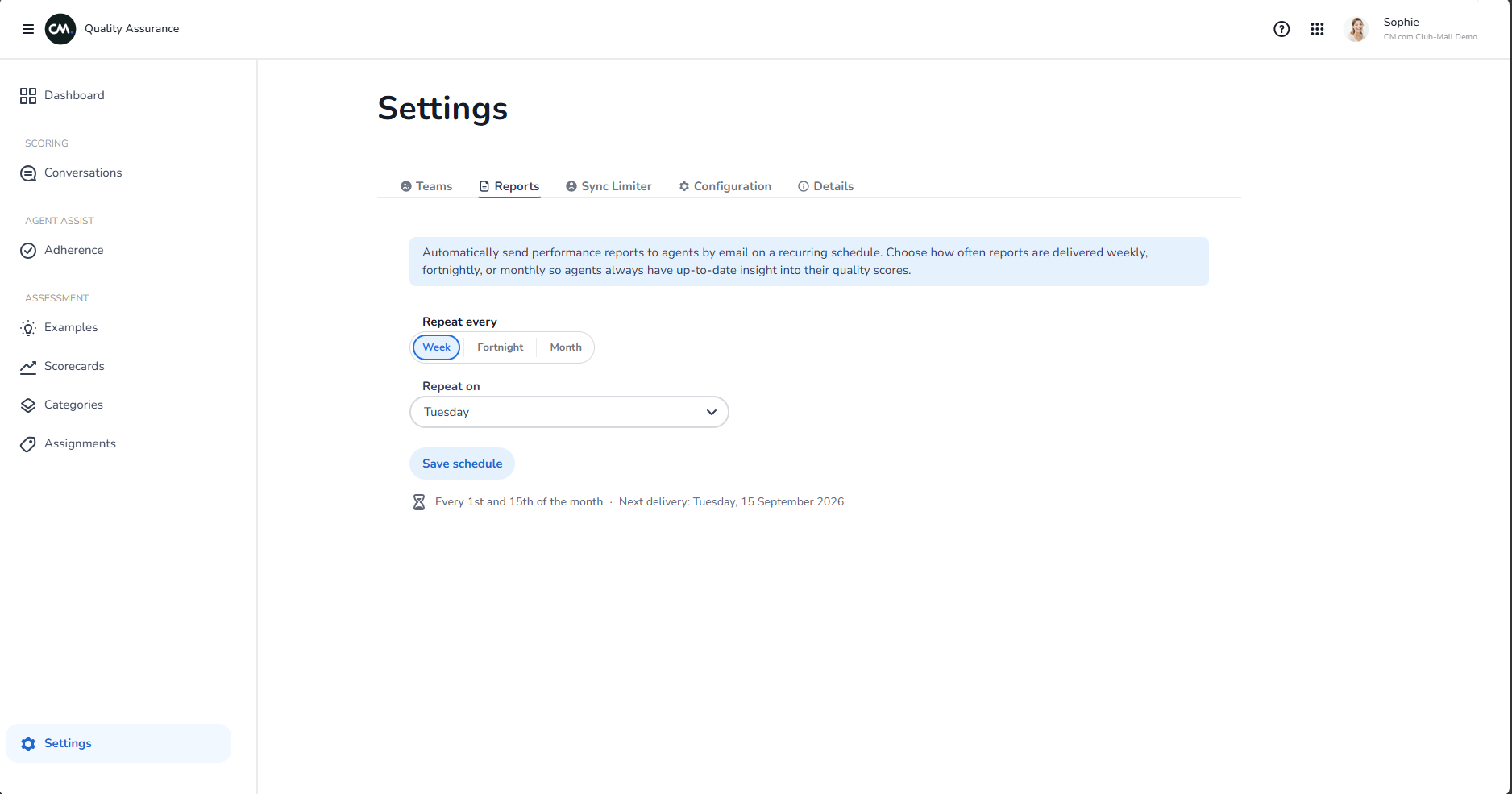
How to create a scheduled report
- Go to Settings → Reports tab
- Choose a cadence:
- Weekly — pick a day of the week
- Fortnightly — 1st and 15th of each month
- Monthly — 1st of each month
- Click Save schedule
The first report runs at the configured time, then repeats on the interval.
What's included in each report
Every scheduled report contains:
-
Dashboard summary widgets
- Total conversations scored in the period
- Average score with trend indicator
- Score trends over time (line chart)
-
Coaching heatmap
- Average score per agent × category
- Identifies low-scoring combinations at a glance
-
Agent leaderboard
- Top 5 agents by average score
- Medal badges for 1st–3rd place
All metrics reflect current account data (not a snapshot). Filters applied to report settings carry through to each delivery.
Scheduling options
Weekly
- Runs every selected day at 00:00 UTC
- Example: "Every Monday at 00:00 UTC"
Fortnightly
- Runs on the 1st and 15th of each month at 00:00 UTC
- Example: "1st and 15th at 00:00 UTC"
Monthly
- Runs on the 1st of each month at 00:00 UTC
- Example: "1st of each month at 00:00 UTC"
Managing your schedule
View next delivery: Look for "Next delivery" date displayed after saving — confirms the schedule is active.
Change cadence: Select a new cadence and click Save. The new schedule takes effect immediately.
Stop reports: Clear the cadence selection and save. No further reports will be sent.
Filters & recipients
- Report metrics reflect the account's current data (not filtered by channel/team unless applied in Settings)
- Recipients are configured separately in the Reports tab
- Recipients receive the PDF report via email at the scheduled time
Tips
- Test with weekly cadence first to review report format
- Adjust cadence to match your coaching cycle (weekly for active coaching, monthly for summary reviews)
- Share reports with team leads for channel/department-level coaching