Onboarding
This guide walks you through getting Quality Assurance (QA) up and running: ordering it, understanding where your conversations come from, connecting Halo AI, and giving your team access.
Before you start
Order Quality Assurance
QA is ordered as the product Mobile Service Cloud Quality Assurance on your CM.com account. Ordering sets up your QA environment automatically, including:
- A Halo AI profile called Quality Assurance
- A root agent called Quality Assurance Agent
- A starter set of QA template criteria and scorecards
Wait for your Agent Inbox connection
After you order, CM.com connects QA to your Agent Inbox. Conversations only start arriving once that is done. CM.com will let you know when your Agent Inbox is connected.
What to expect from the first sync
- The first sync covers roughly the last day of conversations. Older conversations are not imported.
- Your first results appear the day after the connection is made.
If QA isn't set up yet
If QA has not been set up for your account, you will see this message:
MSC QA is not configured – MSC QA has not been set up for this account. Contact sales to get started.
Trial accounts and the Sync Limiter
If you order QA as a trial, the account is marked as a trial and the Sync Limiter is enabled. The Sync Limiter controls how much data is imported, and therefore how much Halo AI analysis (usage) your trial consumes.
Where to find it
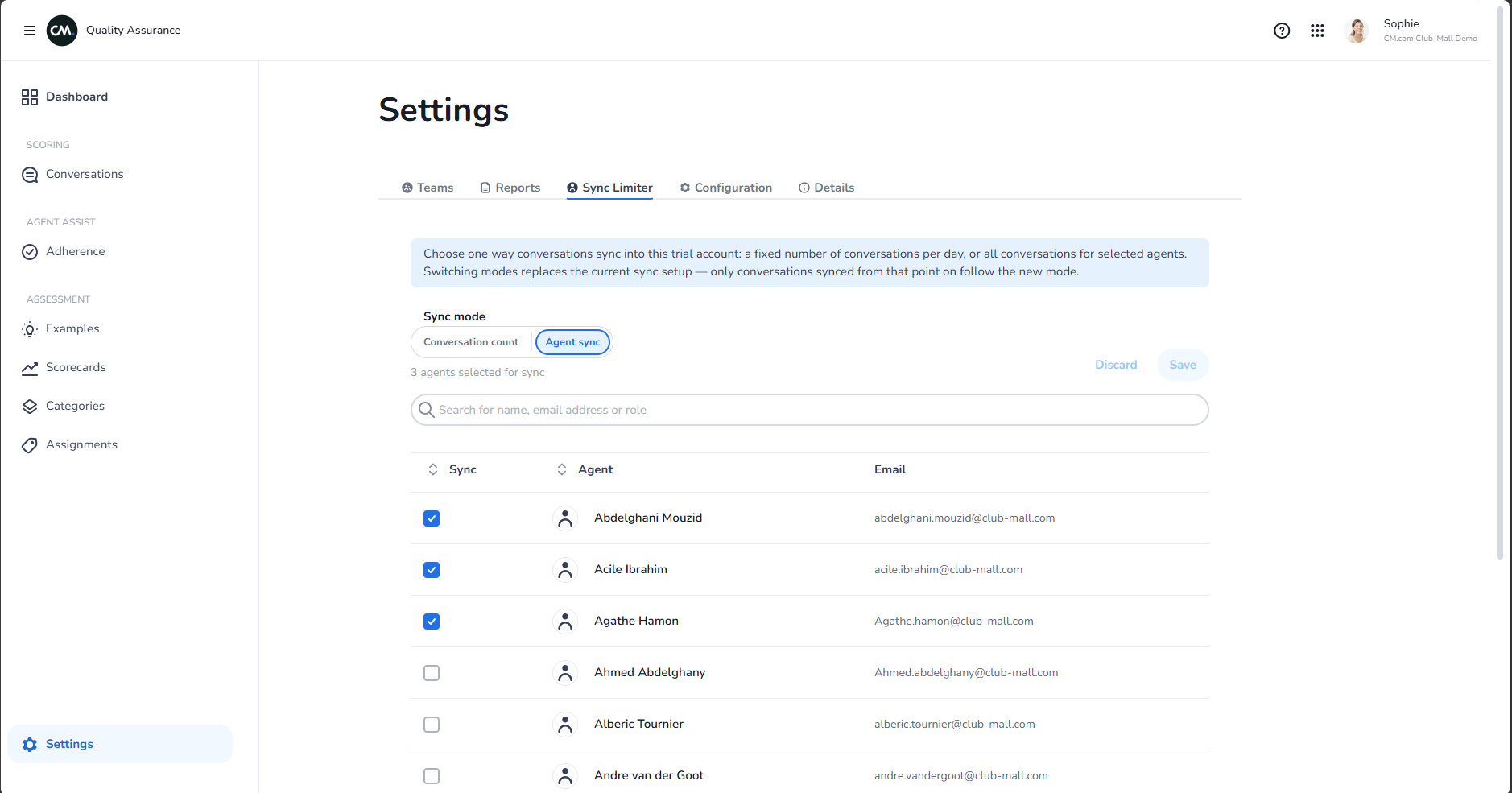
Go to Settings and open the Sync Limiter tab.
- The tab is only shown for trial accounts.
- Paid accounts see an Agents tab instead.
Choose a sync mode
Under Sync mode, pick one of two options.
| Mode | What it imports | Settings |
|---|---|---|
| Conversation count | The newest conversations each day, across all agents. | Conversations per day: default 10, minimum 1, maximum 100. |
| Agent sync | All conversations handled by the agents you tick in the Sync column. | Select the agents to include. |
Agent sync has no daily count cap. Your usage depends on how many agents you select and how busy they are. We recommend choosing a small, representative set of agents, and always selecting at least one agent.
Only agents that already appear in the QA agent list can be selected.
Good to know
- Switching mode replaces your current setup. Switching to Conversation count clears your agent selection. Only conversations synced from that point on follow the new mode.
- Reaching the daily limit is not an error. The remaining conversations for that day are simply not imported, and no message is shown.
- Only conversations are limited. The limiter affects which conversations are imported and analysed. Your agent list, channels and tags still sync fully.
- Converting to paid removes the limiter. When your account changes from trial to paid, the limiter and your trial agent selection are removed, and all qualifying conversations sync.
For more detail, see Sync limiter.
How conversations reach QA
Where conversations come from
QA uses the conversations in your CM.com Agent Inbox, across all connected channels such as chat, WhatsApp and social. This includes voice calls handled with Native Voice, whose live transcripts are included.
Which conversations qualify
A conversation is imported when it is closed or archived and a human agent who owns the conversation replied to the customer.
These conversations are skipped:
- Conversations handled only by a bot
- Conversations that only contain internal notes
The daily schedule
Everything runs once a day. Times are in UTC.
Privacy
- Conversation content stays in Agent Inbox. QA keeps a reference to each conversation.
- For analysis, only customer-facing messages are used. Internal notes are excluded and formatting is stripped.
- The Halo agent anonymises personal data (a PII guardrail).
Conversation statuses
You will see these processing statuses in QA:
| Status | What it means |
|---|---|
| New | The conversation was imported and is waiting for AI review. |
| Halo processed | Halo AI has scored the conversation. |
| Halo failed | The AI review could not be completed. |
| Ignored | The conversation was set aside and is not part of your results. |
| Human completed | A reviewer adjusted or completed the review. |
| Human approved | A reviewer approved the result. |
How scoring works
Halo scores every conversation against a scorecard: the default scorecard, or the one assigned to that channel under Assignments. It gives category scores and feedback for each participant. These results feed your dashboards and reports.
Set up the Halo profile
This is normally done automatically when you order QA. To check or change it:
- Go to Settings and open the Configuration tab.
- Make sure Sync Enabled is on.
- Under Select Profile, pick your Halo profile. Profiles are shown as the profile name plus the customer name. The default is Quality Assurance.
- Under Select Agent, pick the root agent, Quality Assurance Agent. This field is disabled until you select a profile, and changing the profile resets the agent.
- Click Update. You will see Configuration updated successfully.
If no profile or agent is selected, conversations still sync but are not AI-reviewed. Always keep both filled in.
Optionally, you can set a different Halo agent, profile or scorecard for individual channels under Assignments.
Agents, teams and access
Agents
Agents sync daily from Agent Inbox. Only active users are synced, and users who are removed or deactivated in Agent Inbox are removed from QA.
Agents are linked to their CM.com login by email address. Make sure the email address in Agent Inbox matches the user's CM.com account email.
Teams
Go to Settings and open Teams. Upload an Excel file with the columns Lead, Member and Team Name. Team leads see only the conversations of their own team members. See Upload your team for details.
Roles
Roles are assigned through CM.com user permissions.
| Role | What the user can do |
|---|---|
| Read | View the dashboard and conversations. Without the edit role, users see only their own team's conversations. |
| Write | Everything in Read, plus categories, scorecards, assignments, examples and settings. |
| Admin | Full access. |
Users without access see Unauthorized Access.
New to QA? Use the in-app product tour for a guided walkthrough.
Quick-start checklist
- Order QA (trial or paid).
- Wait for CM.com to confirm the Agent Inbox connection.
- For a trial, configure the Sync Limiter.
- Check the Halo profile and agent under Configuration.
- Review or adjust the default scorecard.
- Upload your teams.
- Assign roles.
- Check your results the next day.