Review and score conversations
Review individual conversations and score them based on your quality standards. You can agree with the automatic score or change it if you think something was scored wrong.
1. Open the conversations list
Go to Conversations in the side navigation. The table lists every synced conversation with its feedback/severity icon, participants, score %, topic, channel, owner, archive date, department, and language.
Use the filter bar to narrow the list by period, channel, feedback, team, department (webstore), or a free-text search. Filters are sorted/paginated server-side, so large accounts stay fast.
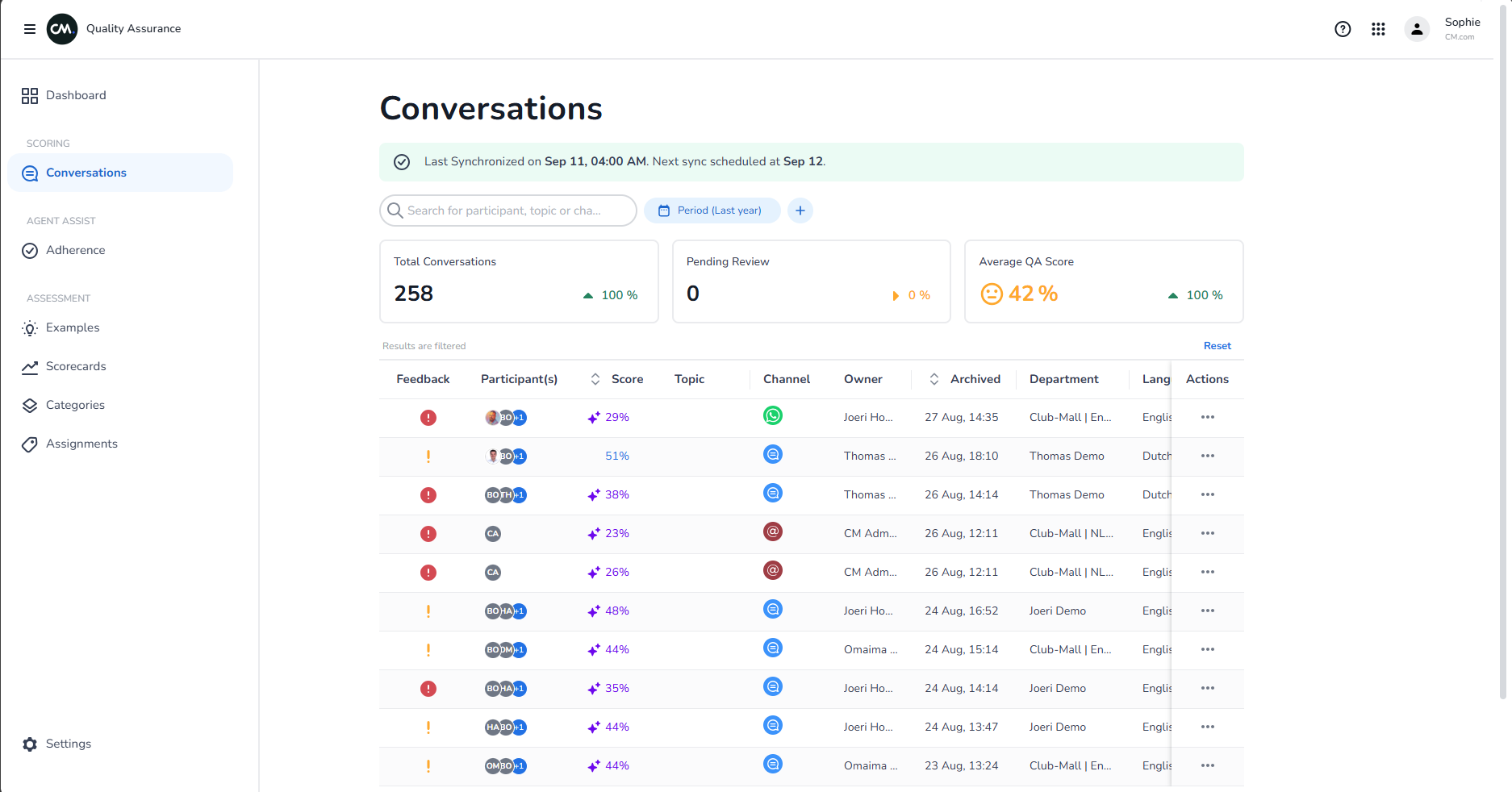
2. Open a conversation
Click a row, or use the row's actions menu → Review, to open the conversation.
3. Read the transcript and AI scores
The review screen shows the full transcript next to the scoring panel. Each focus area groups the categories from the assigned scorecard; each category shows either:
- a Binary rating (e.g. Yes/No, Satisfied/Unsatisfied), or
- a Numeric rating (an ordered scale of levels)
Scores the AI already produced show a blue AI tag.
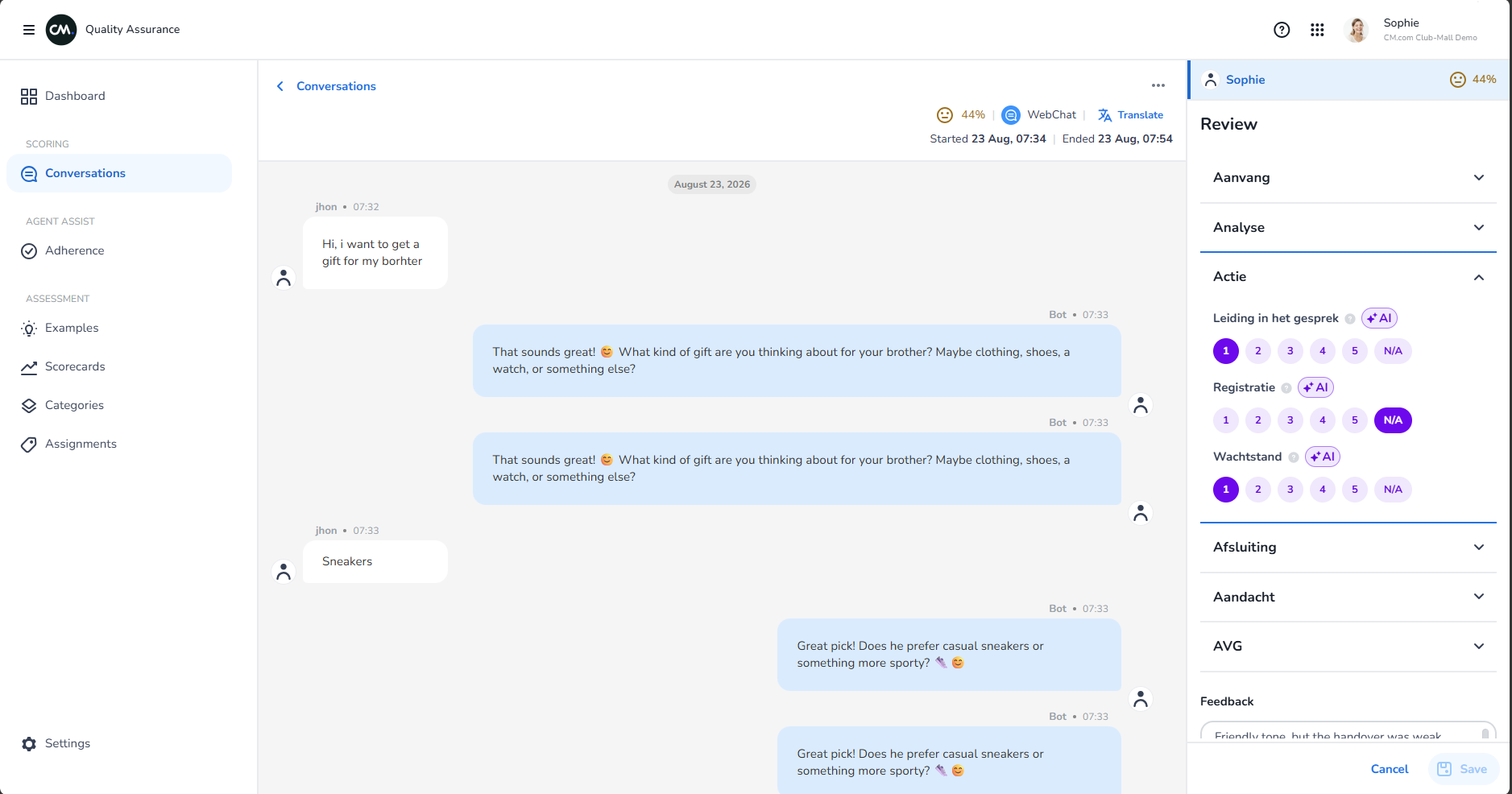
4. Override a score or add feedback
Click any category's rating to override the AI's score — the AI tag disappears once a human value is set. Feedback per profile is capped at 100 words.
If you only have Read permission, the panel is read-only — overriding scores requires Write.
5. Save or approve
- Save stores the review as a draft (
saved). - Approve marks the review as final (
approved).
6. Retry a failed AI review
If Halo scoring failed, the conversation shows status Halo failed and a Review Now button appears. This re-queues the conversation for AI scoring (enqueue-review).
7. Translate the conversation
Use the language dropdown in the conversation header to translate both the transcript and reviewer feedback. Toggle View Original / View Translated in the feedback panel to switch back.