Assign scorecards
Use different quality scorecards for different channels (email, chat, phone) or departments if they have different quality standards.
Why do this?
Different channels have different needs:
- Email support — needs clarity and detailed answers
- Chat support — needs speed and quick solutions
- Sales calls — needs relationship building and product knowledge
So you might use different scorecards for each.
How it works
- You pick which channels/departments get which scorecard
- Conversations are automatically scored with the right scorecard
- You see performance separately for each
Set up assignments
- Go to Assignments in the left menu
- Choose Channels or Departments (two tabs)
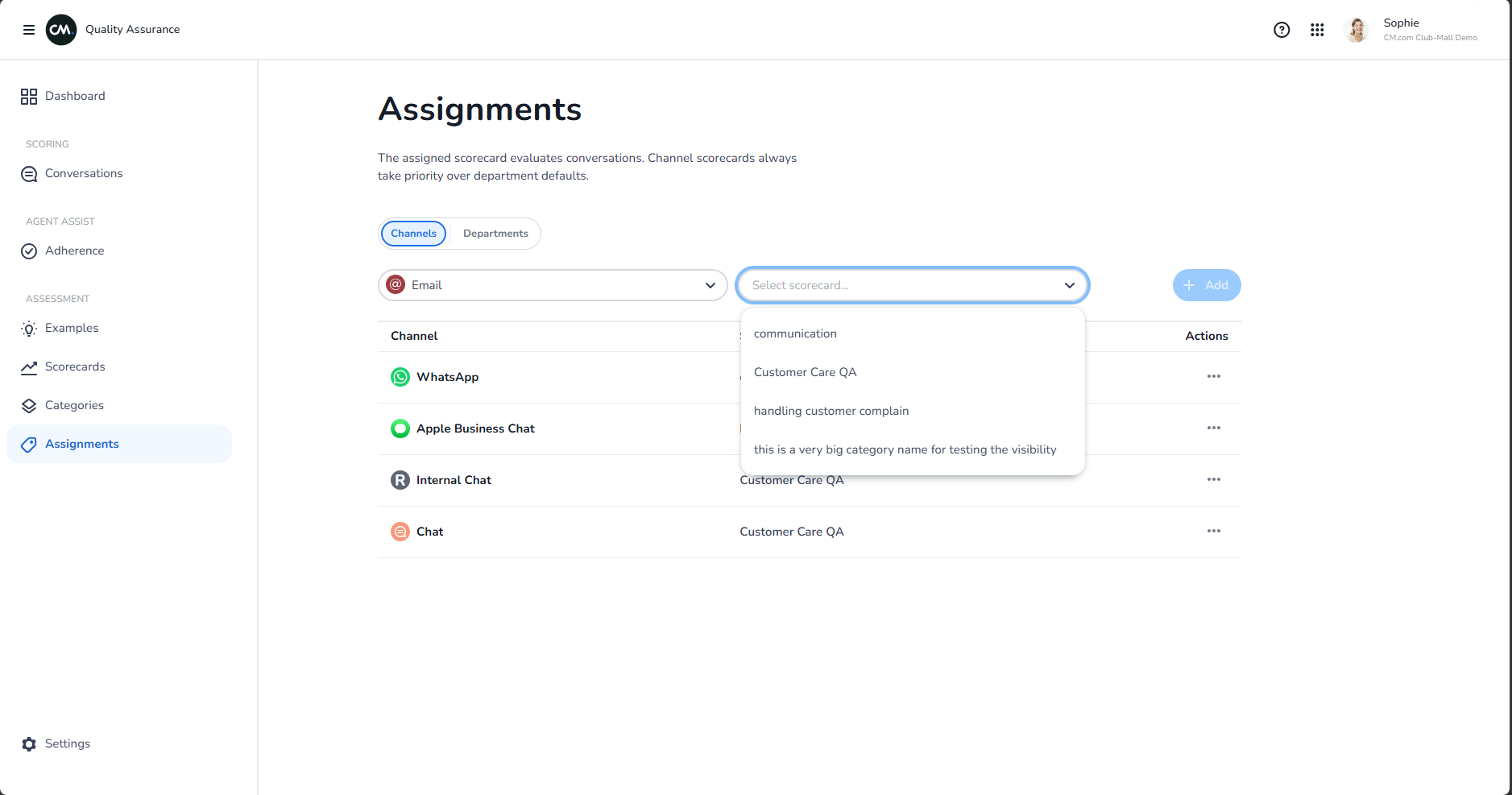
- Find the channel or department
- Pick a scorecard from the dropdown
- It saves automatically
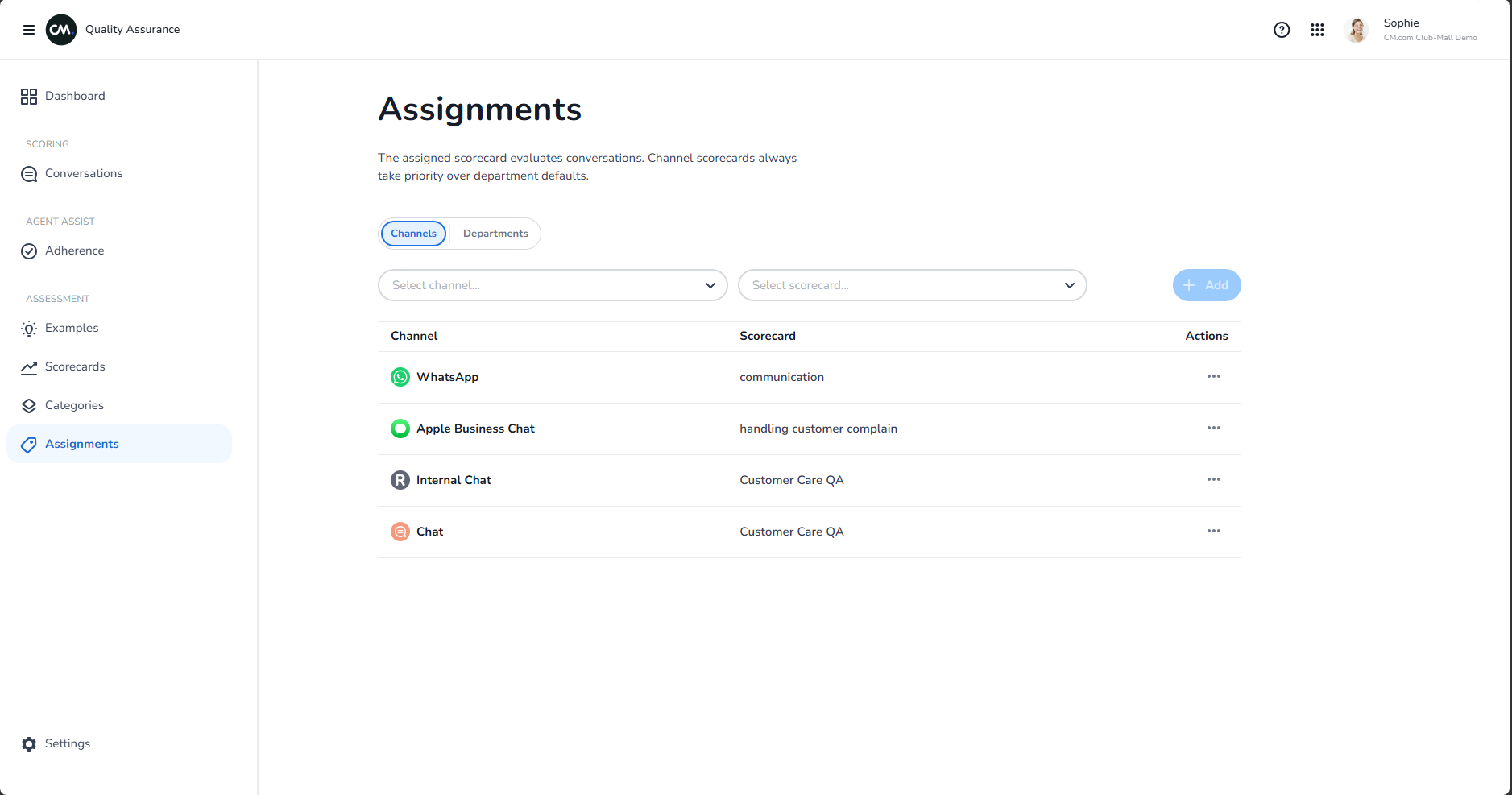
Channel vs. Department
- Channels — how customers reach you (email, chat, phone, etc.)
- Departments — your internal teams (sales, support, billing, etc.)
If you set up both:
- Channel assignment wins (takes priority)
- If no channel assignment, department assignment is used
- If neither, the default scorecard is used
Examples
By channel:
- Email → "Detailed Support" scorecard
- Chat → "Quick Support" scorecard
- Phone → "Personal Support" scorecard
By department:
- Sales team → "Relationship Building" scorecard
- Support team → "Problem-solving" scorecard
- Billing → "Accuracy & Compliance" scorecard
Edit or remove
Click the scorecard dropdown to:
- Pick a different scorecard
- Remove the assignment (leave blank)
What you'll see
After you set up assignments:
- Each conversation is scored with the right scorecard
- Dashboards show performance separately per channel
- Reports break down results by scorecard used