Overview
A state is a distinct phase within a flow that determines how messages are routed at a given moment. Each state specifies which connections participate (for example, Conversational AI Cloud and a WhatsApp channel) and the directional links that define who sends messages to whom. One state is marked as the default and is used at the start of a new conversation; you can switch the active state in real time via our Routing control API to adapt the conversation (for example, hand over from bot to live agent).
Think of a flow as the use case ("help the customer with a bot; if that doesn't succeed, hand over to a human agent") and of its states as the phases of that use case: the first state routes the customer to the bot, the second routes the customer to the agent.
Where states live in the app
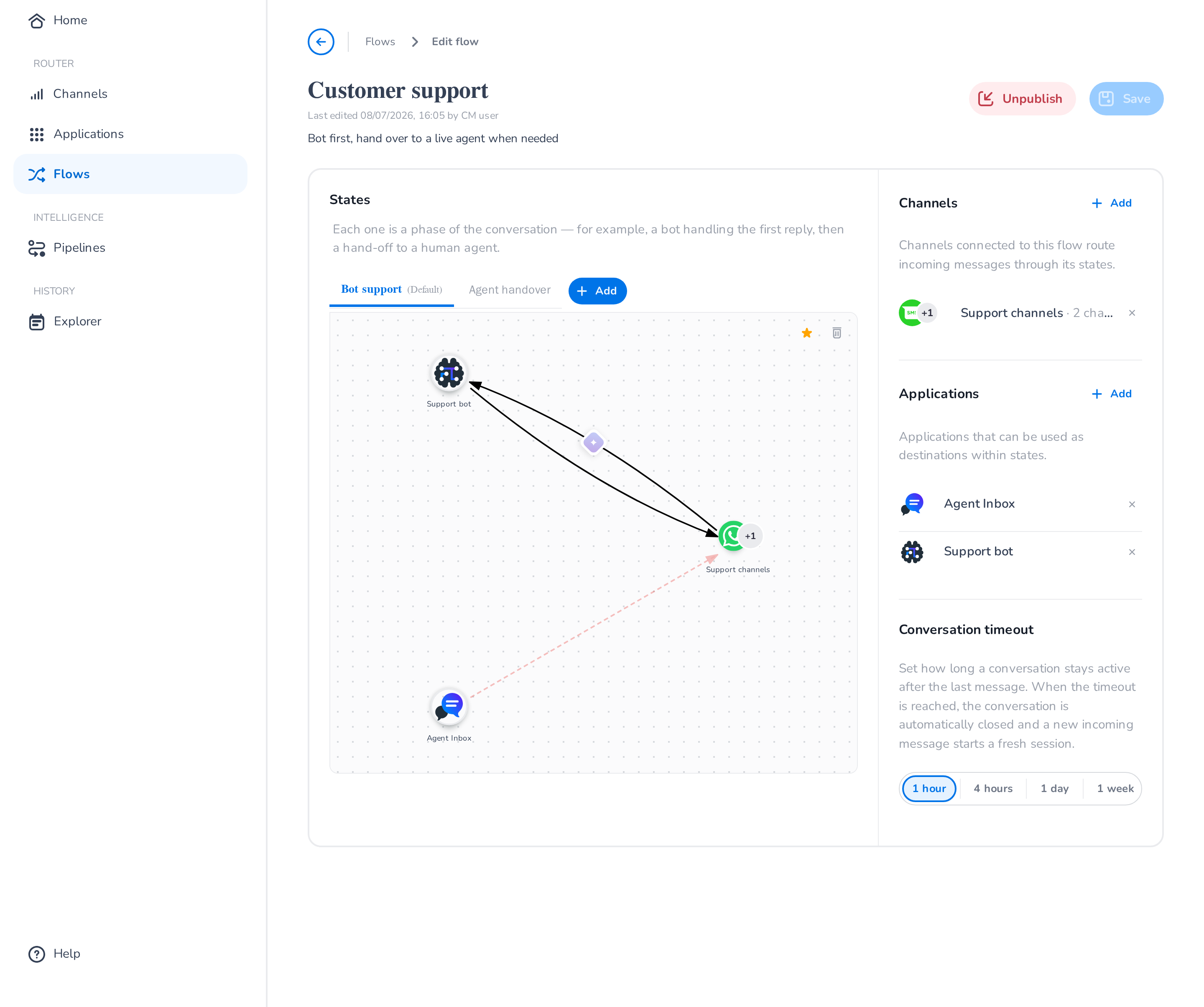
States are configured inside the flow editor: open the Flows page, select a flow, and find the States card. Each state is a tab above the canvas; the selected state's routing is drawn as a graph of the flow's connected channels and applications.
📘 State reusability
A state name is defined once per account and can be reused across flows. For example, with a flow per channel you can use the same "Contact Center" state in all of them. Each flow then holds its own link configuration for that state.
Configuration
Add a state
In the flow editor's States card, click Add state. The dialog offers two tabs:
- Use existing — pick a state name already defined on your account (for example one used in another flow).
- Create new — type a name to define a new state.
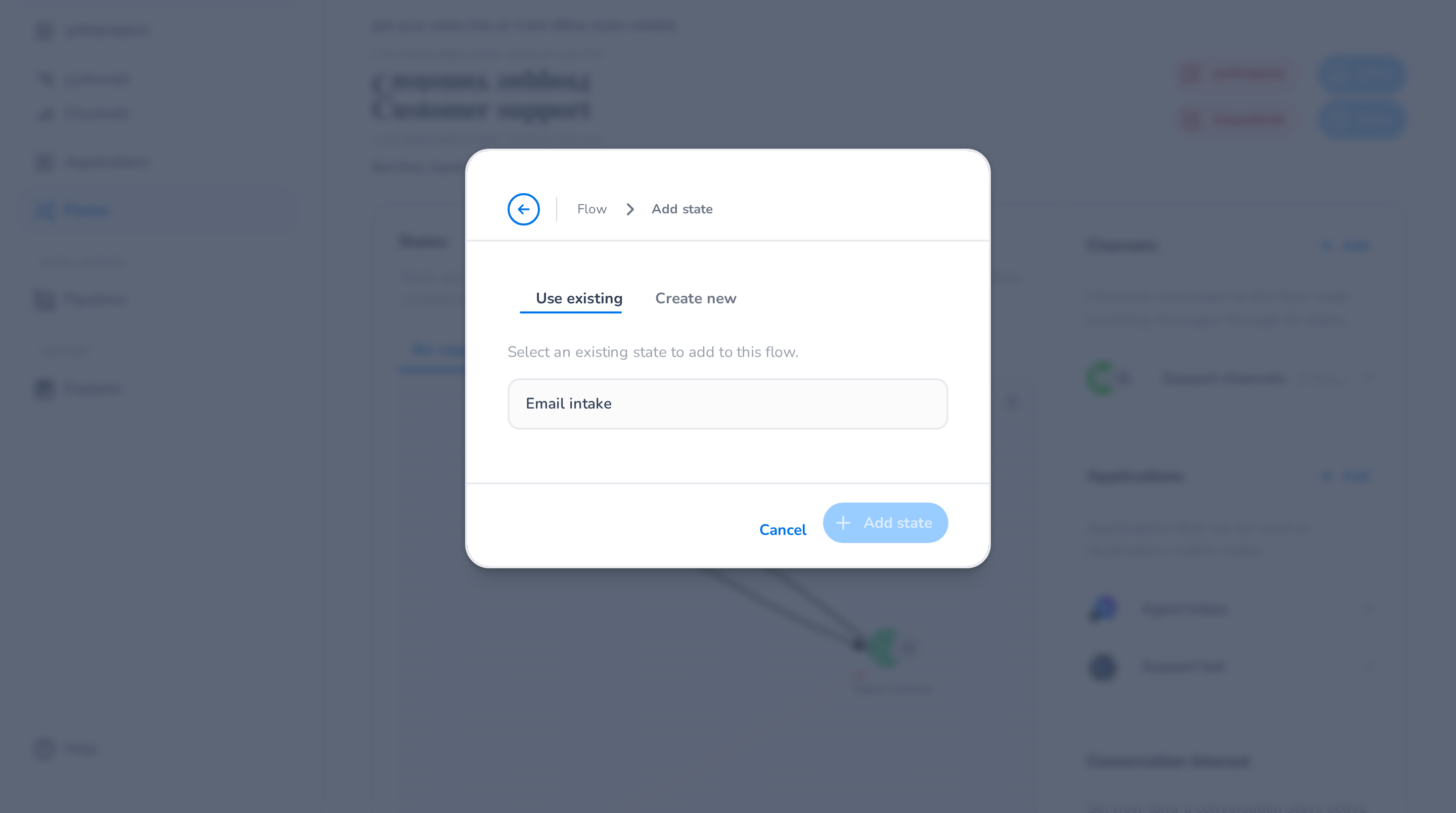
The first state you add to a flow automatically becomes its default state.
Define the routing links
Select the state's tab to see the graph. The nodes are the channels, channel groups, and applications connected to the flow; links between them define the routing. To create a link, drag a connection from the source node to the target node. Each link is a one-way path, so for a two-way conversation you create links in both directions.
States allow flexible routing configurations, such as fanning out from one connection to multiple targets — for example, route SMS messages to your bot while simultaneously mirroring them to a custom integration. If a connection you expect to use isn't visible in the graph, return to the flow's Channels / Applications sections to connect it first (see Flows).
Selecting a link opens a panel where you can delete the link or attach a pipeline to it — a sequence of processing steps (translation, content guards, and more) applied to messages travelling over that link. See Pipelines.
Default state
If a state is intended to be the starting point for conversations in the flow, click the star icon above the graph to designate it as the default state. The default state determines where new conversations begin.
📘 Default state
Only one default state is allowed per flow. Existing conversations remain in their current state unless explicitly switched. To change the active state of a running conversation, use the Routing control API.
Delete a state configuration
To remove a state from the flow, select its tab and click the trashcan icon above the graph.
❗️ Deleting a state configuration
Deletion is permanent once you save the flow. The default state of a published flow cannot be deleted — first designate another state as the default, or unpublish the flow.