Overview
Channels are the entry points of the Router: the messaging channels your customers use to reach you — WhatsApp, SMS, RCS, Facebook Messenger, Instagram, Email, Web Conversations, or a custom service speaking the TwoWay format. The Channels page lists all channels connected to your account and lets you organize them into groups.
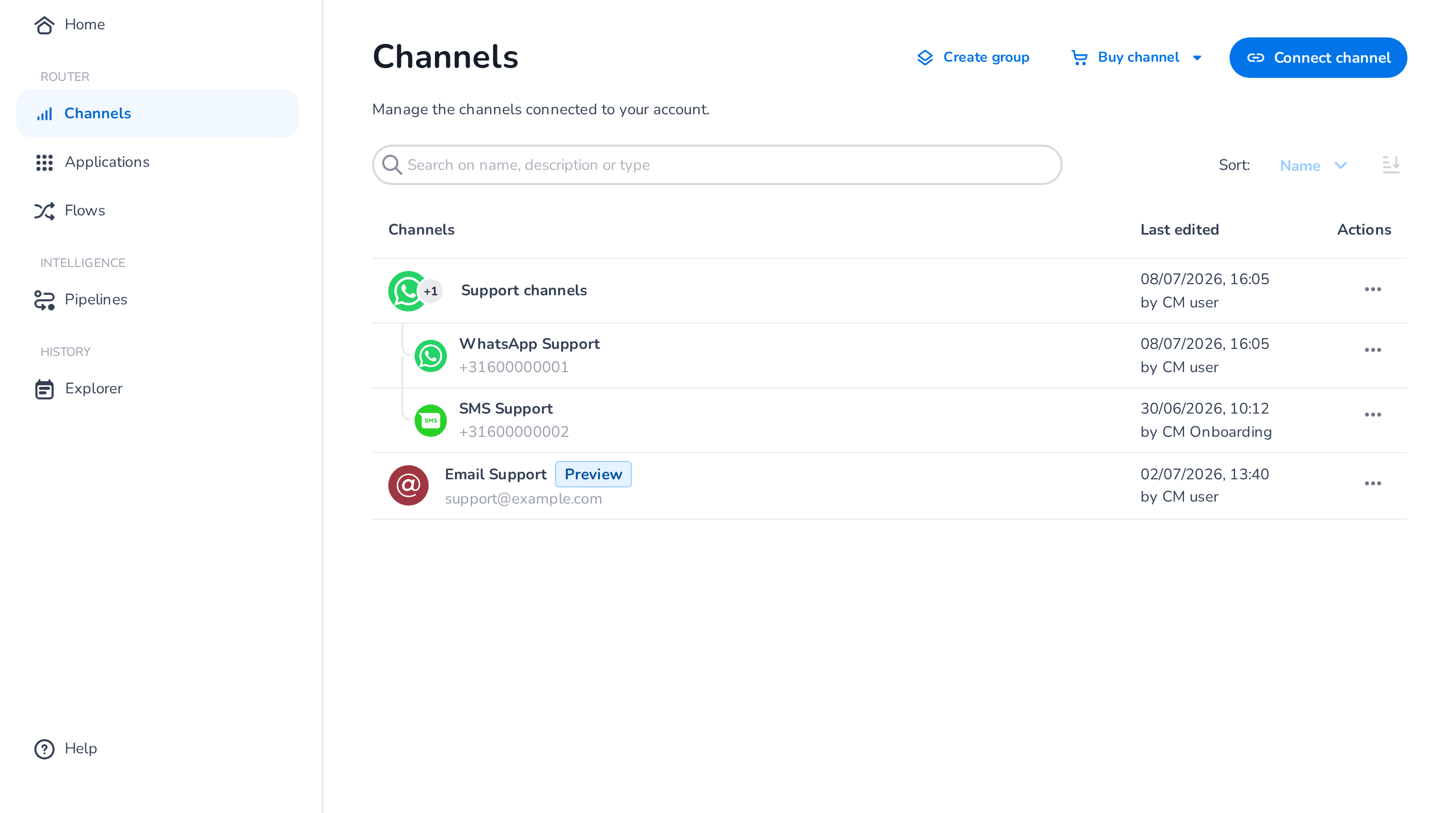
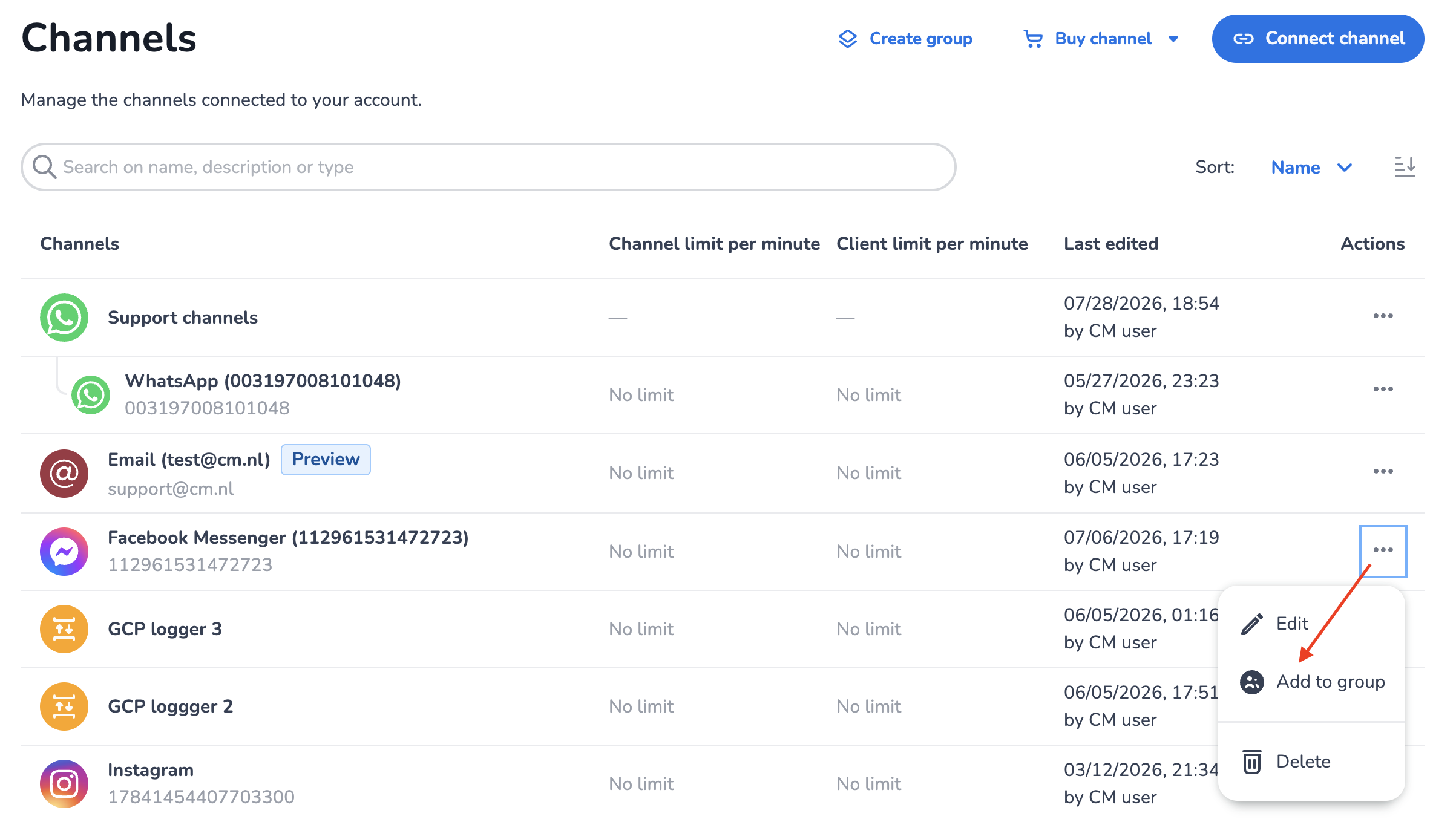
Each row shows the channel's name, its identifier (for example the phone number or sender address), and when and by whom it was last edited. Groups render as a parent row with their member channels nested beneath. You can search and sort the list.
Connecting and buying channels
The page header offers three actions:
- Connect channel — connect a channel identifier that is already provisioned on your CM.com account. Pick the identifier, optionally give the channel a clear name, and configure any channel-specific settings. See the per-channel pages under Connections for details and prerequisites.
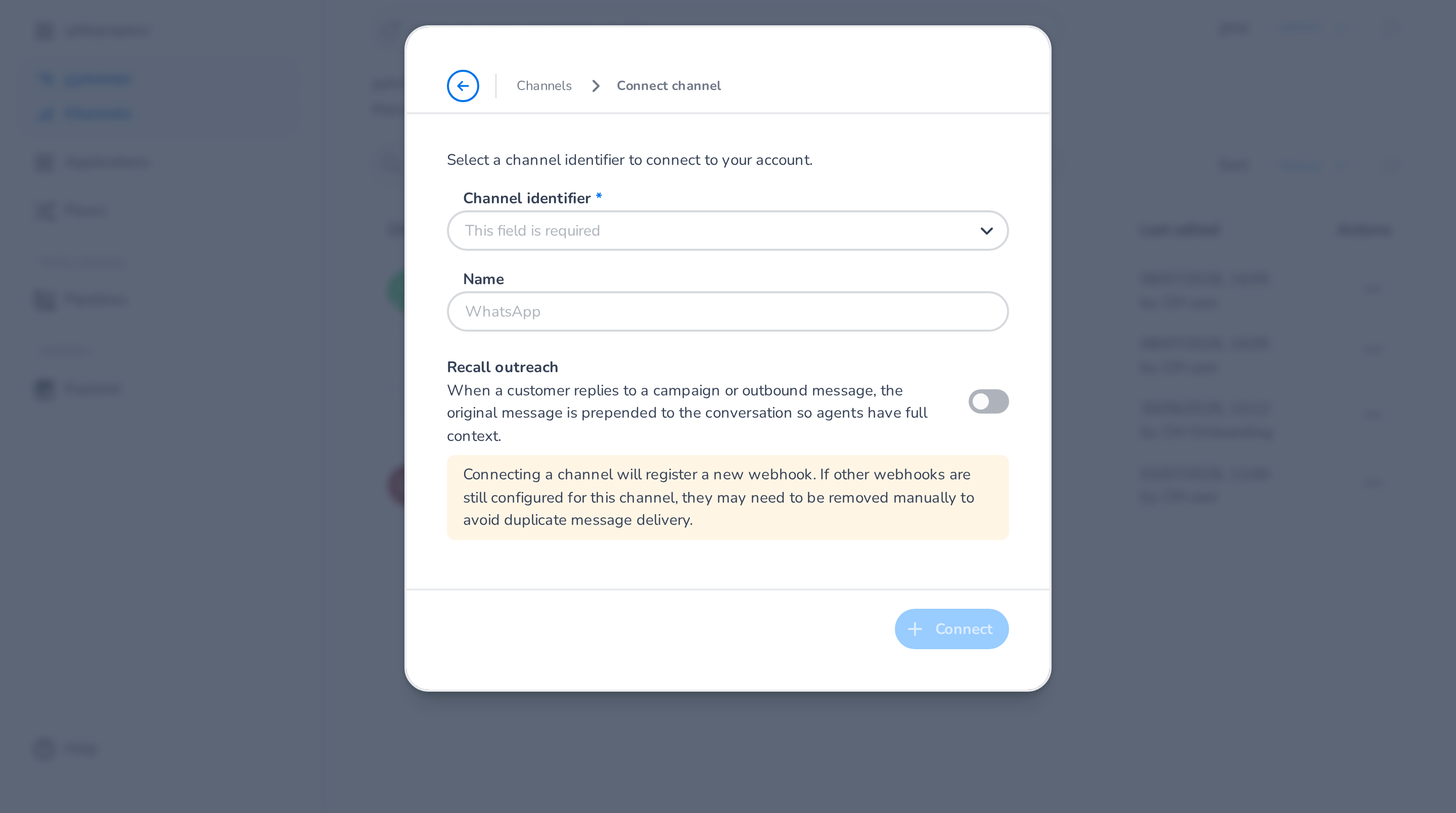
- Buy channel — a shortcut to acquiring new channel identifiers which will take you to the CM.com store; Custom service creates a connection for your own integration directly in the Router — see Custom service.
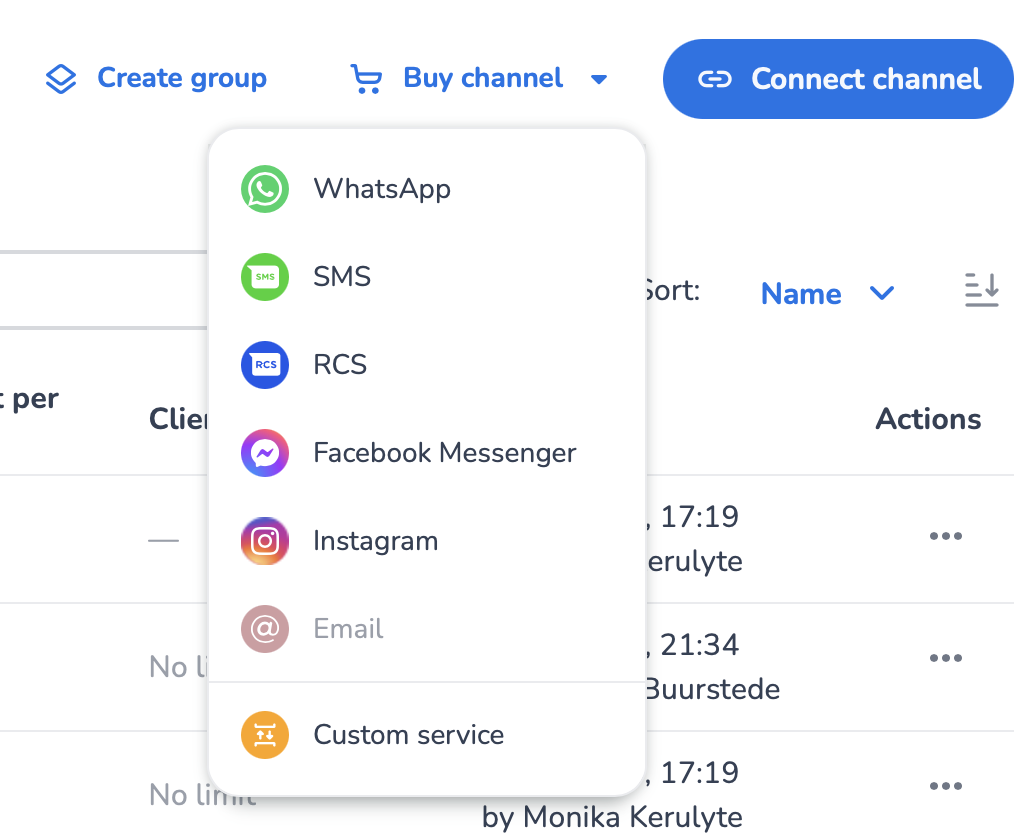
- Create group — organize channels into a group.
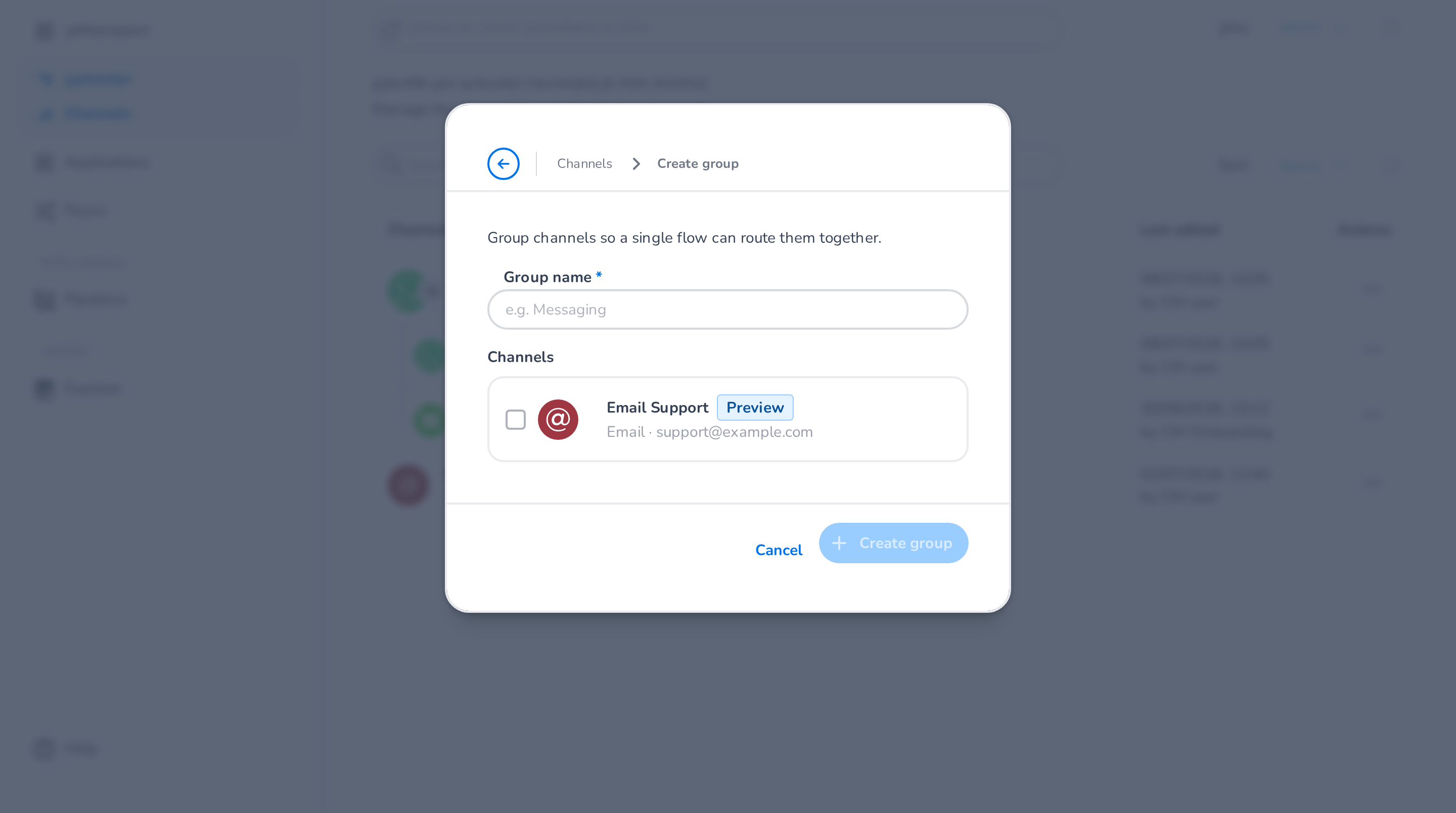
🚧 Webhook registration
Connecting a channel registers a new webhook for its identifier. If other webhooks are still configured for that channel, remove them manually to avoid duplicate message delivery.
Editing a channel
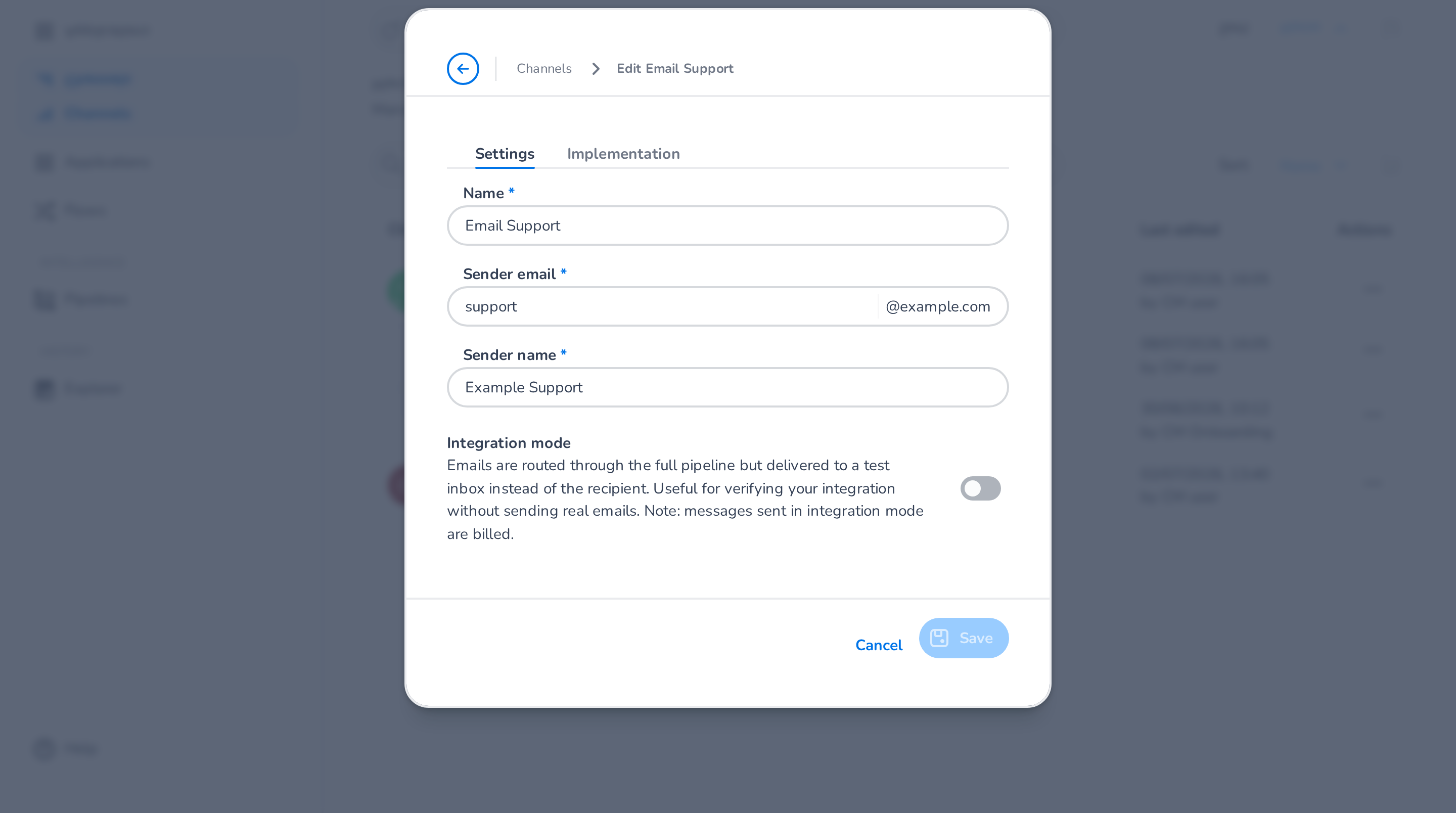
Click a channel row to edit it. Every channel has a Name; the remaining settings depend on the channel type — for example, SMS and WhatsApp offer a message-recall switch, Email has sender settings and an Implementation tab with your forwarding address, and a custom service has its message/event endpoints and implementation details. See the per-channel pages under Channels.
Deleting a channel
Open the channel's Actions menu (three dots) and choose Delete, then confirm.
📘 Channels used by a flow
A channel that is routed by a flow cannot be deleted — the option is disabled and a tooltip names the flow. Disconnect the channel from the flow first.
❗️ Deleted channel recovery
Once a channel is deleted it can't be recovered.
Channel groups
Groups let a single flow route several channels together — for example one "Support channels" group for your WhatsApp and SMS numbers. In a flow, a group counts as one connection; the Router fans messages out to the right member automatically.
📘 Group behavior
Grouping exists for configuration convenience; it does not change how individual conversations behave. A group must always keep at least one member. Deleting a group never deletes its channels.
Create a group
Click Create group, give the group a name, and tick the channels that should join. Only channels that are not in a group and not already routed by a flow can be added.
Edit a group
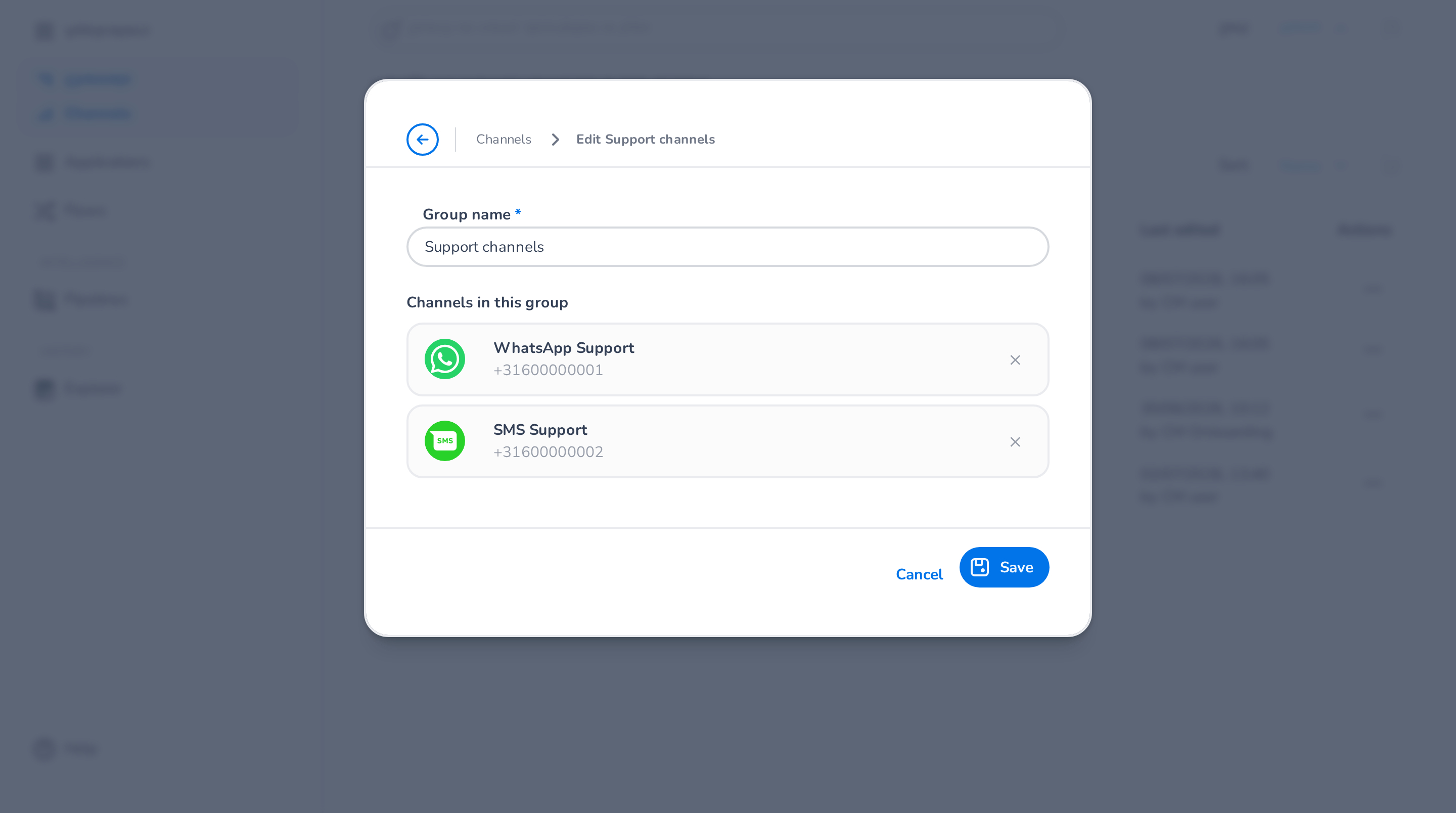
Click the group row (or its Actions menu → Edit) to rename the group or manage its members. Each member has a remove (×) button; a member channel's own settings are edited via that channel's row, not in the group.
Ungrouping and removing members
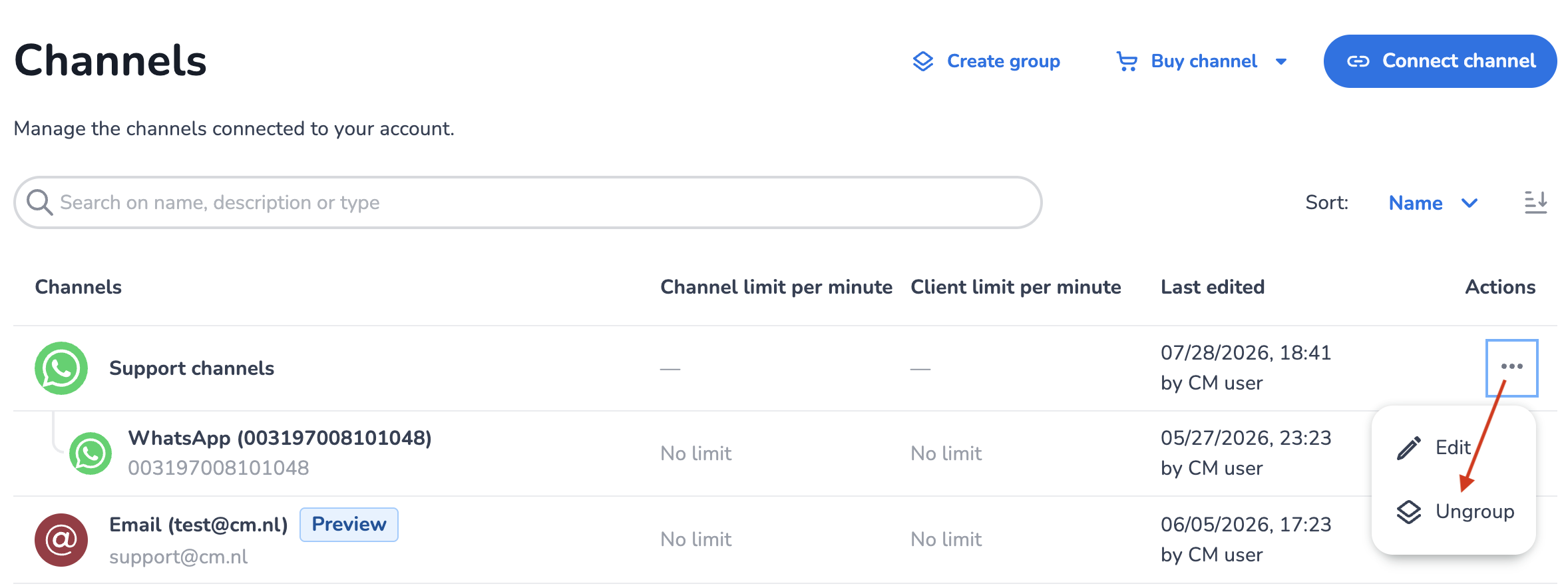
- A group's Actions menu offers Ungroup: the group is dissolved and its channels remain as individual channels.
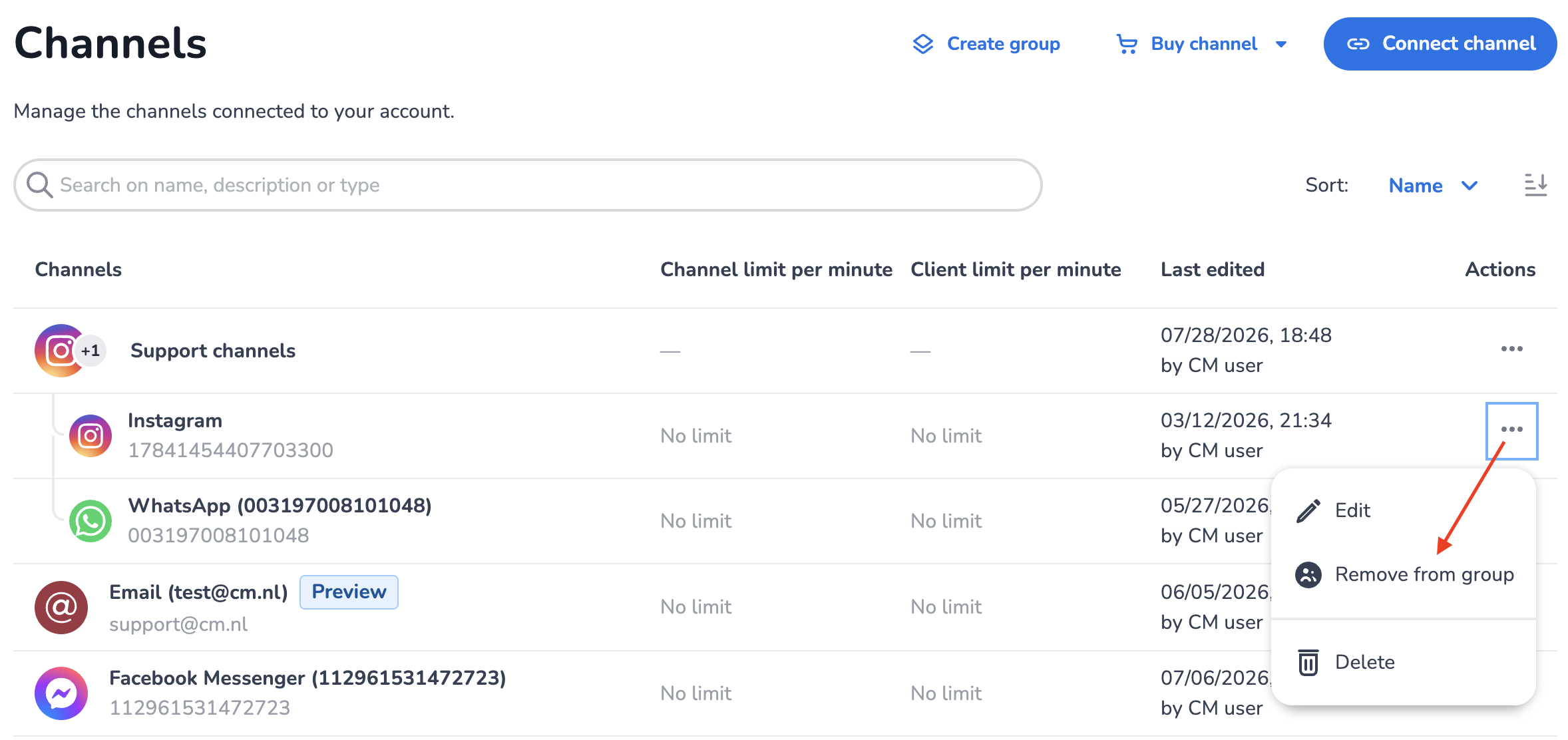
- A member row's Actions menu offers Remove from group.
- An ungrouped channel's Actions menu offers Add to group.
🚧 Groups routed by a flow
When a group is routed by a flow, destructive actions are restricted: the group cannot be ungrouped, flow-routed channels cannot be added to a group, and removing a member from the group asks for confirmation — the removal changes which channels the flow routes.